如果您为客户管理网站,您可以从您的账户收到关于您自己和客户网站漏洞或 HTTP 错误的电子邮件通知。
以下将逐步介绍如何启用网站监控功能。
在 Agency Hosting 套餐上:
第 1 步 —— 登录 hPanel。登录 Hostinger 账户后,您会在左侧边栏找到快捷访问区域。点击 Websites(网站) 下拉菜单下的 Monitoring(监控) 标签。
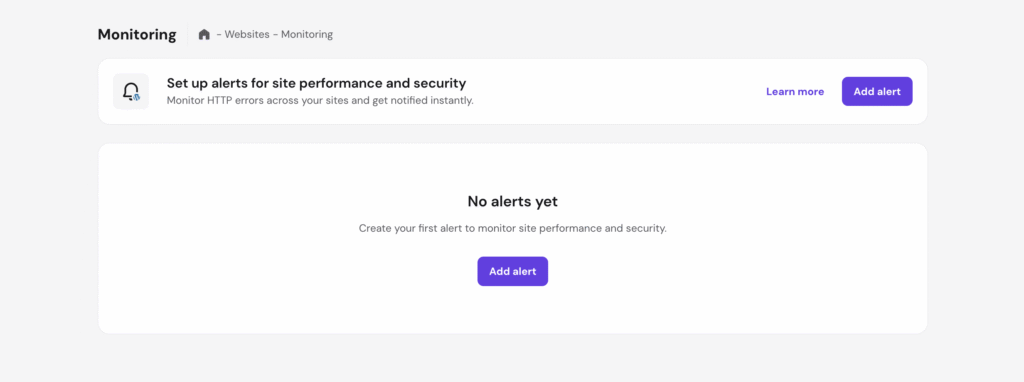
第 2 步 —— 点击 “Add alert(添加告警)” 按钮:
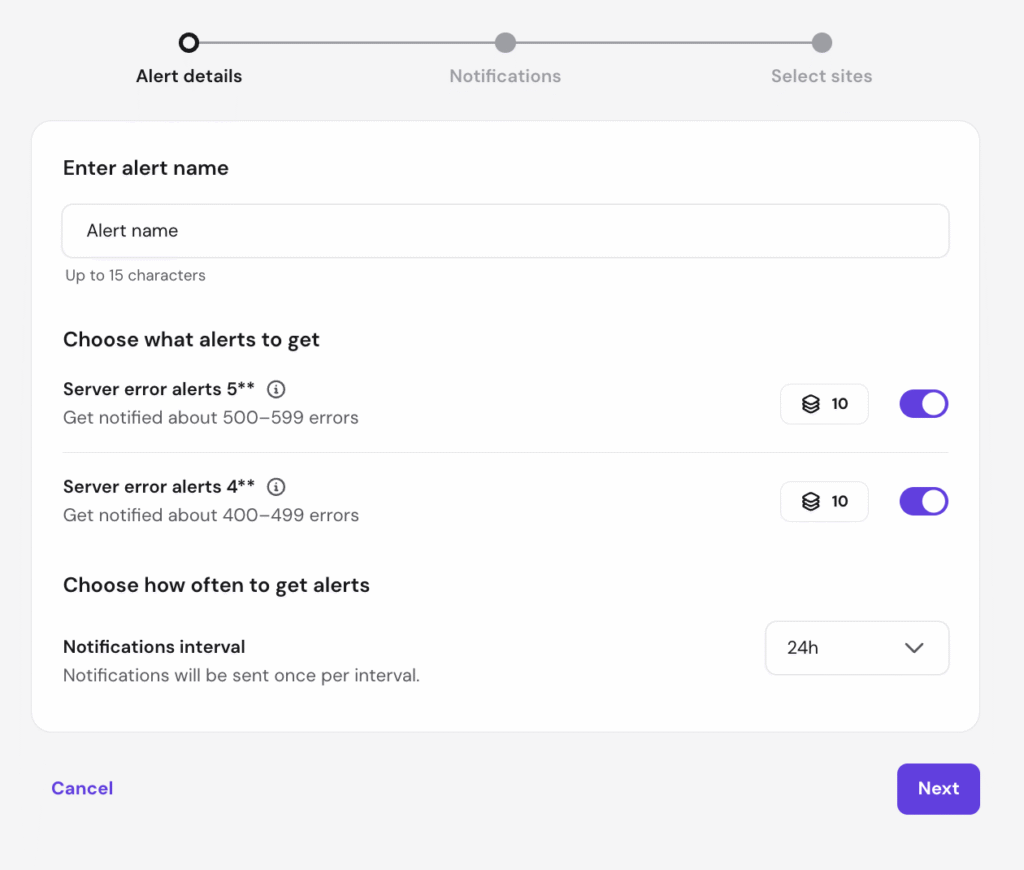
第 3 步 —— 自定义告警:
- 选择要追踪的错误类型 —— 5xx、4xx。
- 选择阈值 —— 选择触发告警前需要发生多少次错误。
- 选择通知间隔 —— 选择您希望接收告警的频率。
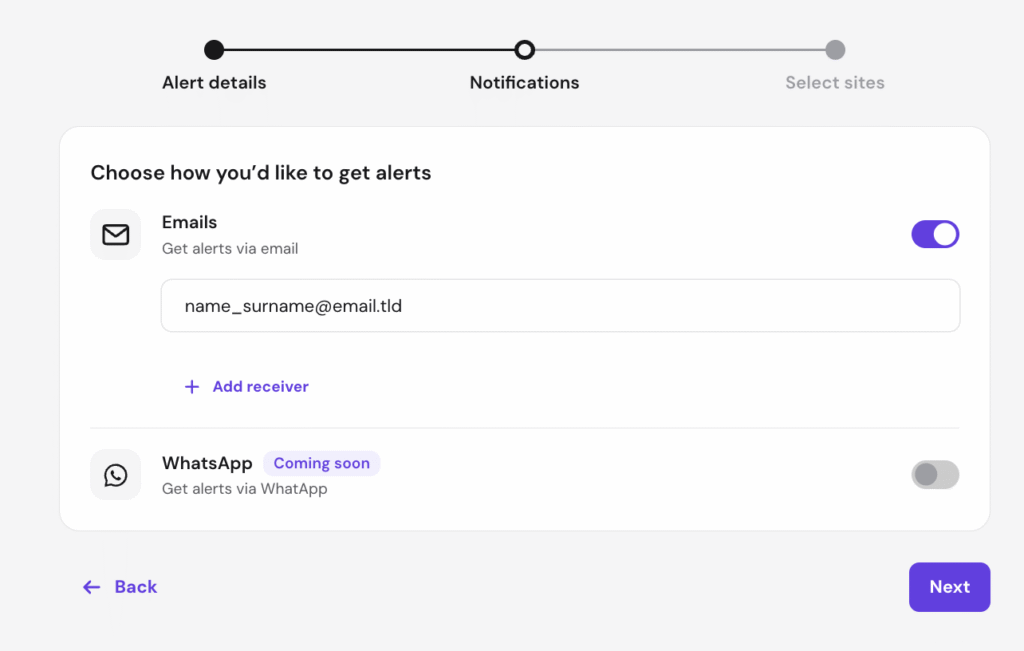
第 4 步 —— 选择接收告警的人员(可添加多个接收者):
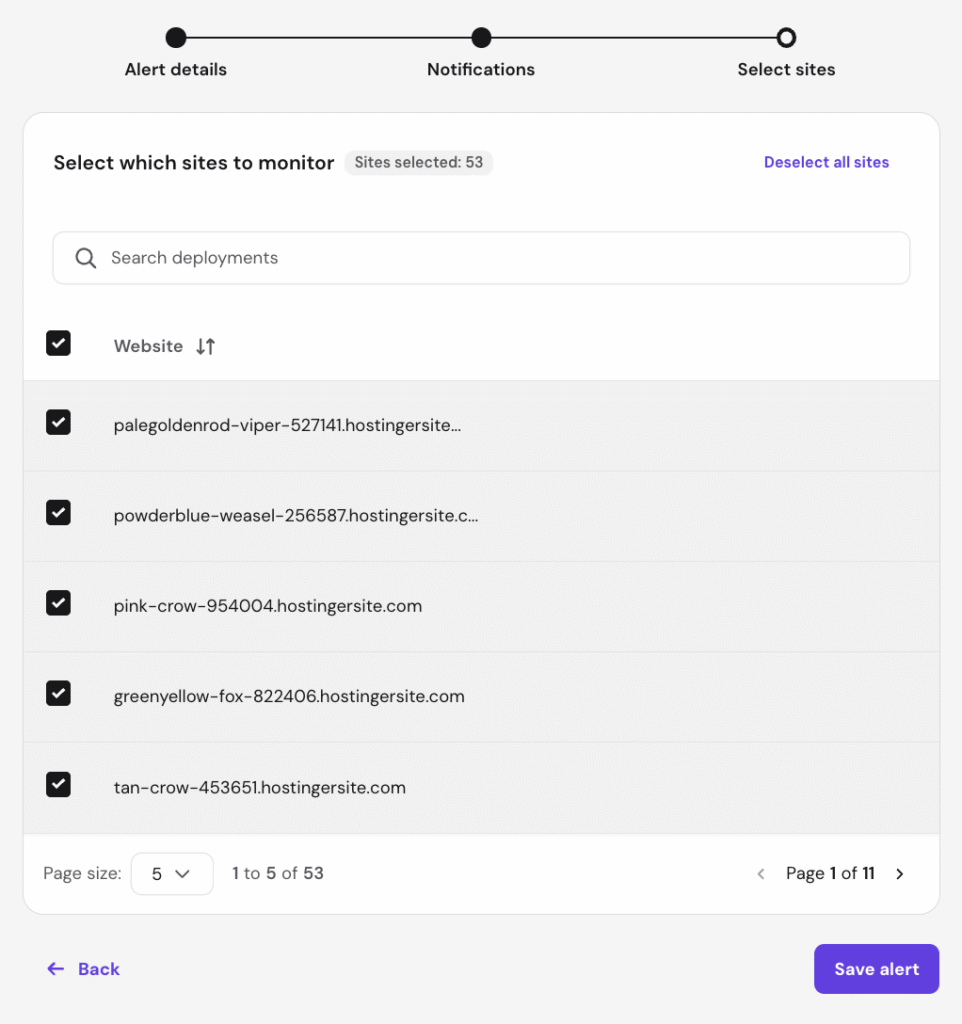
第 5 步 —— 选择要纳入该告警的网站:
然后保存告警!保存后,您会在 Monitoring(监控)区域看到结果:
您可以启用/禁用告警、编辑或删除它。
对于 WordPress Addons(附加组件):
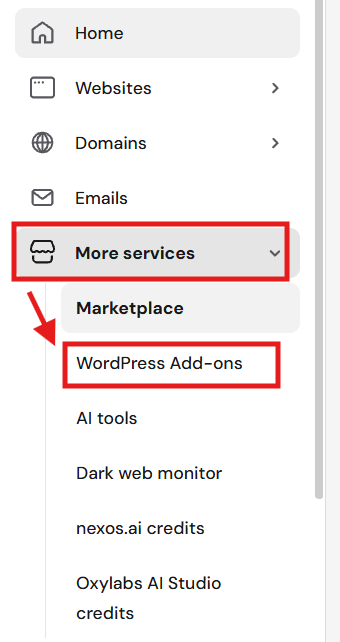
第 1 步 —— 登录 hPanel。登录 Hostinger 账户后,在左侧边栏进入 More services(更多服务) ❯ WordPress Addons(WordPress 附加组件)。
第 2 步 —— 点击 “Monitoring(监控)” 按钮。
WordPress 监控仪表盘会出现,显示您网站的性能与状态指标。在此区域,您还可以设置自动在线率告警。
重要提示:WordPress 监控功能仅限 Agency Hosting 套餐,或者需要在您的托管仪表盘中启用 WordPress Addons 功能。
错误通知详情

启用后,在以下场景中,会向您账户注册邮箱 发送电子邮件通知,涵盖您管理的网站(无论归您还是客户所有):
- 对于任何非 Hostinger Website Builder 创建的网站,出现 HTTP 500、503 和 404 错误 时
这样您可以高效地预见并排查客户的网站问题,确保持续服务并增强安全性。

来源:Hostinger 官方帮助文档