开始之前
- 本指南适用于虚拟主机、云主机和代理(agency)主机套餐。
- Hostinger 的 Web 服务器完全支持 .htaccess 规则,但并非必须。创建前请确认你的网站应用确实需要该文件。
- Hostinger Horizons 和建站工具(Website Builder)不使用基于文件的结构,因此 .htaccess 配置不适用于它们。
方式 1 – 使用文件管理器查找或创建文件
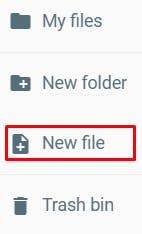
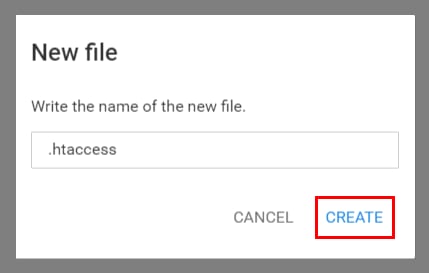
Hostinger 文件管理器默认显示所有文件(包括隐藏的点文件),因此若缺少 .htaccess 文件,说明它尚不存在,需要新建。
- 打开网站的 Hostinger 文件管理器。
- 打开 public_html 文件夹。
- 检查文件列表。若文件缺失,点击侧边栏的“新建文件(New File)”图标。
- 将文件命名为 .htaccess 并点击“创建(Create)”。文件名开头必须包含句点(.htaccess),否则服务器无法识别。
在文件编辑器中输入文件内容并保存更改。
方式 2 – 在 FTP 客户端中显示隐藏文件
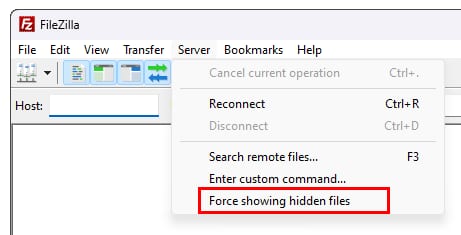
若你通过 FileZilla 等 FTP 客户端管理网站文件,隐藏文件默认可能被过滤。
- 通过 FileZilla 连接主机套餐。
- 在顶部菜单栏点击“服务器(Server)”。
- 选择“强制显示隐藏文件(Force showing hidden files)”。
文件列表将刷新,.htaccess 文件会显示在网站目录中。若文件仍缺失,请按方式 1 的步骤创建。
来源:Hostinger 官方帮助文档