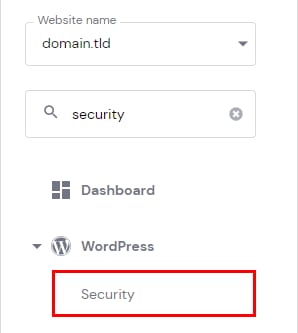
WordPress Overview(WordPress 概览) 中的 Security(安全) 选项允许你在不访问 WordPress 管理区域的情况下管理 WordPress 版本、主题和插件。它还提供重要的安全信息,帮助你始终保持站点安全且最新。
你可以通过打开 网站(Websites) → Dashboard,在左侧边栏中搜索 Security(安全) 并点击它来访问:
你将看到三个分区,提供相关信息和管理选项。
WordPress 版本
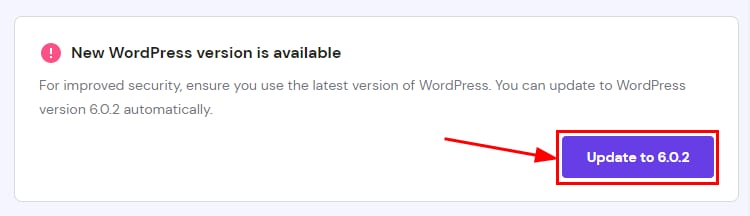
如果你拥有 最新 WordPress 版本,它会以 绿色对勾 标记显示。如果你的核心文件需要更新,你可以一键完成更新:
已安装主题
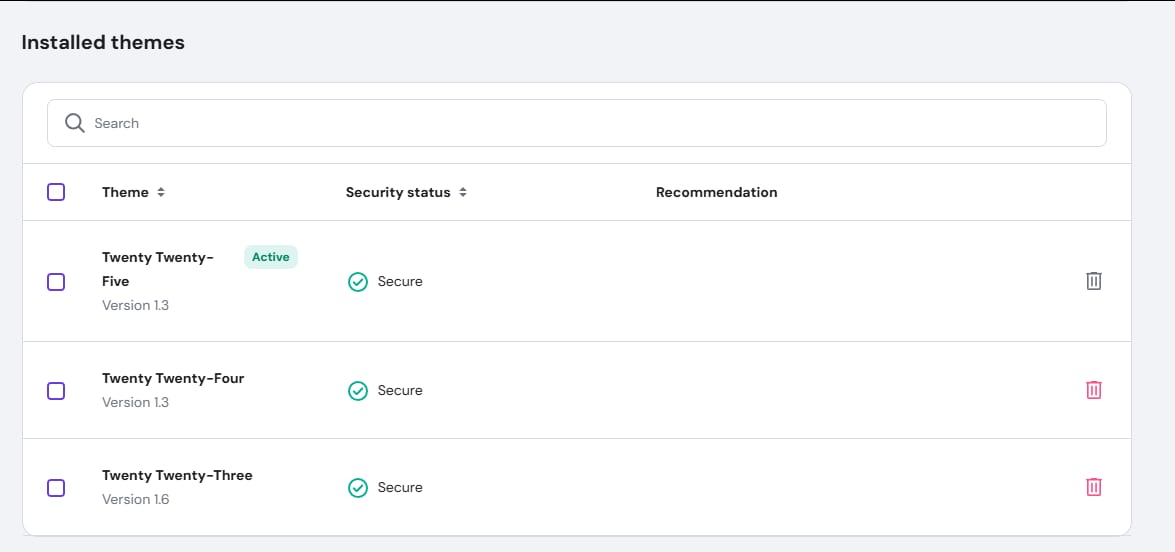
向下滚动找到 网站上安装的所有主题 列表。在这里,你可以查看哪些主题处于激活状态以及是否安全:
以下教程 如何安装 WordPress 主题:3 种方法 介绍了如何安装 WordPress 主题。
已安装插件
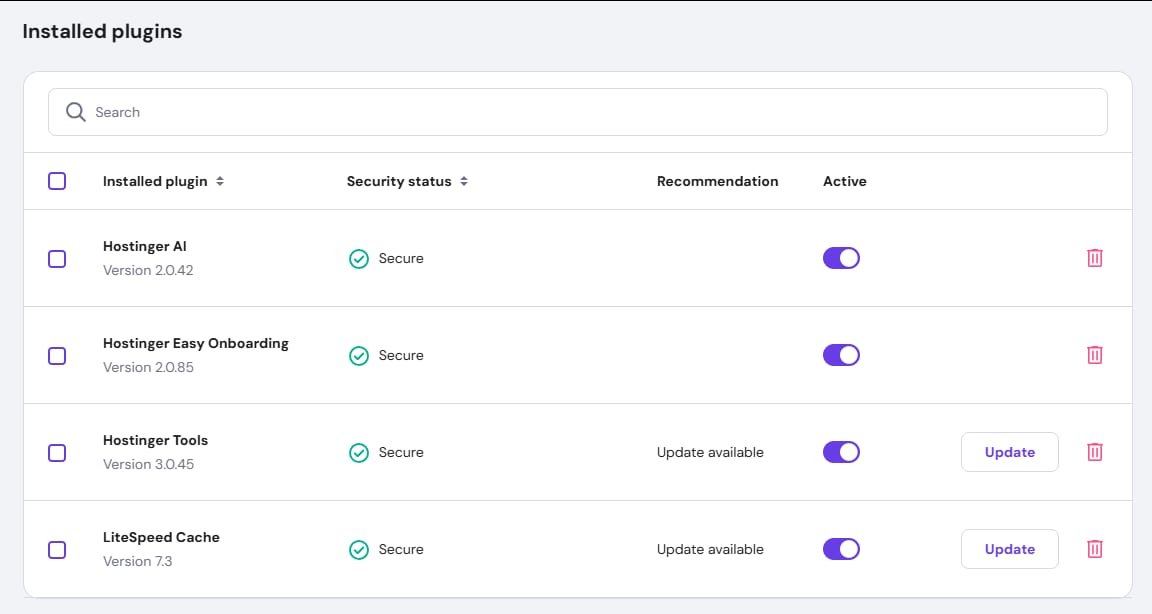
在已安装主题表格之后,你会找到已安装的插件:
- Installed plugin(已安装插件) – 插件名称。
- Security(安全) – 显示主题/插件是否安全,或 Patchstack 是否检测到漏洞。
- Recommendation(建议) – 通过对插件或主题采取措施来改善网站安全性的建议。
- Activation toggle(激活开关) – 轻松启用或禁用插件,无需访问 WordPress 管理区域。
- Update(更新) – 轻松 更新 主题或插件。
- Trash bin(垃圾桶) – 如果你需要 删除 主题或插件。
有关如何安装 WordPress 插件的信息,请查看此教程:如何安装 WordPress 插件。
如果你想测试插件的任何更改,且你的主机套餐为 Web Business 或以上,可以 创建暂存环境。
Patchstack 推广
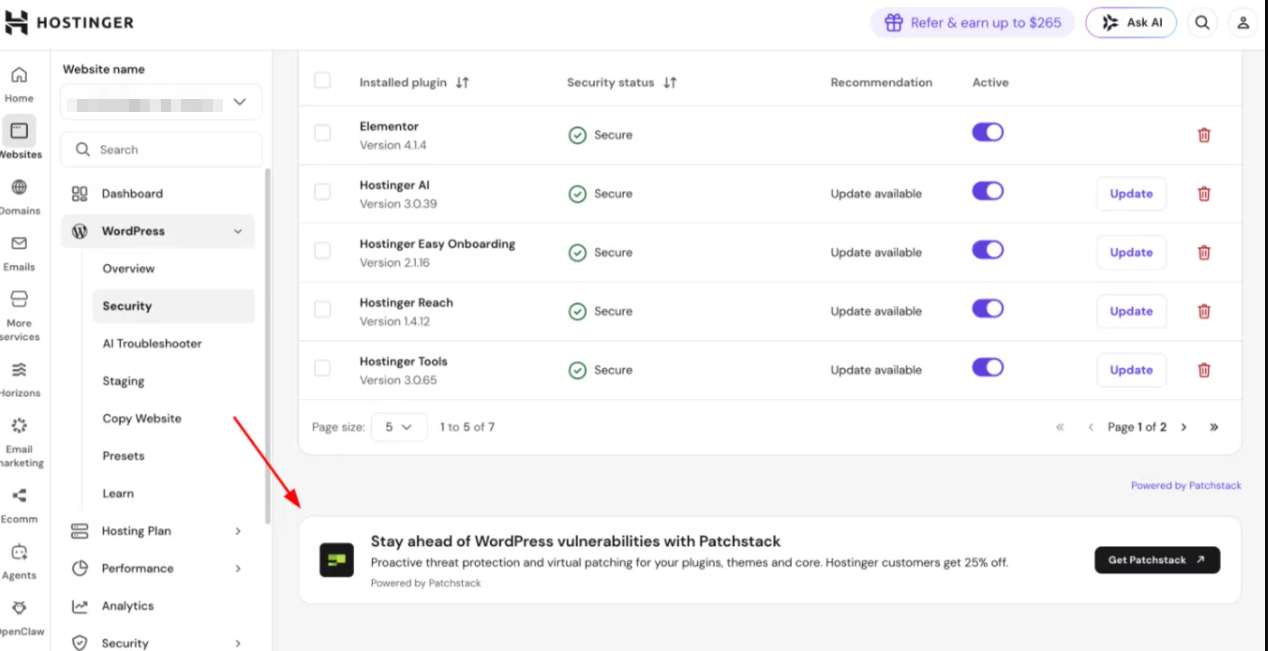
在 Security(安全) 页面底部,你会看到一个来自 Patchstack 的横幅,Patchstack 是为上述 Security(安全) 状态提供支持的漏洞数据库。它链接到 Patchstack 面向 WordPress 的托管安全服务,在 Hostinger 内置的漏洞监控之上增加了虚拟补丁。
Hostinger 已经使用 Patchstack 的漏洞数据库来驱动智能自动更新和漏洞警报。此处推广的服务是 Patchstack 自有平台上的一个独立的、完全托管的订阅。
来源:Hostinger 官方帮助文档