使用 Hostinger 建站工具让你的网站对访客可见,并在上线后进行更新。
发布是指使用 Hostinger 建站工具时,让你的网站在互联网上正式上线的特定过程。其他建站方式可能不需要这一步,但 Hostinger 建站工具项目在首次发布前一直处于私有草稿状态。尝试访问未发布的网站可能会出现 404 或 SSL 协议错误。
如何发布你的建站工具网站

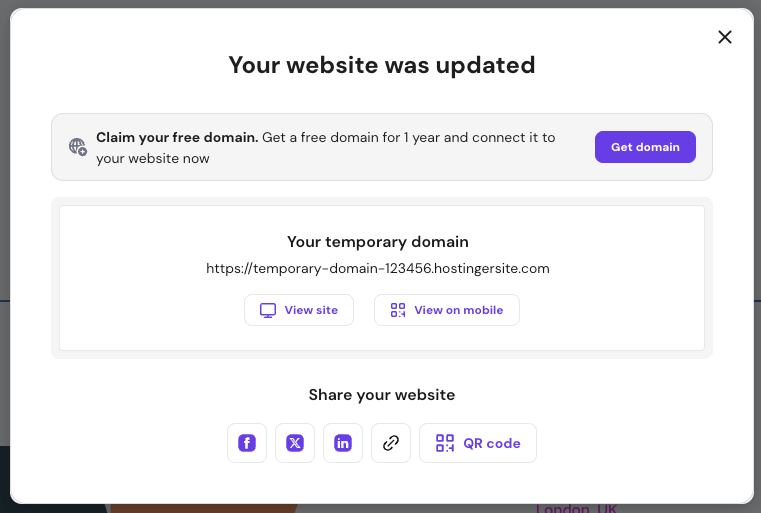
首次让网站公开,请按以下步骤操作:
- 打开 Hostinger 建站工具平台。
- 进入 hPanel → 网站(Websites)。
- 找到你的网站,点击旁边的 编辑网站(Edit website)。
- 点击右上角的 上线(Go live) 按钮。
网站成功发布后会弹出确认消息,提供以下选项:
- 查看网站(View site):在新标签页打开你的网站。
- 在移动端查看(View on mobile):显示二维码,方便用手机或平板快速访问。
- 社交图标(Social icons):在社交媒体发帖分享你的网站。
- 链接(Link):复制你的网站 URL。
- 二维码(QR code):自定义并创建可下载的二维码。
更新你的网站

网站上线后,你可以随时编辑。要将新更改应用到线上版本,点击右上角的 更新网站(Update website) 按钮(首次发布后,该按钮会取代 上线(Go live) 按钮)。
之后,等待几分钟,并在无痕或隐私窗口中查看你的网站,确认更改已生效。
故障排查
如果你的网站在数小时后仍不可见,请考虑以下常见原因:
- 即将上线模式(Coming Soon mode):检查设置中是否启用了该模式,因为它会阻止访客看到你的内容。
- 域名传播:如果你最近才将网站连接到自定义域名,变更在全球范围内生效最多可能需要 24 小时。
- 若在关闭即将上线模式并等待传播后问题仍然存在,请参考本指南获取更多排查步骤:建站工具:网站问题排查。
网站一经发布,便可供全球访问。如果你刚刚连接域名,可能需要数小时才能完全生效;在此期间,你可以使用建站工具提供的自动生成预览域名。
来源:Hostinger 官方帮助文档