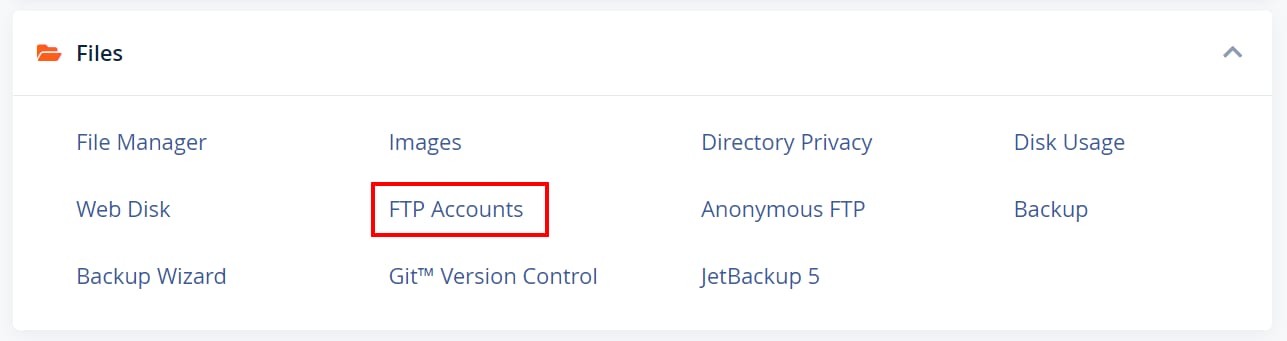
cPanel Files section with FTP Accounts option highlighted
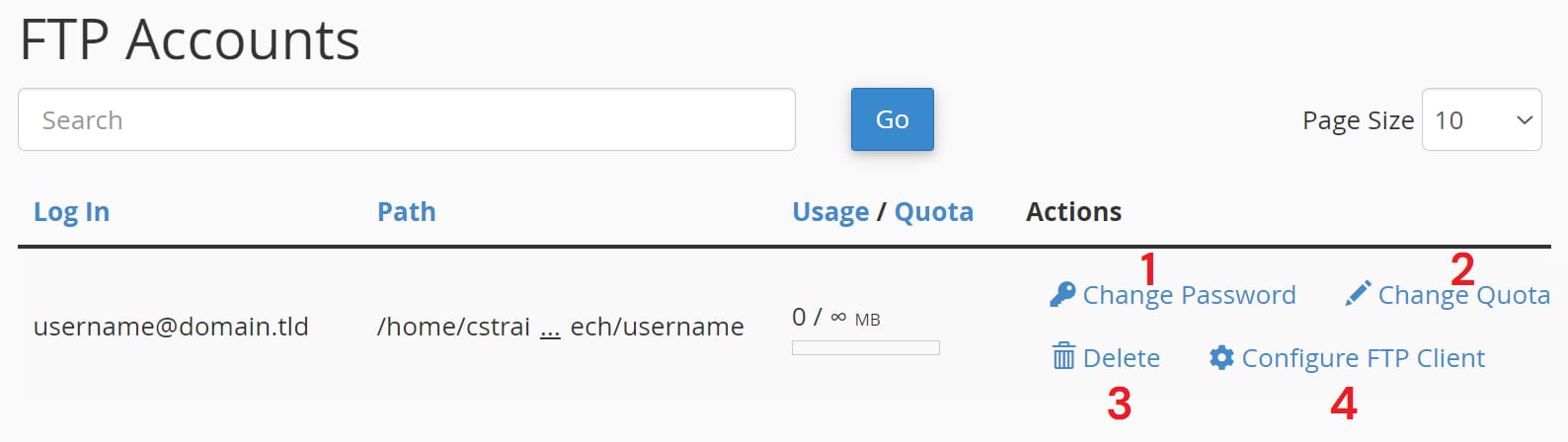
cPanel FTP Accounts table with Configure FTP Client action highlighted in the row
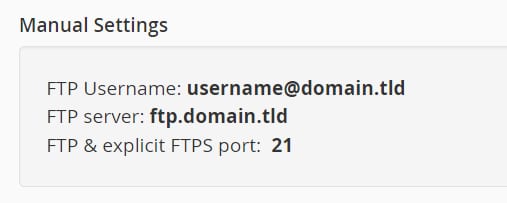
Hostinger cPanel manual settings showing FTP username, server, and port 21

在 cPanel 上查看你的 FTP 详情

你可以轻松找到 FTP 详情:打开 cPanel 并点击 FTP Accounts

如果你之前创建过 FTP 账户(可在上面的同一页面完成),在 FTP Accounts 板块你会看到以下按钮:

  1. 更改 FTP 账户 密码 的按钮
  2. 更改 FTP 账户 配额 的按钮
  3. 删除 FTP 账户 的按钮
  4. 查看 FTP 详情 的按钮

你的 FTP 详情应类似于以下内容:

注意

  • 如果你的域名未通过 nameserver 指向 Hostinger,FTP 服务器地址将无法作为 FTP 连接的主机。请将其替换为你的 账户 IP 地址
  • FTP 不适用于使用 Hostinger Website Builder 创建的网站

来源:Hostinger 官方帮助文档