💡 本文面向 Beta Hosting 用户。否则请参考《如何通过 SFTP 连接主机》。

所有包含远程访问的主机套餐都支持 SFTP。步骤如下:

步骤 1 – 准备
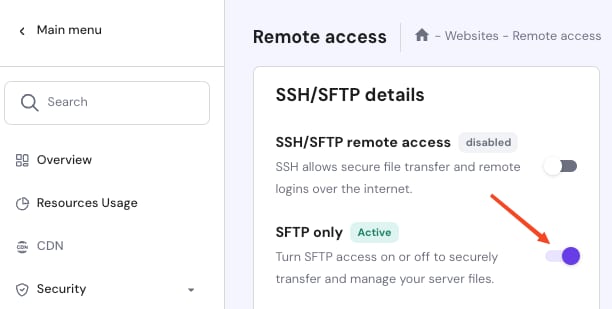
Hostinger remote access settings with SFTP only toggle highlighted as active

首先,确保:
- 你已在 hPanel 的“远程访问(Remote access)”页面点击 SFTP only 旁的开关,启用远程访问。
- 你的设备已安装 FileZilla 客户端版本。

步骤 2 – 连接

可通过以下任一方式连接 SFTP:

方式 1 – 直接访问
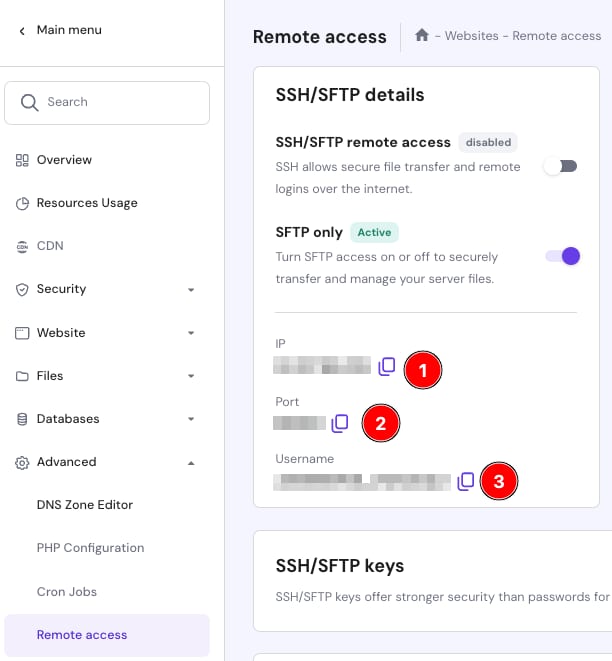
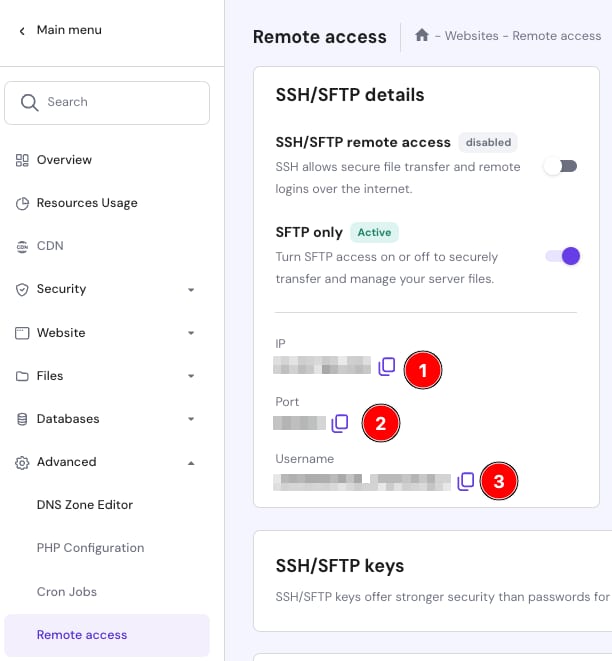
Hostinger remote access panel showing SFTP IP, port, and username fields
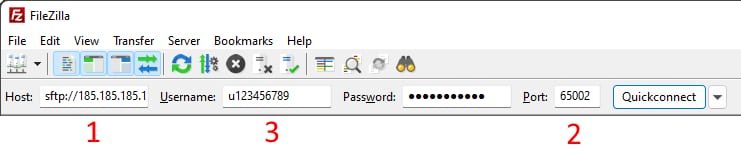
FileZilla quickconnect bar with host, username, password and port fields highlighted for SFTP login
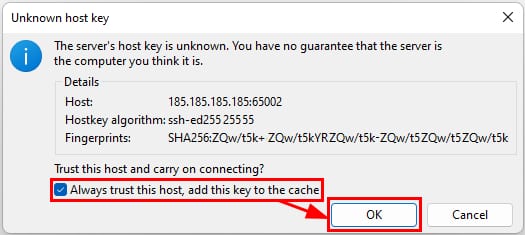
SFTP host key confirmation dialog with “Always trust this host” checked and OK button highlighted

打开 FileZilla,在快速连接(Quickconnect)区域填入 SSH Access 部分的配置:

  1. 主机(Host):远程访问部分的 FTP IP,使用 sftp:// 协议。
  2. 端口(Port):65002
  3. 用户(User):FTP/SSH 用户名

点击“快速连接(Quickconnect)”即可连接到 FTP 服务器。

若出现“Unknown host key”提示,勾选“Always trust this host”并点击“OK”。

方式 2 – 站点管理器

Hostinger file transfer client toolbar and Host field highlighted for SFTP connection
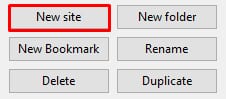
New site button highlighted in the file manager toolbar
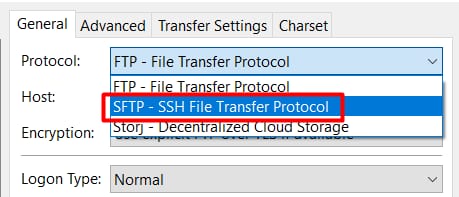
SFTP protocol option selected in a file transfer client dropdown
Hostinger Remote access panel showing SSH/SFTP details with IP, port, and username fields highlighted
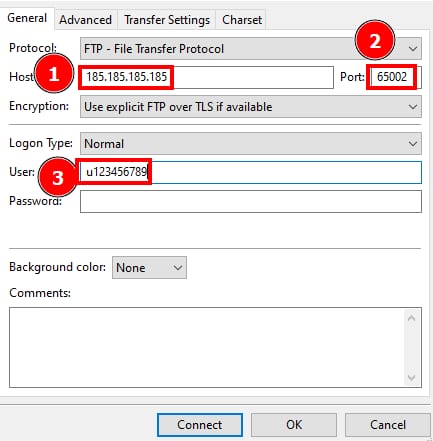
FTP setup fields highlighted: host IP, port 65002, and user ID in connection settings dialog

与直接访问不同,站点管理器(Site Manager)可保存之前的连接信息并更改加密类型。

打开 FileZilla 的站点管理器,点击“New site”,选择 SFTP 连接,填入 SSH Access 部分的配置:
- 协议(Protocol):SFTP – SSH File Transfer Protocol
- 主机(Host):FTP Accounts 部分的 FTP IP(例如 185.185.185.185)
- 端口(Port):65002
- 登录类型(Logon type):Normal
- 用户(User):FTP/SSH 用户名

点击“Connect”即可连接服务器。

注意:SFTP/SSH 密码与主域名的 FTP 密码相同。若不确定具体值,可为 FTP 和 SSH 重新设置密码,或创建仅 SSH 密码。

来源:Hostinger 官方帮助文档