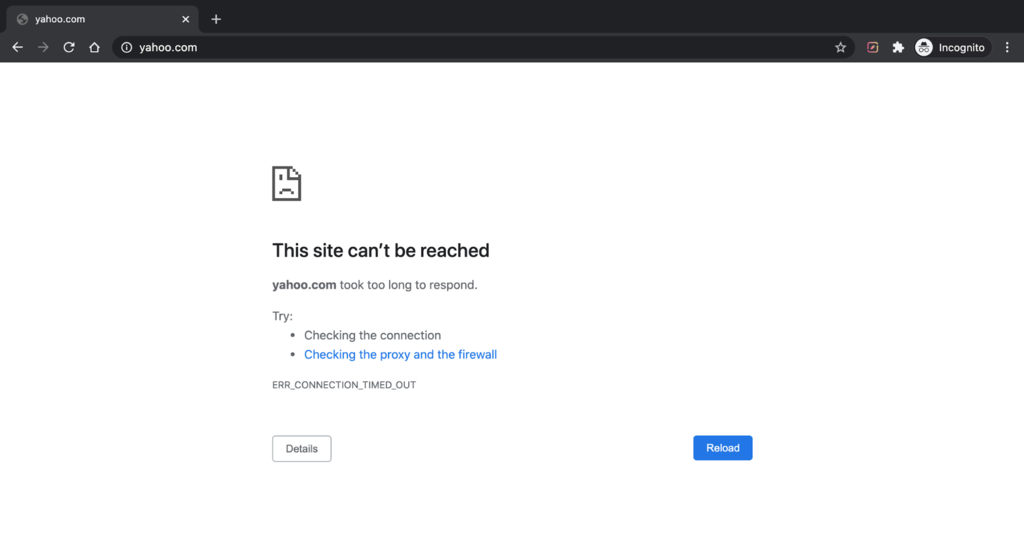
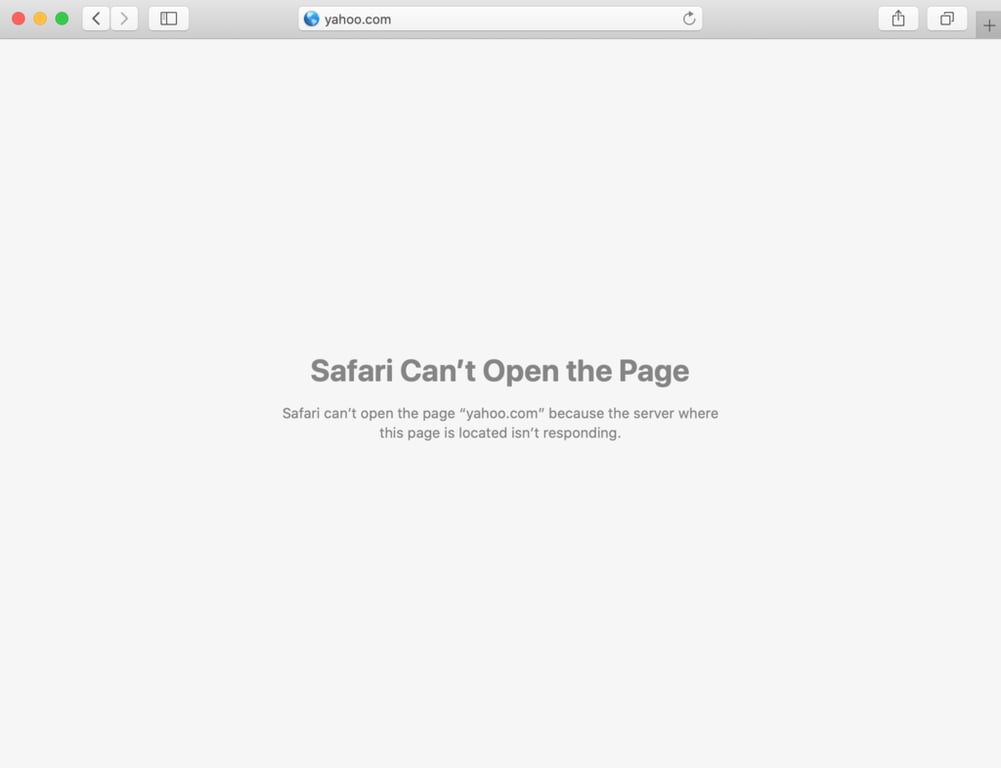
ERR_CONNECTION_TIMED_OUT(也称为超时错误)表示网站响应浏览器请求的时间过长。通常,网站应在 30 秒内与计算机建立通信。如果超过该时间,浏览器会终止连接。
本文提供在浏览器或网站层面修复该错误的方法。
在浏览器端修复
1. 检查网络连接


浏览器通常建议先检查网络连接。连接不佳可能导致网站无法及时到达计算机。如果问题持续,请切换到其他网络或重启相关设备。
2. 禁用代理服务器设置或 VPN


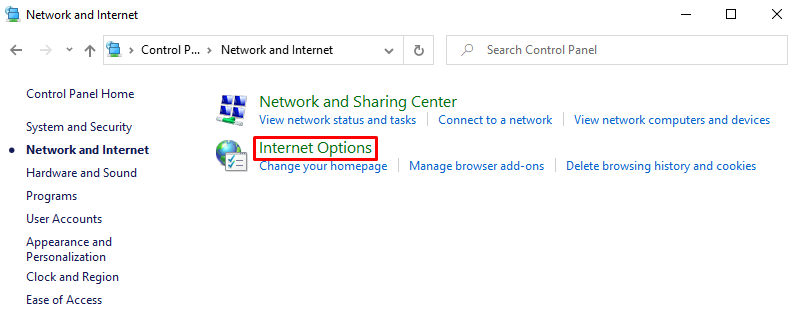
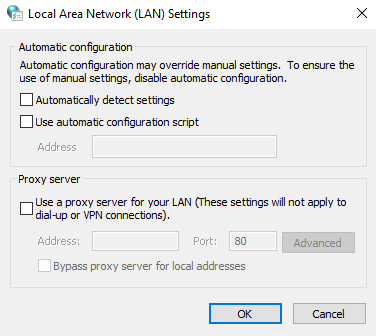
代理服务器在电脑和你要访问的网站之间充当中介,可能导致你想访问的网站被意外屏蔽。重置代理设置:Windows 10 用户按 Windows 徽标键,进入 控制面板 → 网络和 Internet → Internet 选项,在 连接 标签页 → LAN 设置,取消勾选所有代理设置。macOS 用户打开 系统偏好设置 → 网络 → 高级 → 代理 标签页,取消所有勾选。
使用 VPN 时也可能出现该错误。建议更改 VPN 协议,或临时禁用该应用。
3. 清除浏览数据
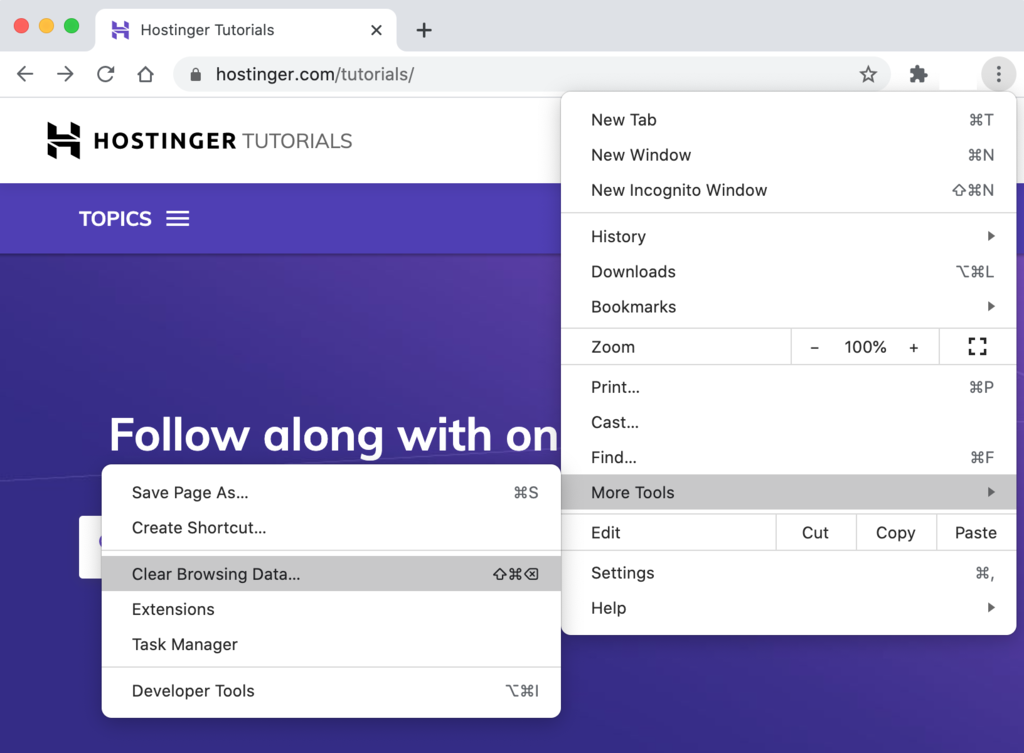
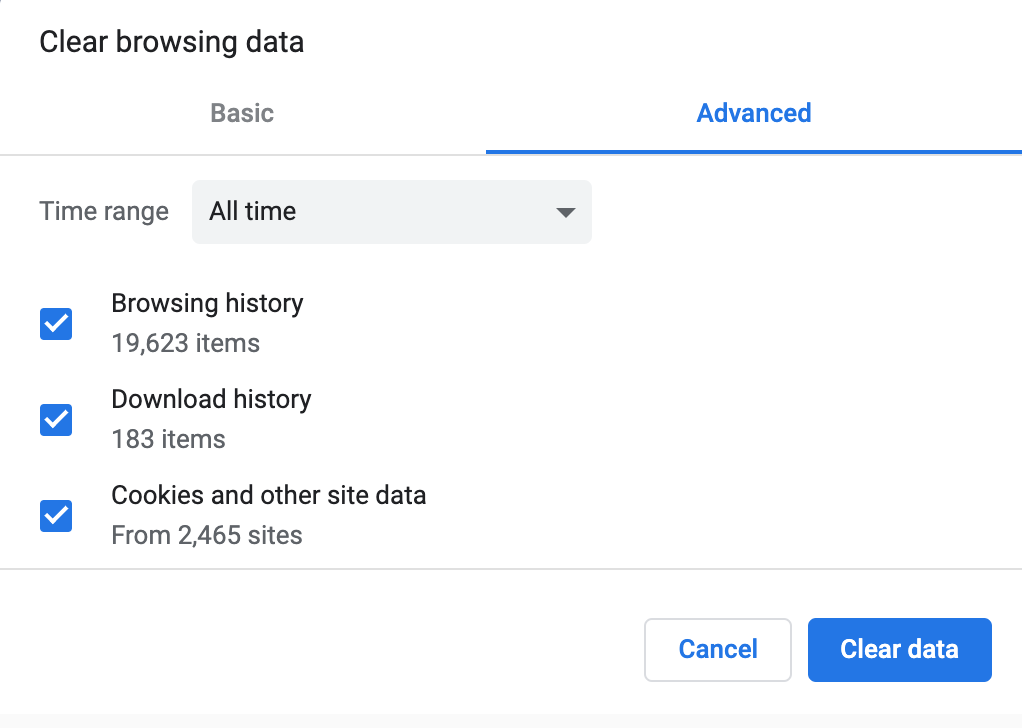
浏览器数据包括缓存文件、保存的登录信息和 cookie。定期清除它们。以 Chrome 为例:点击右上角 三点菜单 → 更多工具 → 清除浏览数据,进入 高级 标签页,勾选所有缓存文件,时间范围设为 所有时间,点击 清除数据。
4. 更改 DNS 服务器

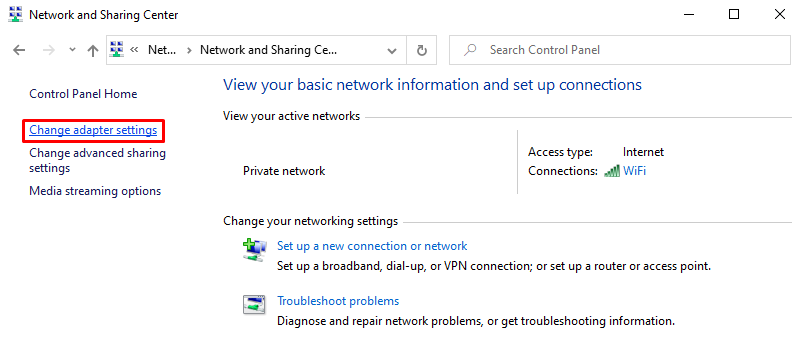
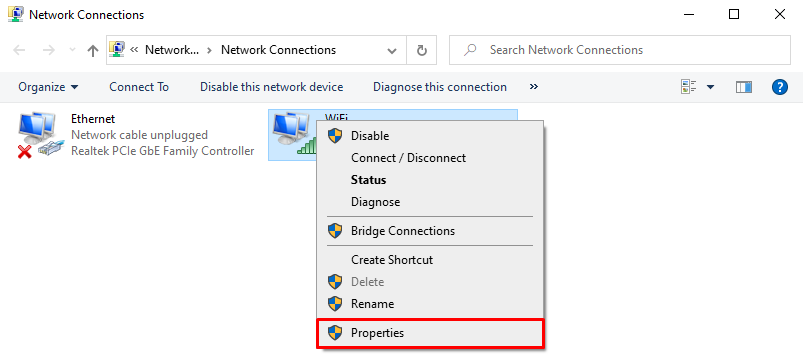
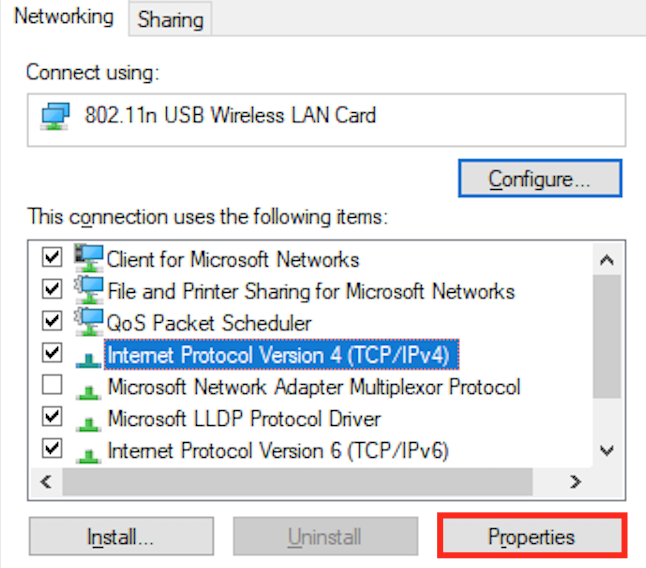
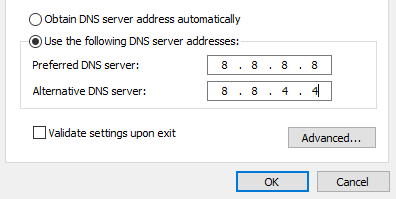
DNS 服务器将域名转换为 IP 地址。可改用 Google 或 Cloudflare 的免费公共 DNS。Windows 10:进入 控制面板 → 网络和 Internet → 网络和共享中心 → 更改适配器设置,右键当前连接 → 属性,选择 IPv4 或 IPv6 → 属性,替换 IP:
- IPv4:8.8.8.8 和 8.8.8.4
- IPv6:2001:4860:4860::8888 和 2001:4860:4860::8844
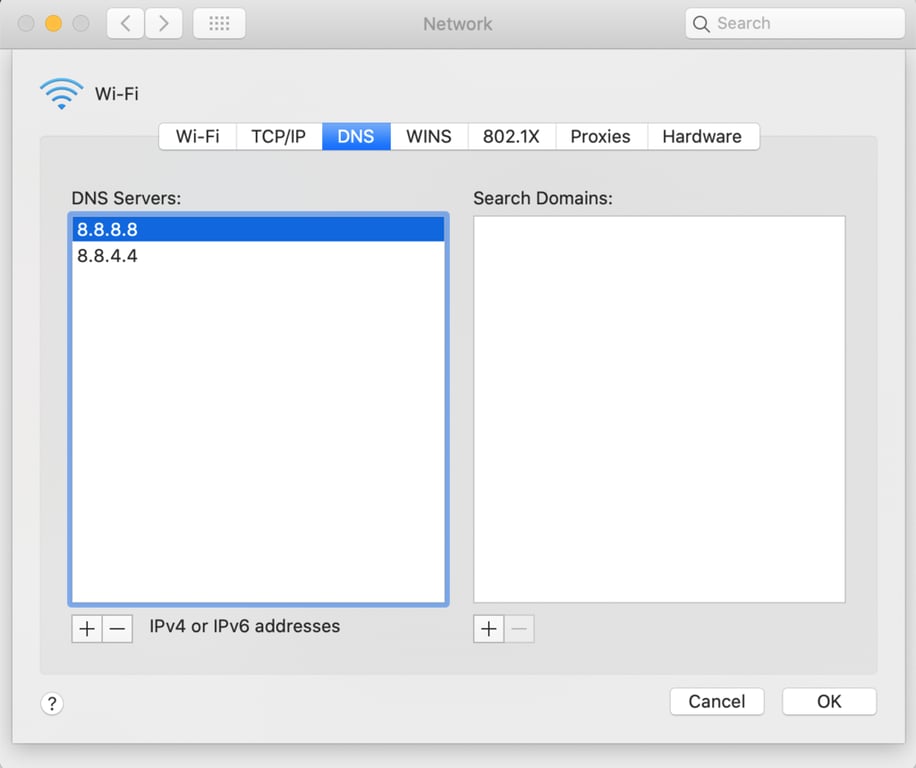
macOS:打开 系统偏好设置 → 高级 → DNS 标签页,点击 + 逐个添加。
5. 刷新 DNS 并续订 IP 地址
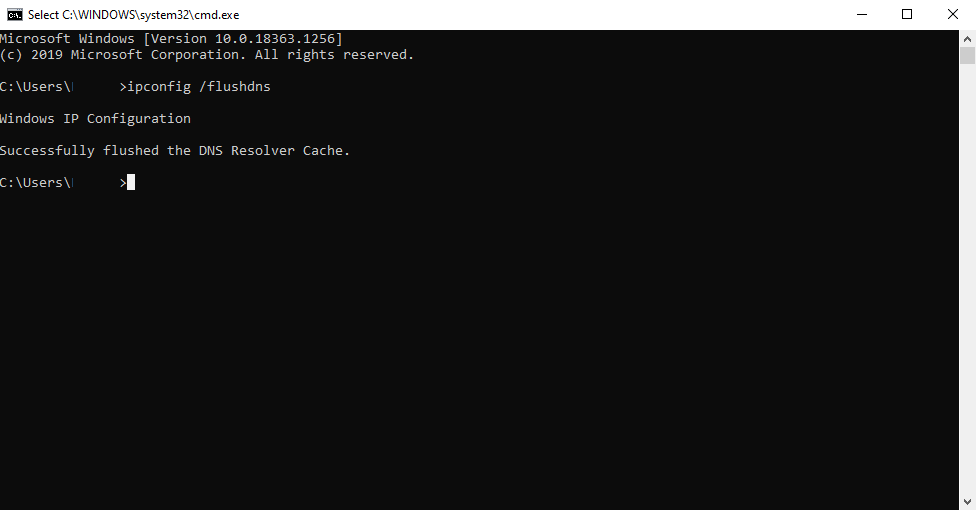
Windows 10:打开命令提示符,运行:
ipconfig /flushdns
ipconfig /registerdns
ipconfig /release
ipconfig /renew
netsh winsock reset
macOS:终端运行 dscacheutil -flushcache。
6. 临时禁用防火墙或杀毒软件
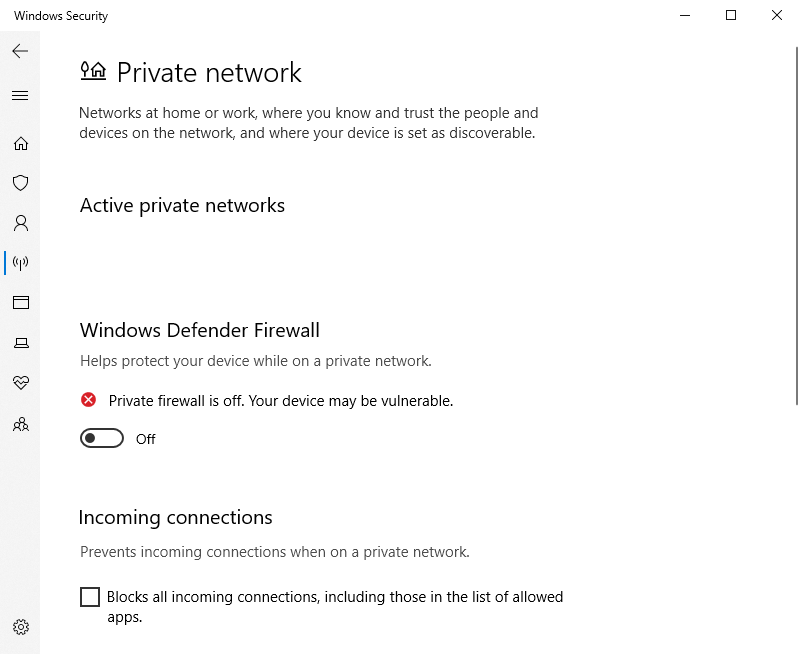
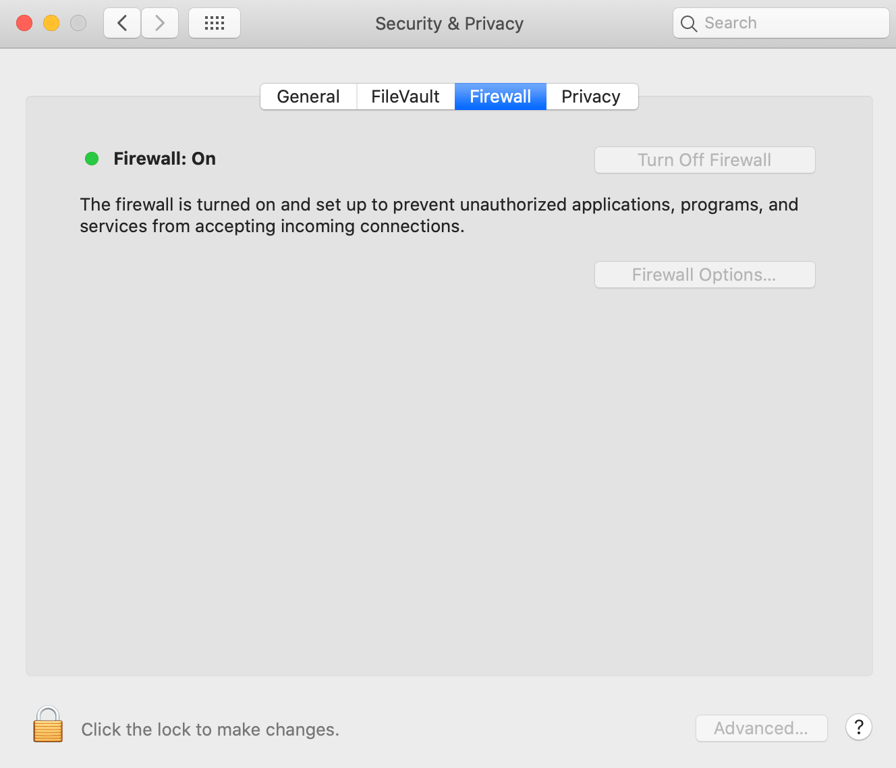
防火墙和杀毒软件可能误将安全网站当作不安全。尝试临时禁用。Windows:设置 → 更新和安全 → Windows 安全中心 → 防火墙和网络保护,关闭防火墙。macOS:系统偏好设置 → 安全性与隐私 → 防火墙,关闭。
7. 检查 hosts 文件
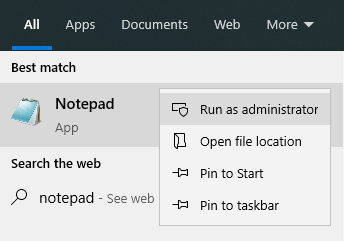
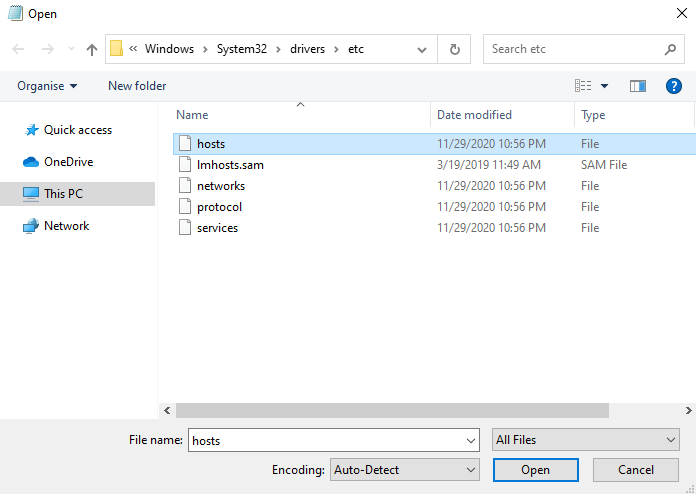
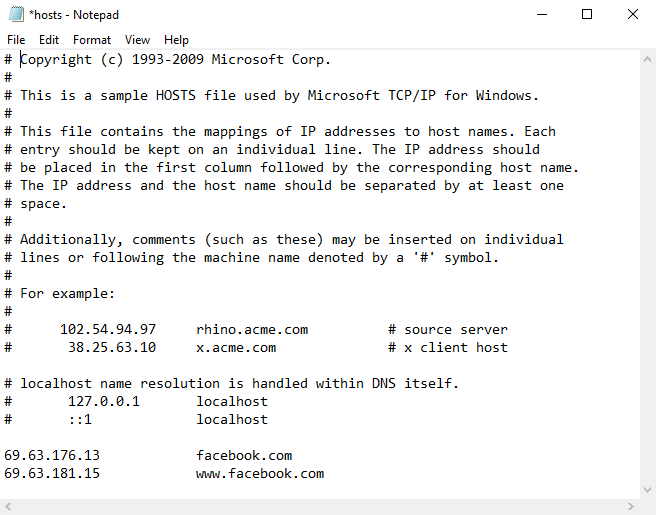
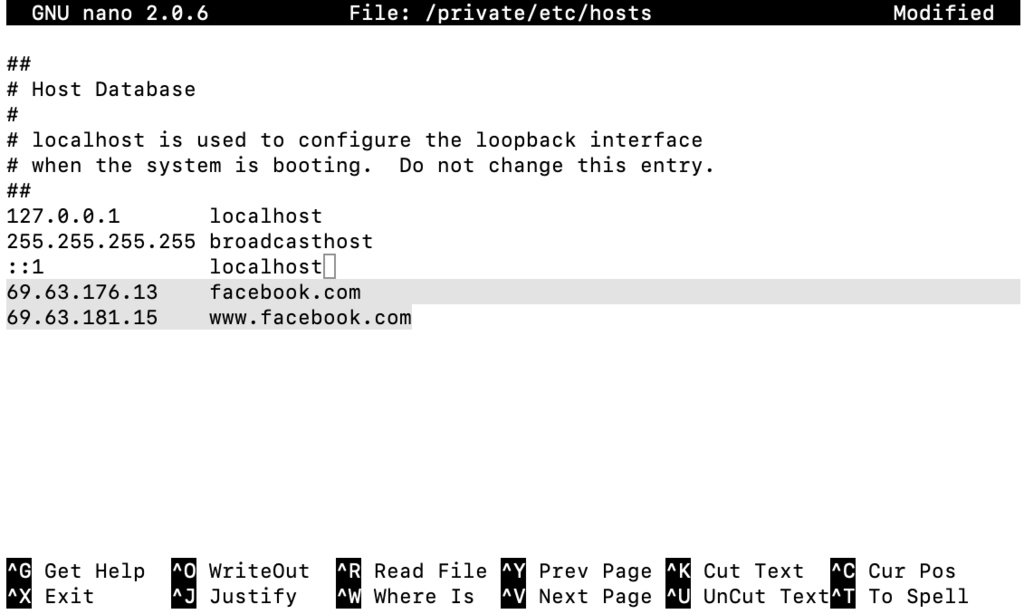
hosts 文件映射 IP 地址与域名的对应关系,可能误屏蔽了某网站。Windows:用记事本以管理员身份打开 C:\Windows\System32\drivers\etc\hosts,删除 # 行下方的屏蔽条目。macOS:终端运行 sudo nano /private/etc/hosts,删除 ::1 行下方条目。
8. 更新网卡驱动
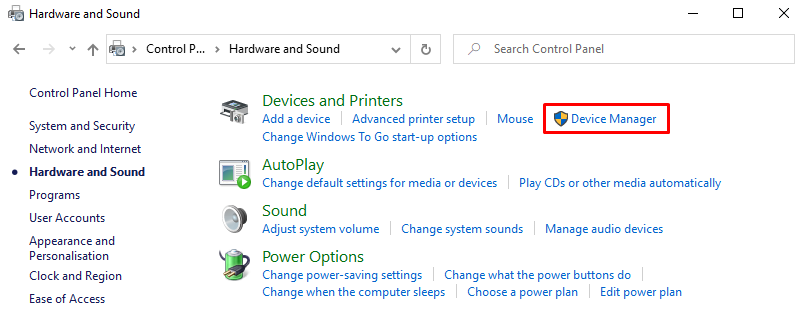
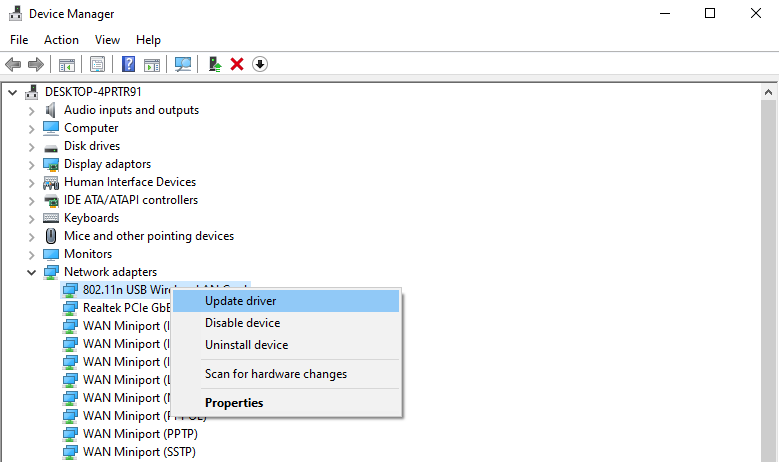
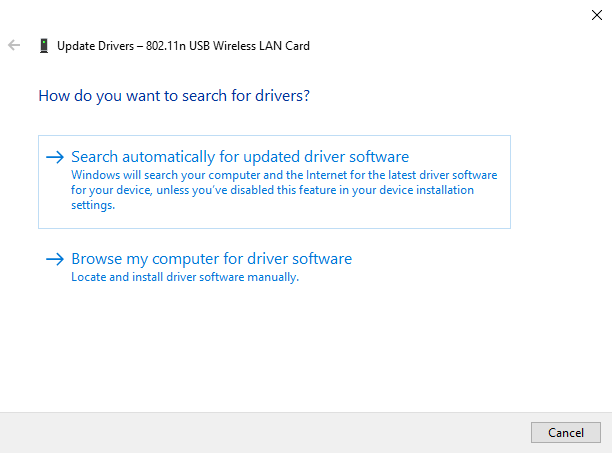
过时或安装不当的网卡驱动可能导致该错误。Windows:设备管理器 → 网络适配器 → 更新驱动。macOS:通过系统更新更新。
在网站和服务器层面修复
1. 禁用新脚本
如果修改网站脚本后出现错误,新代码可能是原因。先备份,再撤销更改。
2. 检查最大执行时间
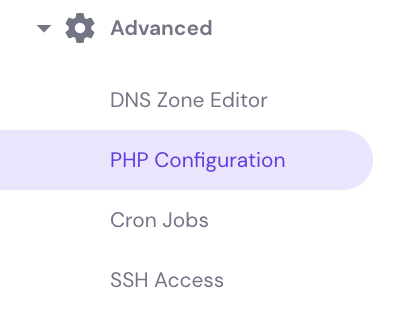
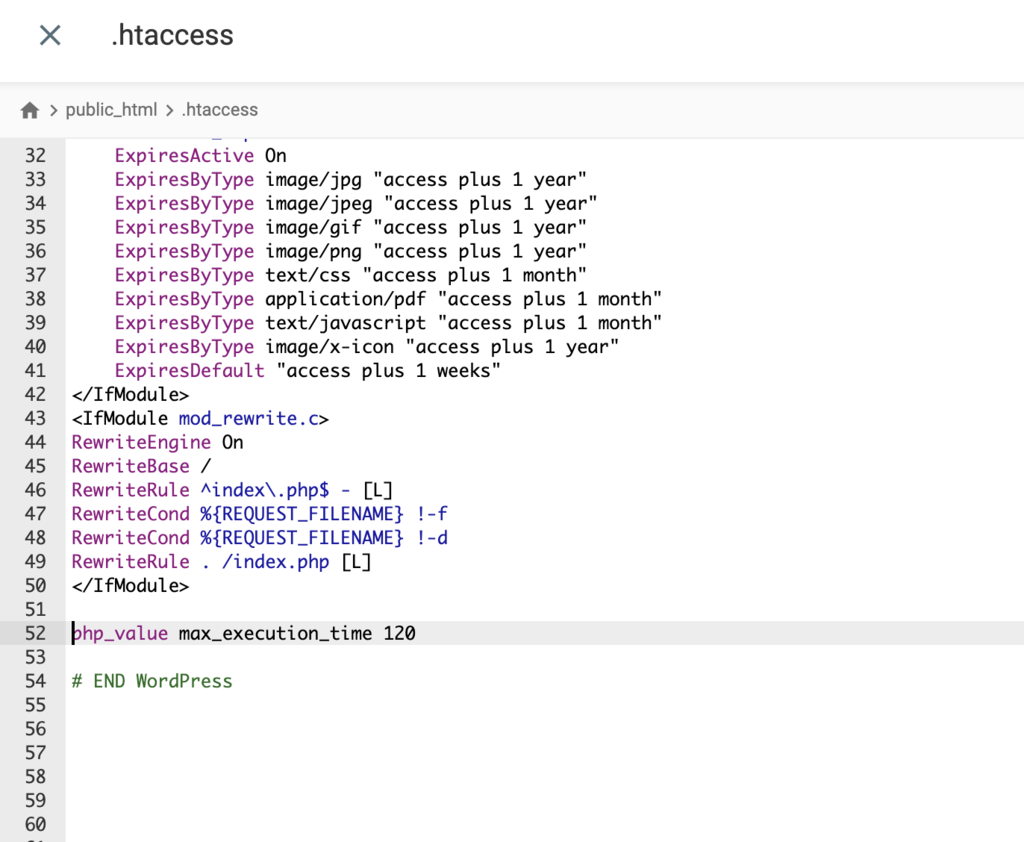
最大执行时间(max_execution_time)是 PHP 脚本可运行的总时长,默认通常 30 秒。可在 hPanel 的 PHP Configuration → PHP Options 中提高(120–180 秒通常足够)。或编辑 .htaccess,在 “END WORDPRESS” 行之前添加:
php_value max_execution_time 120
3. 提高 PHP 内存限制
在 .htaccess 末尾(WordPress 在 “END WORDPRESS” 之前)添加:
php_value memory_limit 128M
若需要更高内存,考虑升级套餐。
4. 临时停用 WordPress 插件
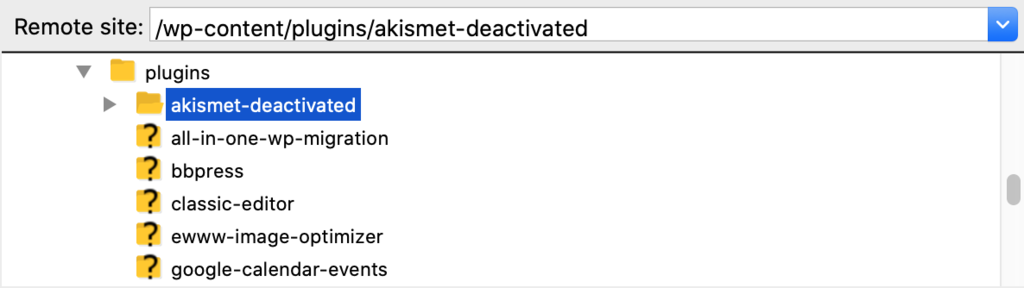
若插件来自不可靠来源或过多,可能引起问题。通过 FTP 将 wp-content/plugins 文件夹重命名为 plugins-deactivated,逐个排查。
5. 临时启用默认 WordPress 主题
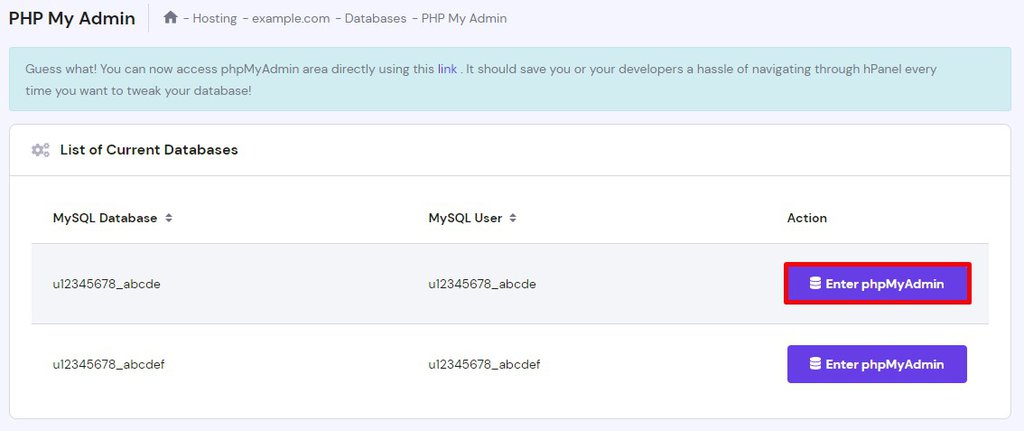
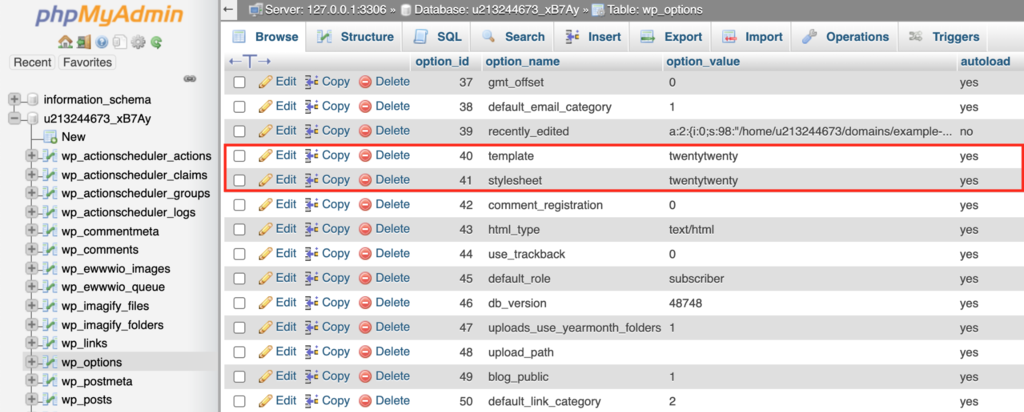
主题代码臃肿或不兼容也可能引起错误。通过 phpMyAdmin 将 wp_options 表中的 template 和 stylesheet 改为默认主题(如 twentytwentyone)。
本文提供了在浏览器或网站层面修复 ERR_CONNECTION_TIMED_OUT 的多种方法。如果都无效,请联系你的 ISP 或主机服务商。





来源:Hostinger 官方帮助文档