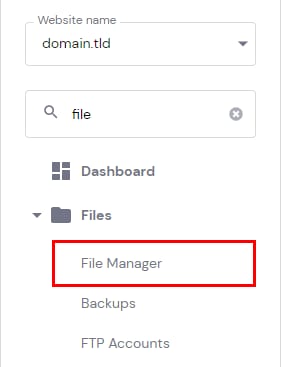
Hostinger panel File Manager option highlighted in the Files menu
Hostinger File Manager option to access files of domain.tld, highlighted
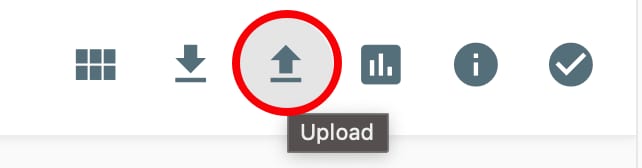
Hostinger file manager toolbar with the Upload button highlighted
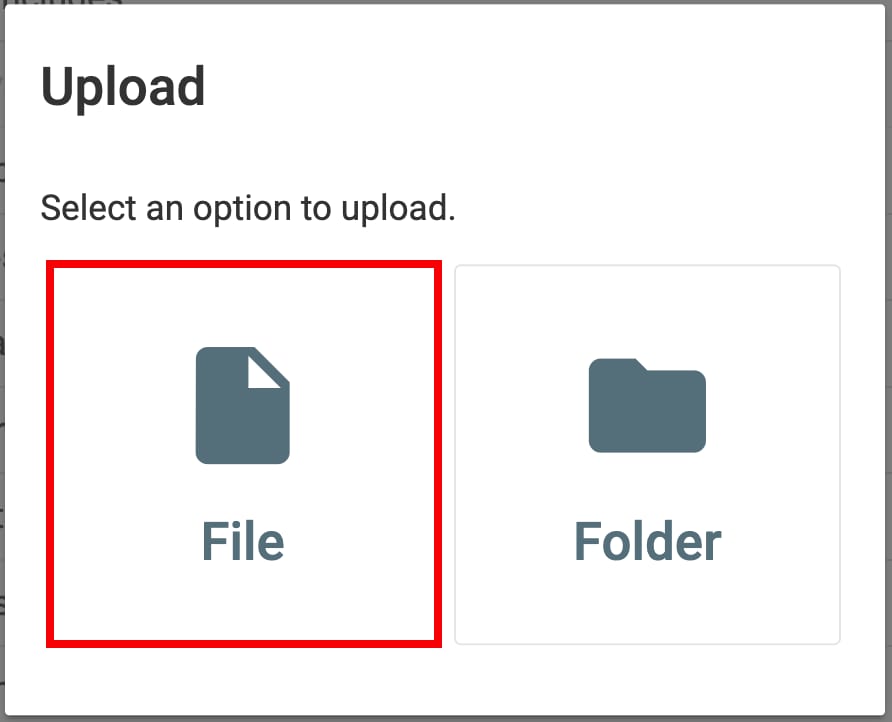
Hostinger File upload option highlighted in upload dialog
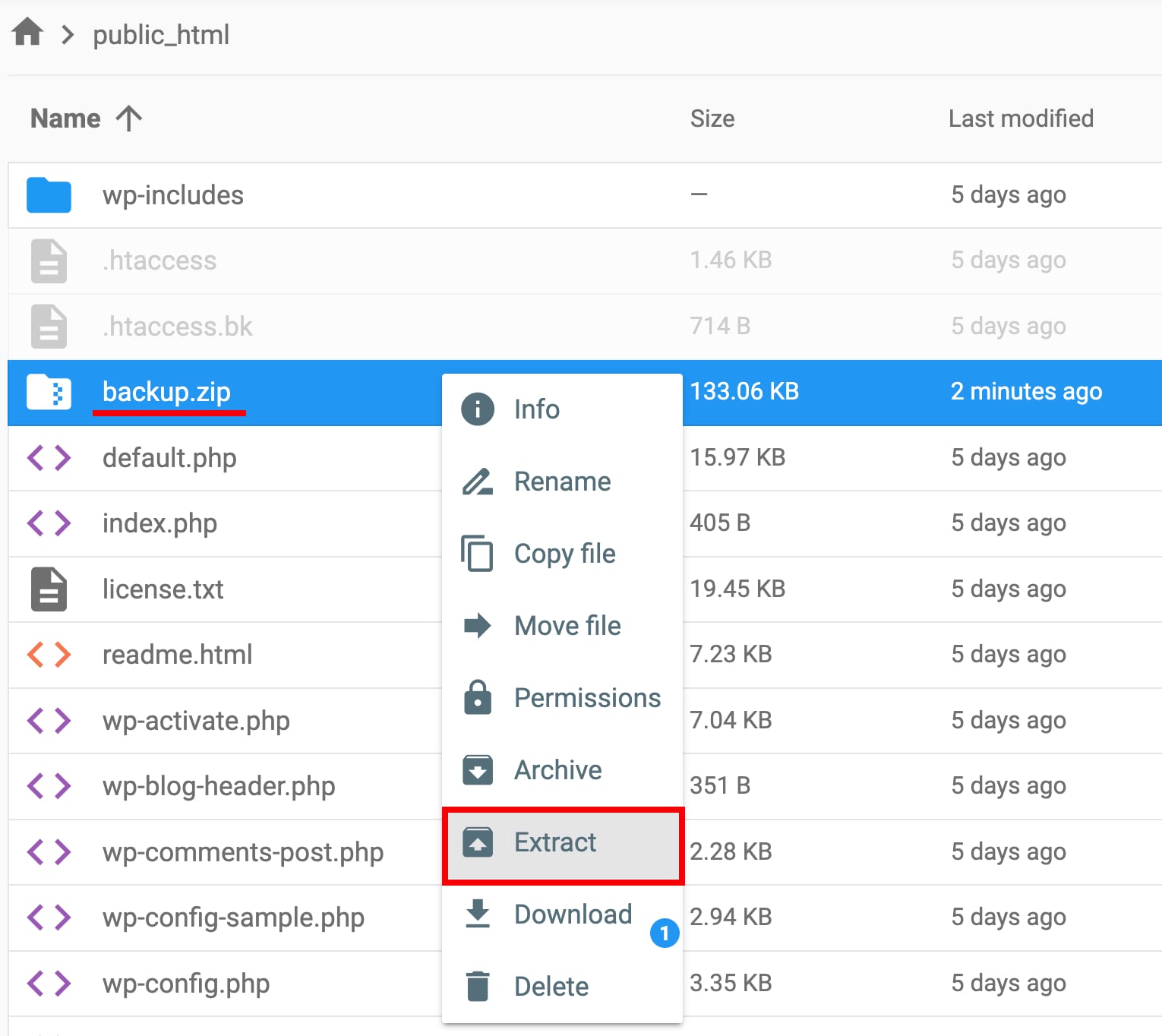
Hostinger File Manager context menu open on backup.zip, with Extract highlighted
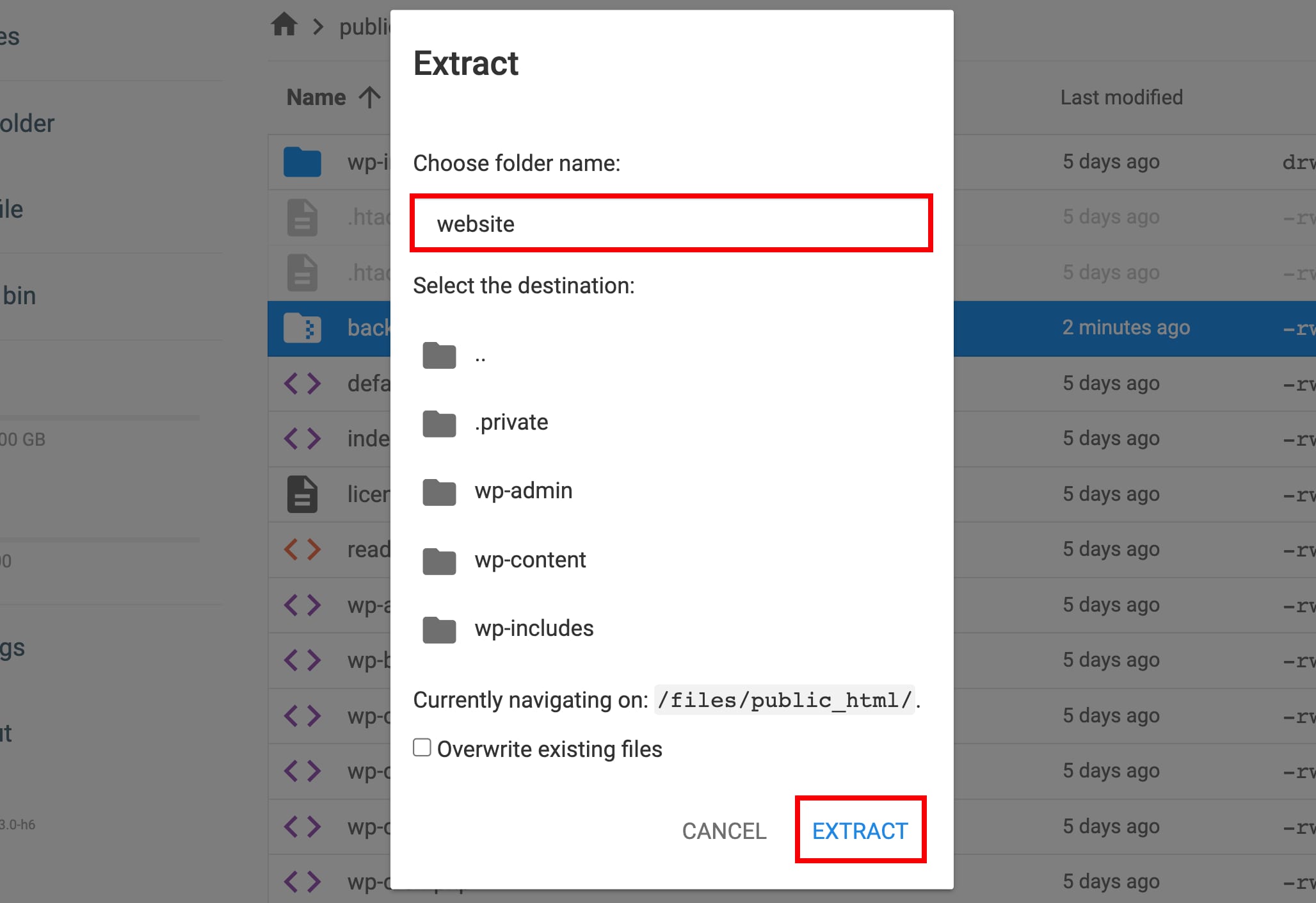
Hostinger File Manager extract dialog with the folder name field highlighted and Extract button selected
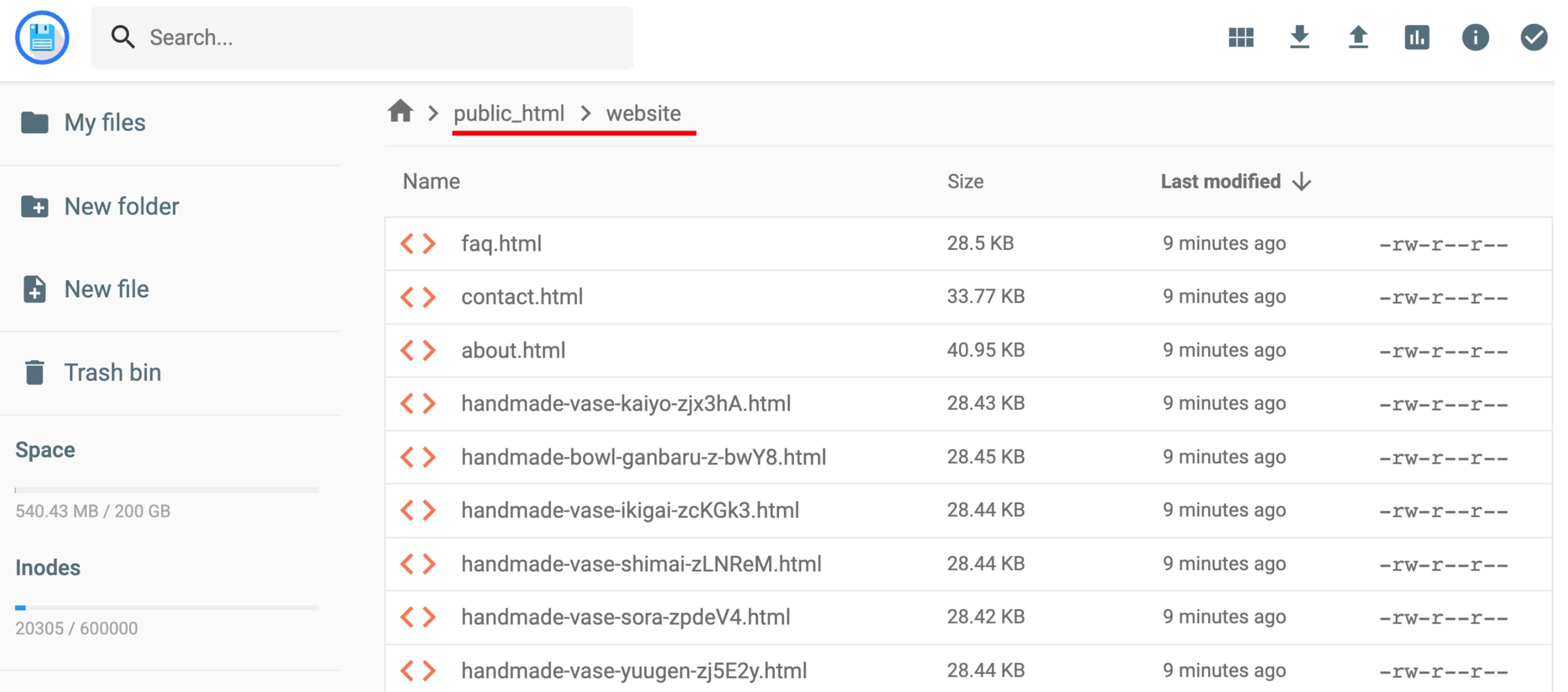
Hostinger File Manager showing the public_html/website folder breadcrumb highlighted

如果你有压缩格式的网站备份(如 .zip、.tar、.tar.gz、.tar.bz2、.tar.xz、.tar.lz4 或 .tar.sz),且大小小于 100GB,可使用文件管理器轻松上传。

注意:使用 Hostinger 建站工具创建的网站不支持文件管理器。

在 Hostinger 账户中,进入 网站(Websites),找到对应网站并点击“面板(Dashboard)”。然后在左侧边栏找到 文件管理器(File Manager)并点击。

接着选择访问该网站文件的选项,打开 public_html 文件夹,点击右上角的“上传(upload)”图标,上传你的备份文件。

上传完成后,右键点击已上传的备份文件并选择“解压(Extract)”,输入要将备份文件解压到的文件夹名称,点击“解压(Extract)”即可。

来源:Hostinger 官方帮助文档