在开发 WordPress 网站时,重要的是避免直接在线上站点上做修改。一个常见且有效的解决方案是使用临时环境(staging environment)——它是您线上网站的副本,专门用于测试。这个独立环境让您能在应用到线上站点之前,安全地测试修改并确保一切如预期工作。

在您的 Agency 套餐中,您只需几次点击即可轻松创建并管理临时环境。

如何创建临时环境

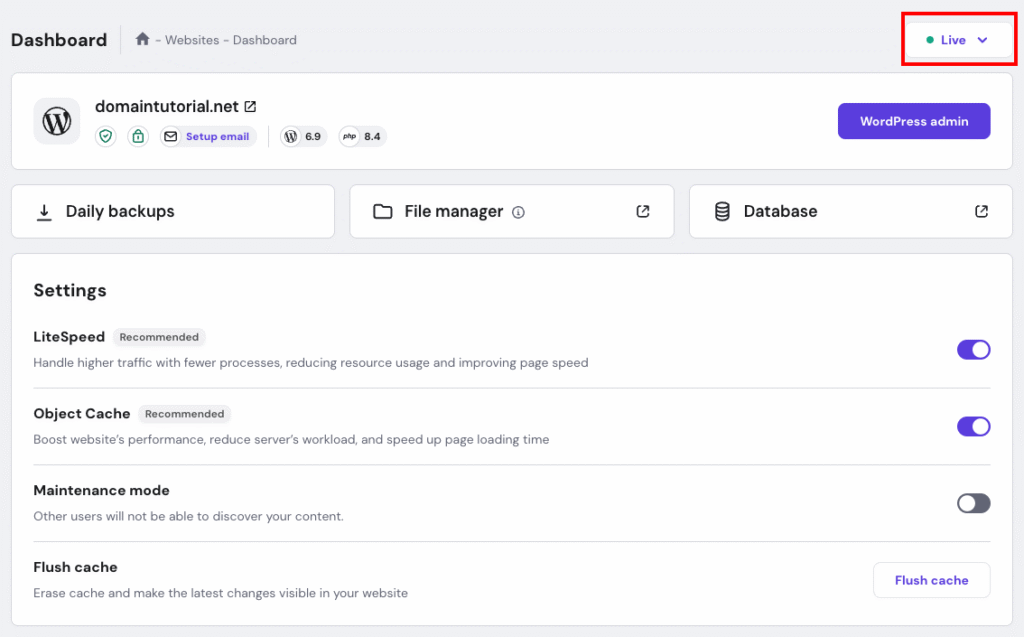
WordPress dashboard showing Live status dropdown
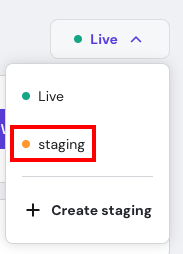
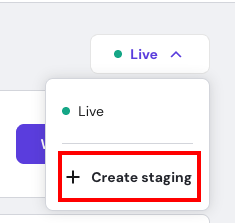
Live status menu with Create staging option highlighted
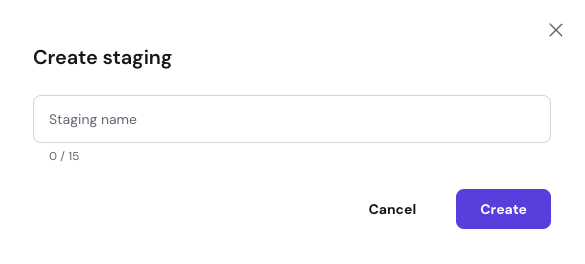
Create staging dialog with staging name input and Create button
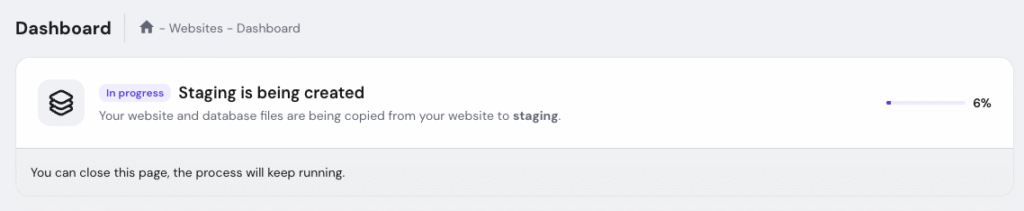
Dashboard showing staging being created, 6% complete

打开 Website → Dashboard(仪表盘)。在 Dashboard(仪表盘) 上,点击右侧的 Live(线上) 按钮。

接下来,点击 Create staging(创建临时环境)

输入您想要的临时环境名称。

等待临时环境创建完成。

  • 如果您的域名通过 nameserver 指向另一家提供商,请务必在您当前生效的 DNS 区域中为临时子域名创建 A 记录,并将其指向您的托管 IP

如何管理临时环境

Website dashboard with Live status dropdown highlighted in the top right
Environment menu with Live and highlighted staging option, plus Create staging action
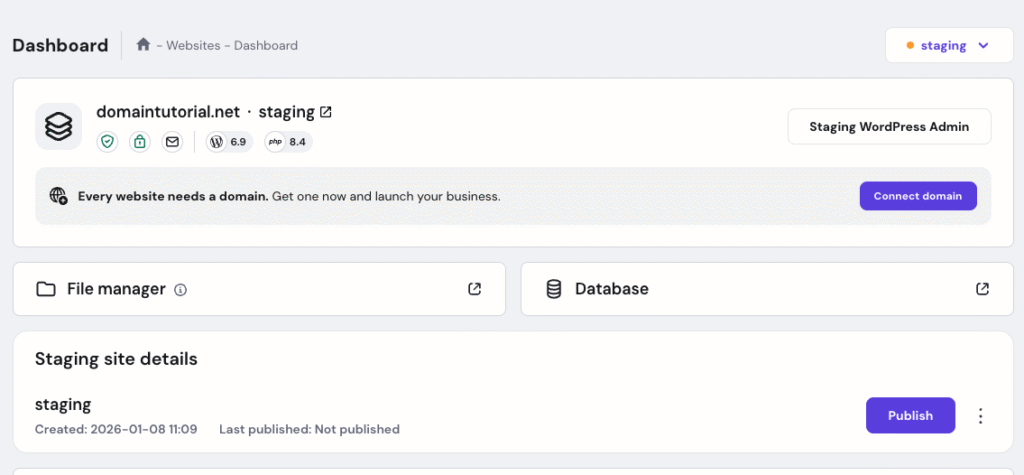
Staging website dashboard for domaintutorial.net with Publish button highlighted
Staging site details page with a highlighted Publish button on the right
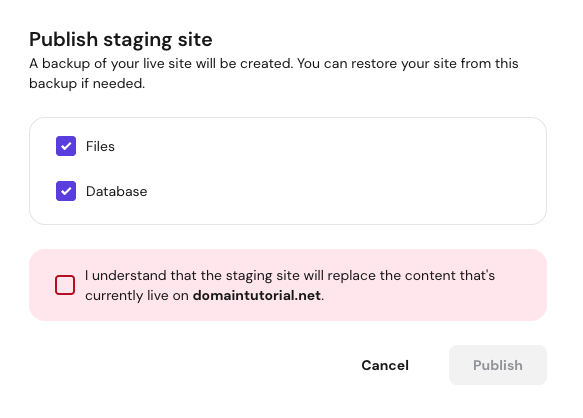
Publish staging site dialog with Files and Database checked and a live-site replacement warning checkbox
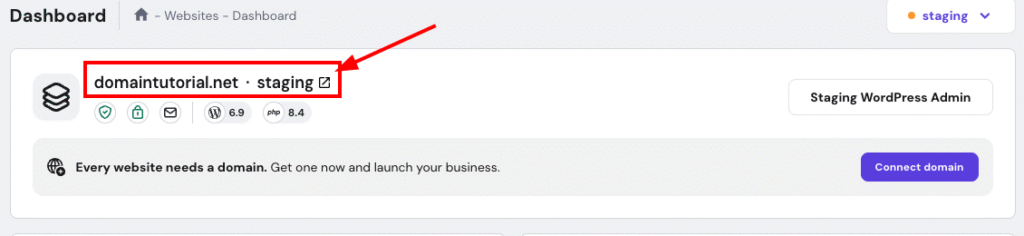
Staging website card for domaintutorial.net with the name and status highlighted
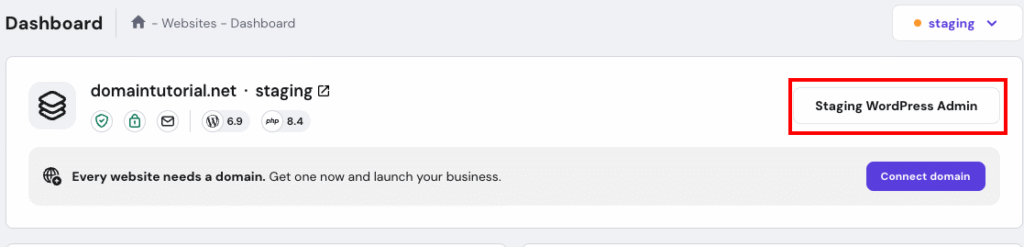
Websites dashboard with Staging WordPress Admin button highlighted
Staging site details page with Delete option open in the overflow menu
当您在临时网站上完成工作并准备上线时,可以点击 Publish(发布) 推送修改。

您可以选择要发布到生产环境的内容——仅文件仅数据库,或文件和数据库两者

点击 Publish(发布) 确认您理解临时站点将用临时副本替换您的线上网站。

发布会用临时副本替换内容。如果您在创建临时环境后又对原始网站做了修改,这些修改将丢失。

  • 删除临时环境。

注意

  • 临时网站以临时域名创建。

来源:Hostinger 官方帮助文档