Hostinger 的备份工具设计为一次性下载某个主机套餐内所有网站的文件,但你也可以通过 SSH 下载特定网站的备份。本方法不适用于使用 Hostinger 建站工具创建的网站。

步骤 1 – 准备

需要两样东西:
1. 至少能容纳目标网站 public_html 文件夹大小的存储空间。
2. SSH 访问(Premium 及以上虚拟主机套餐可用)。

请先启用 SSH 访问并连接到主机套餐。

步骤 2 – 进入正确位置
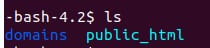
Terminal showing SSH directory listing with domains and public_html folders highlighted
Terminal showing .bash_history and several domain names listed, with one highlighted in blue

通过 SSH 连接后,你位于根目录。使用 ls 命令确认。domains 文件夹包含你所有网站(建站工具类网站除外)的文件,各自位于独立文件夹中。使用 cd domains 进入该文件夹,再用 ls 查看内容,应能看到所有网站。

步骤 3 – 生成压缩文件夹

压缩为 .TAR.GZ

tar -czvf folder-name.tar.gz /folder-name

压缩为 .ZIP

zip -r folder-name.zip folder-name/

替换 folder-name 为网站文件夹名称。根据网站大小,可能需要几分钟。可用 ls 确认压缩文件已生成。

步骤 4 – 获取数据库名称(WordPress 可选)

Hostinger VPS terminal showing wp config get DB_NAME command output with database name u817052417_ibFX6

若是 WordPress 网站,可确认数据库名称:

cd folder-name/public-html
wp config get DB_NAME

复制输出的数据库名称备用,然后用 cd ../.. 返回 domains 文件夹。

步骤 5 – 导出并压缩数据库(可选)

Hostinger SSH terminal showing mysqldump command to create website-name-db-backup.sql, with the backup file highlighted
SSH terminal showing zip command creating website-name-db-backup.zip from website-name-db-backup.sql

若已知数据库名称,可通过 SSH 导出。导出后,按步骤 3 压缩该 .SQL 文件。使用 zip 命令时去掉 -r(仅用于文件夹压缩),例如:

zip website-name-db-backup.zip website-name-db-backup.sql

步骤 6 – 通过 SSH 下载压缩文件

Terminal showing logout after exiting an SSH session on a Hostinger server

打开新的终端标签,或用 exit 命令断开当前 SSH 会话,然后运行:

scp username@hostname:/path/to/remote/file /path/to/local/file

例如:

scp -P 65002 u817052417@82.180.135.53:/home/u817052417/domains/drew-dev-br.zip /home/andrew.ribeiro/Downloads

输入密码后文件即开始下载。

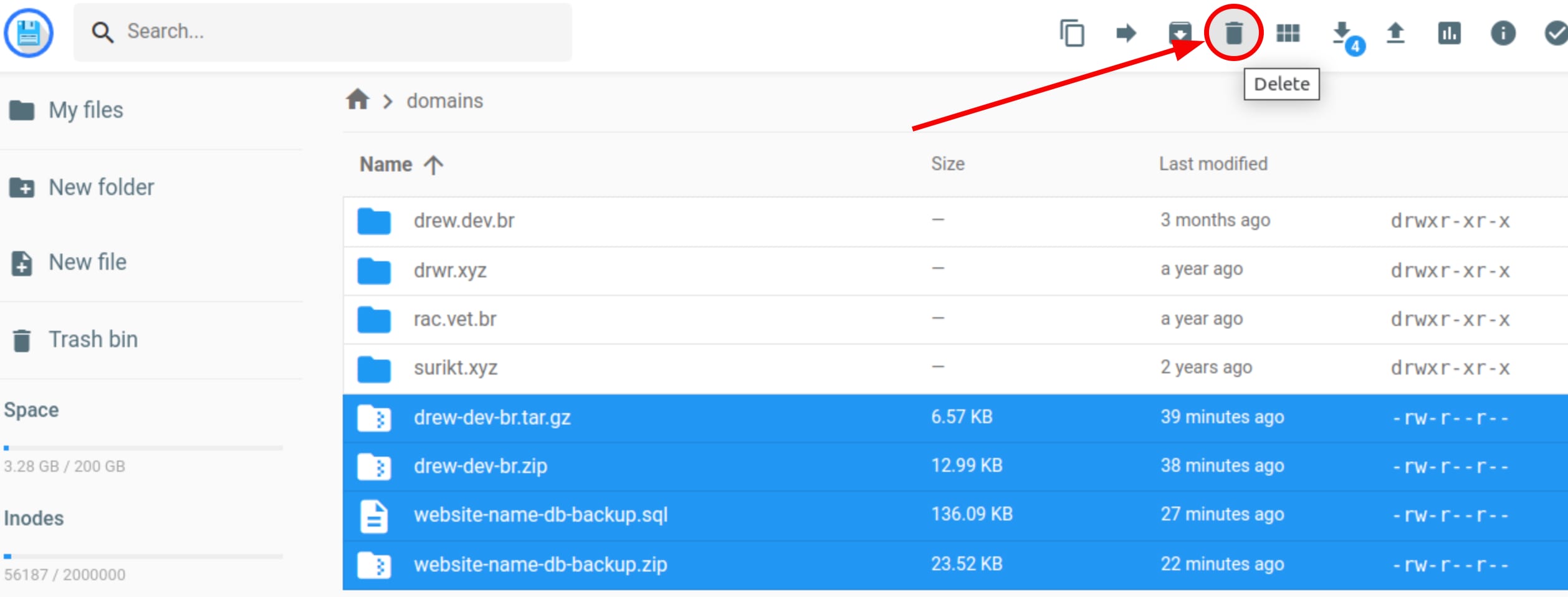
下载完成后,建议重新通过 SSH 连接并删除生成的文件(使用 rm 命令),以免占用主机资源。

步骤 7 – 通过文件管理器下载压缩文件(可选)
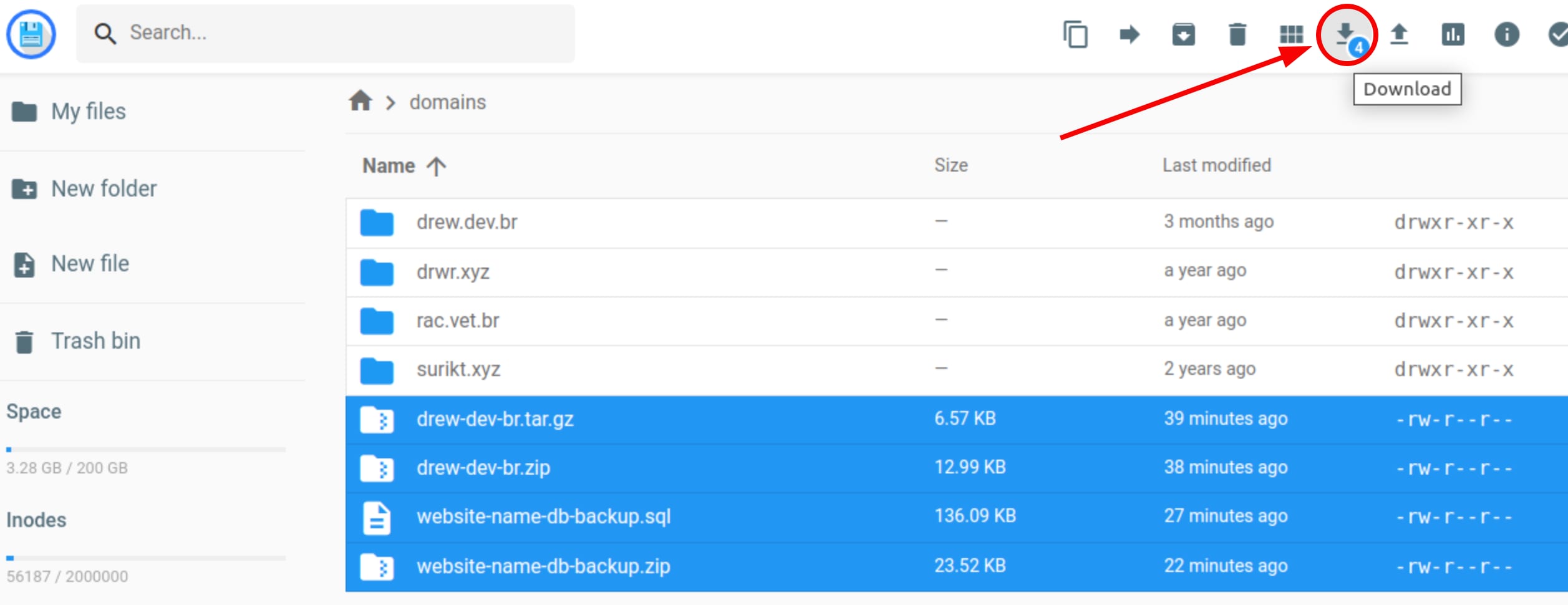
Hostinger file manager with the Download button highlighted for selected backup files
Hostinger file manager delete icon highlighted in the top toolbar

进入文件管理器,访问主机套餐的全部文件,进入 domains 文件夹,选中所需文件并下载。完成后可删除这些文件以释放空间。

来源:Hostinger 官方帮助文档