自定义标签是 Hostinger Web 与 Cloud 主机套餐上提供的一项功能,旨在帮助你整理并简化网站管理。你可以创建个性化标签并将其分配给网站,从而更轻松地按内容类型(如博客、作品集、在线商店)或项目状态进行分类、搜索和筛选。

Agency 主机套餐 不支持自定义标签。

创建自定义标签
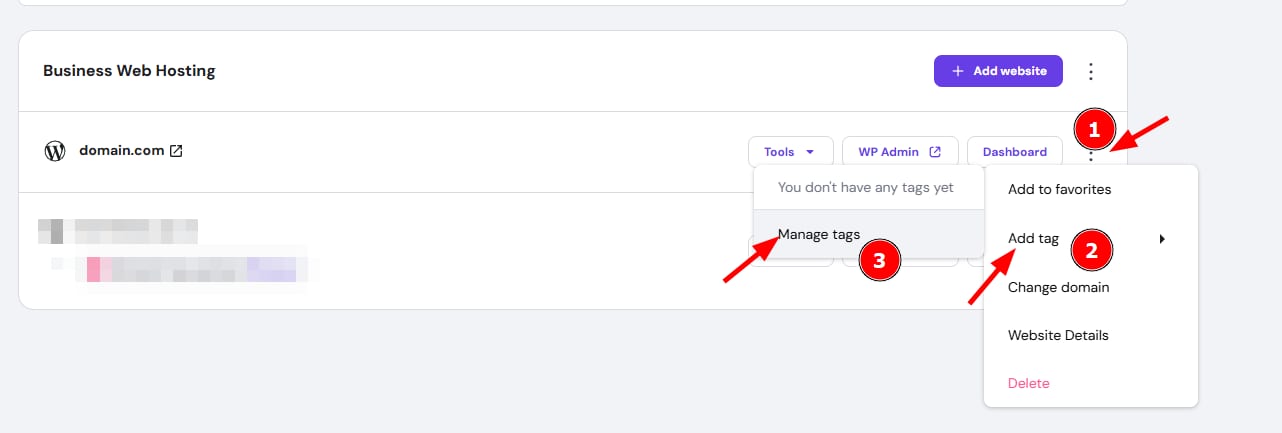
Business Web Hosting website menu with Add tag and Manage tags options highlighted
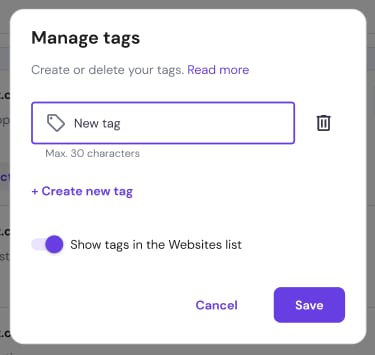
Hostinger hPanel tag management dialog with the New tag field highlighted for creating a custom website tag

你可以创建符合自身独特整理需求的标签,以实现细致分类。

  1. 进入 hPanel → Websites

  2. 点击任意网站旁的选项按钮(⋮)并选择 Add tag(添加标签)

  3. 点击 Manage tags(管理标签) 以创建新标签。

  4. 输入不超过 30 个字符的标签名称并点击 Save(保存)

你可以根据需要创建任意数量的标签。

为网站分配自定义标签

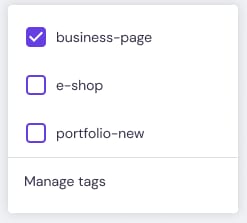
Business page tag selected in Hostinger hPanel tag list

你可以为收藏中的任意网站分配最多五个标签。

  1. 在 Websites(网站)板块,点击对应网站旁的选项按钮(⋮)。

  2. 选择 Add tag(添加标签)

  3. 勾选你要应用的标签对应的复选框。

  4. 要移除标签,只需取消勾选对应复选框。

按标签筛选网站

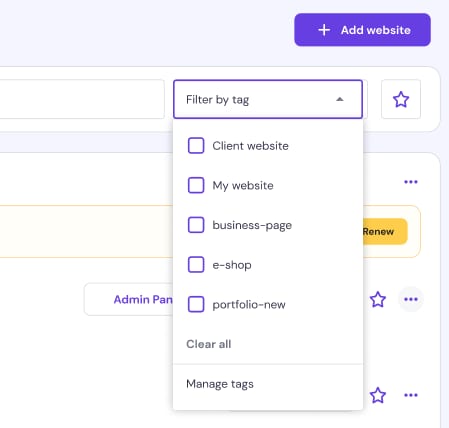
hPanel website list with open tag filter dropdown and Manage tags option

你可以通过筛选特定分类来创建列表的自定义视图。

  1. Websites(网站) 板块的搜索栏旁找到 Filter by tag(按标签筛选) 下拉菜单。

  2. 从列表中选择所需的标签。

  3. 如果你选择了多个标签,hPanel 只会显示符合所有所选标准的网站。

管理并编辑标签
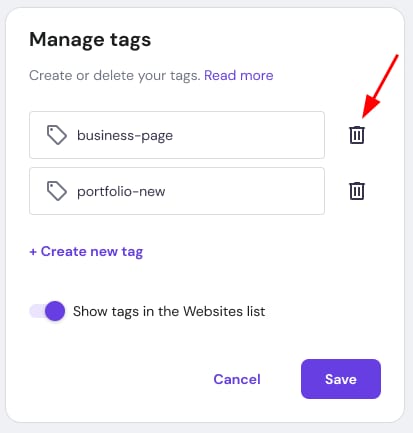
Manage tags dialog with the delete icon for business-page highlighted

你可以随着项目需求的变化更新你的整理系统。

  1. 点击 Filter by tag(按标签筛选) 下拉菜单并选择 Manage tags(管理标签)

  2. 在此菜单中,你可以重命名现有标签、创建新标签,或通过点击垃圾桶图标删除标签。

使用自定义标签可以让你更高效地浏览 Hostinger 账户,从而提升工作效率。你的网站现在已被整理到一个可搜索的系统中,并能随你不断增长的业务组合而扩展。

来源:Hostinger 官方帮助文档