若你有 Premium 及以上套餐,SSH 是管理主机账户非常便捷快速的方式。为进一步提升速度与安全性,我们强烈建议生成 SSH 密钥并添加到 hPanel。流程如下:
步骤 1 — 生成密钥
根据系统不同,生成方式如下:
- Windows:可使用 PuTTY 等 SSH 客户端,参考《如何在 PuTTY 上生成 SSH 密钥》教程的步骤 1-3。
- Unix 类系统(如 macOS 或 Ubuntu):可直接在终端生成,参考《如何设置 SSH 密钥》教程的步骤 1。
步骤 2 — 添加密钥到 hPanel
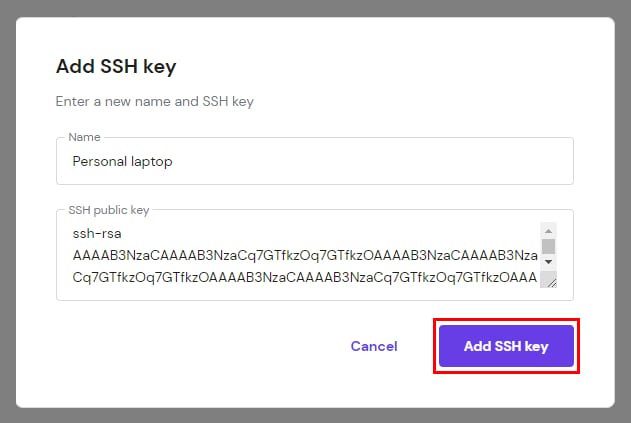

生成密钥后,用任意文本编辑器打开公钥(通常为 id_rsa.pub)并复制其全部内容。
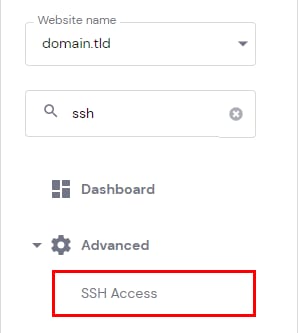
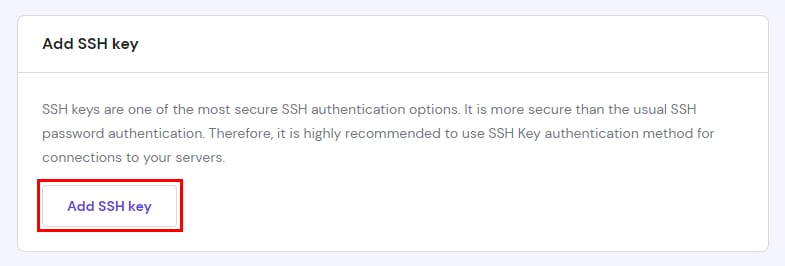
进入 Hostinger 账户的 网站(Websites)部分,点击目标网站旁的“面板(Dashboard)”,侧边栏找到 SSH access 并点击。向下滚动点击“添加 SSH 密钥(Add SSH key)”(添加前请先启用 SSH 访问)。输入密钥名称与公钥内容,点击“添加 SSH 密钥(Add SSH key)”即可。
添加后,登录服务器时将不再需要 SSH 密码。所有已添加的 SSH 密钥会显示在同一页面,可编辑或删除。
注意:只需将公钥添加到 hPanel,切勿将私钥分享给任何人,私钥仅保留在你的本地设备。
来源:Hostinger 官方帮助文档