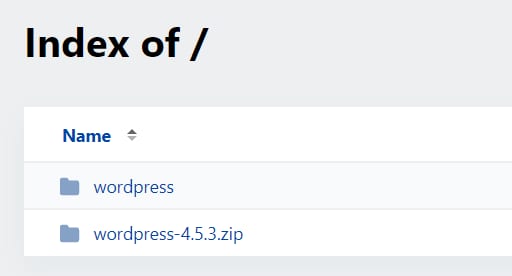
cPanel directory listing showing the wordpress folder and wordpress-4.5.3.zip file
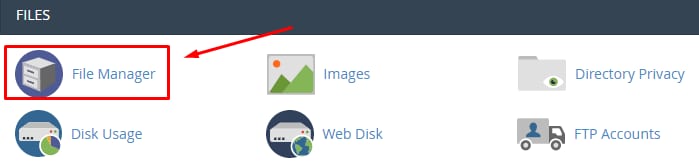
cPanel File Manager icon highlighted in the Files section
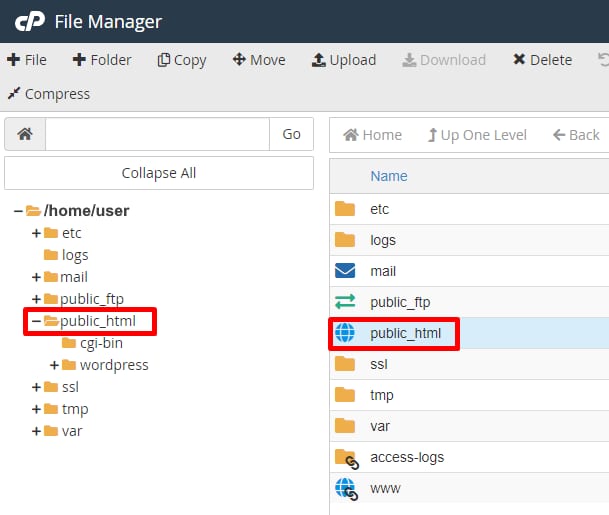
cPanel File Manager showing public_html selected in the folder tree and file list
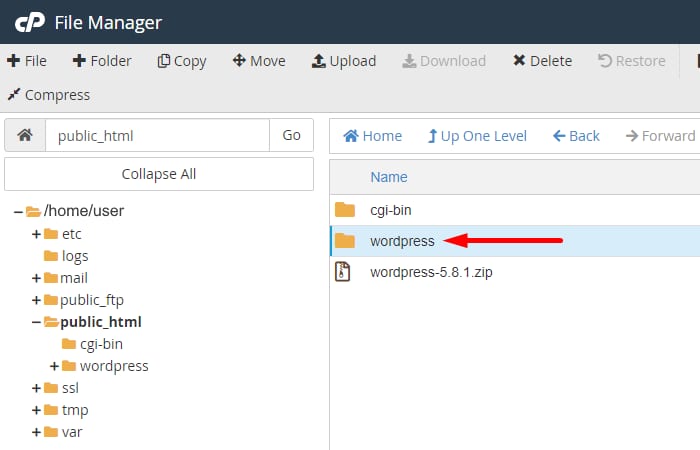
cPanel File Manager showing the wordpress folder in public_html highlighted
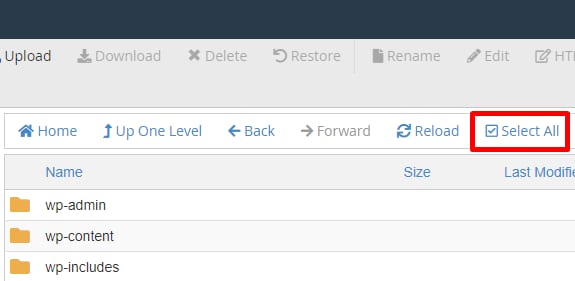
File manager with Select All checkbox highlighted above WordPress folders
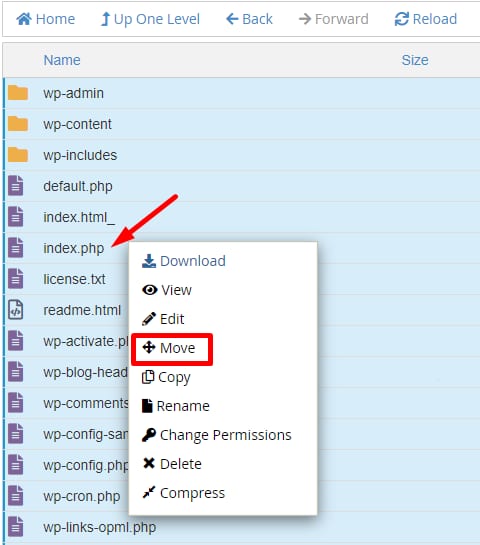
cPanel File Manager context menu with Move highlighted for index.php file
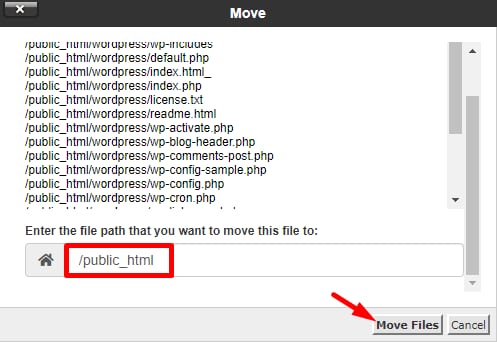
cPanel file manager move dialog with /public_html path highlighted and Move Files button

在 Hostinger 使用 cPanel 将网站从子文件夹移动到主域名

如果你 上传了网站,之后遇到了所谓的 Index of 问题(即网站显示成类似这样的列表,而不是上传的内容):

你可以通过将网站移动到正确的目录(即 public_html,也称为 document root)来快速解决,步骤如下:

  1. 打开 cPanel → File Manager
  2. 进入文件管理器后,打开 public_html 目录:
  3. 打开你在 public_html 目录中看到的子文件夹(在我们的例子中是 wordpress):
  4. 你应该看到网站的所有文件。如果你看到名为 index.phpindex.html 的文件,就说明你找对了位置。点击 Select All 选择所有文件和文件夹:
  5. 右键点击其中一个并选择 Move
  6. 接着,指定你希望文件移动到的位置。对于你账户的主域名,该位置是 /public_html,点击 Move Files
  7. 文件移动后,返回 /public_html 并删除所有残留的文件和文件夹(在我们的例子中是 wordpress-5.8.1.zipwordpress 文件夹)。
  8. 最后,在 清除缓存 后,在浏览器中访问你的网站,检查一切是否正常工作。

完成!你已成功将网站从子文件夹移动到主域名 😊

注意:

来源:Hostinger 官方帮助文档