在 Hostinger 的 VPS 上访问和设置 cPanel/WHM。
WHM(Web Host Manager)和 cPanel 是用于管理服务器和网站功能的虚拟主机控制面板。
- WHM:为管理员设计的管理界面,允许他们管理多个 cPanel 账户、设置托管套餐、配置安全以及执行服务器级任务。
- cPanel:面向单个网站所有者的用户友好界面,让他们能够管理文件、域名、数据库、邮件等。
WHM 用于服务器管理,而 cPanel 用于该服务器上的网站管理。
cPanel 和 WHM 是我们的 VPS 方案 提供的 操作系统模板 之一。你可以在首次设置 VPS 时选择它,或随时更改 为 AlmaLinux 9 with cPanel。
访问我们的 cPanel VPS 托管 页面,了解有关可用 VPS 方案的更多信息 🚀
许可证信息
cPanel 许可证不包含在内。如果你的账户在 Hostinger.com(全球)、Hostinger Indonesia 或 Hostinger Europe 品牌下,你可以按照以下步骤从 hPanel 购买:如何购买许可证。
你可以从 Hostinger 购买的最少 cPanel 账户数为 5。
如果你的账户在 Global、Indonesia 或 Europe 以外的 Hostinger 品牌下,你可以直接从 cPanel 购买许可证。
访问 WHM
在 Web 浏览器中输入以下内容,将 your-vps-ip 替换为你服务器的 IP 地址:
WHM 详情
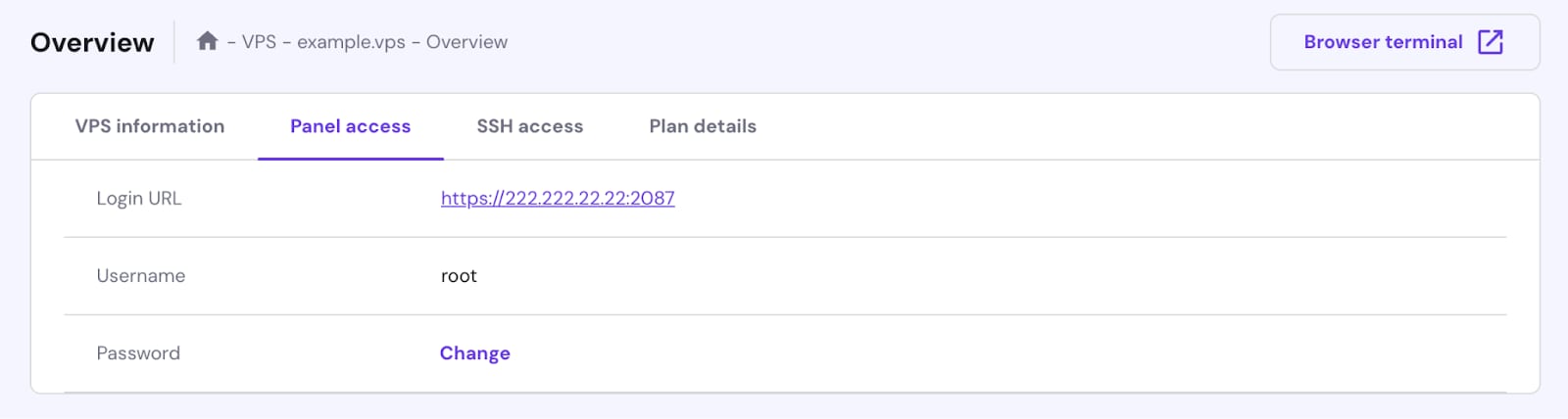
- 通过 HTTP 登录的 URL(不安全连接):http://your_vps_ip:2086
- 通过 HTTPS 登录的 URL(安全连接):https://your_vps_ip:2087
或者,进入你的 VPS hPanel 概览页面,导航到“Panel access(面板访问)”标签页,并点击“Login URL(登录 URL)”链接。
登录
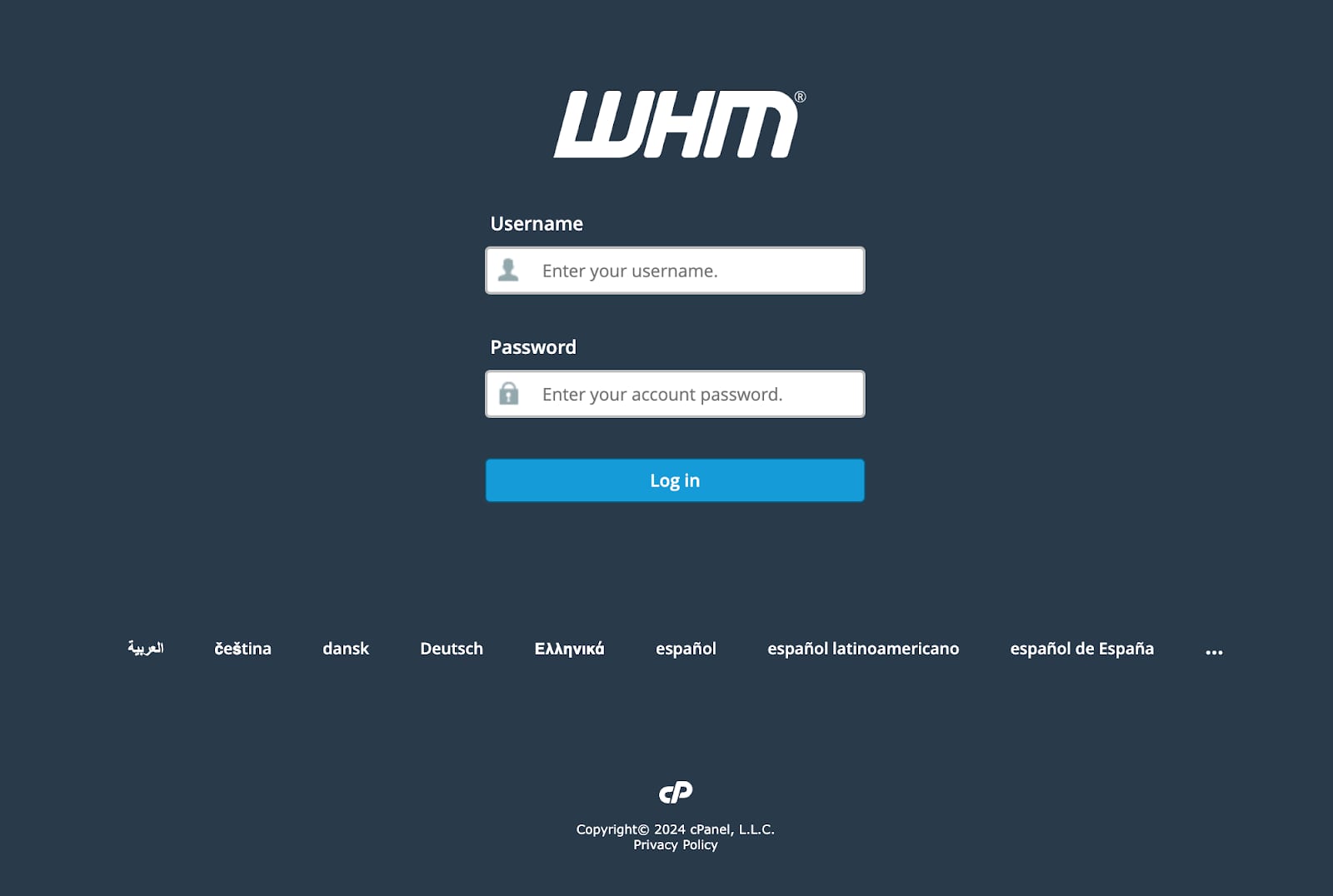
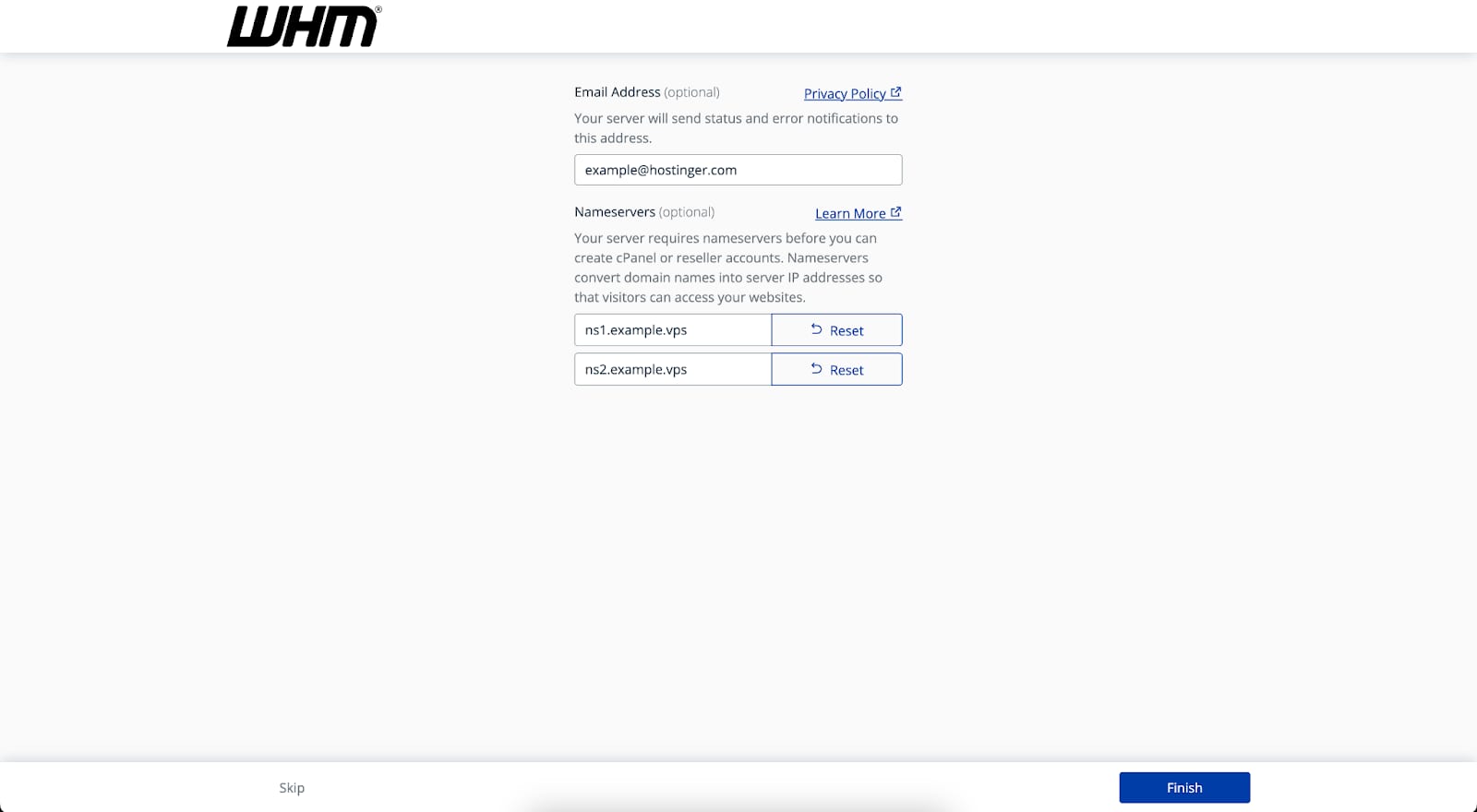
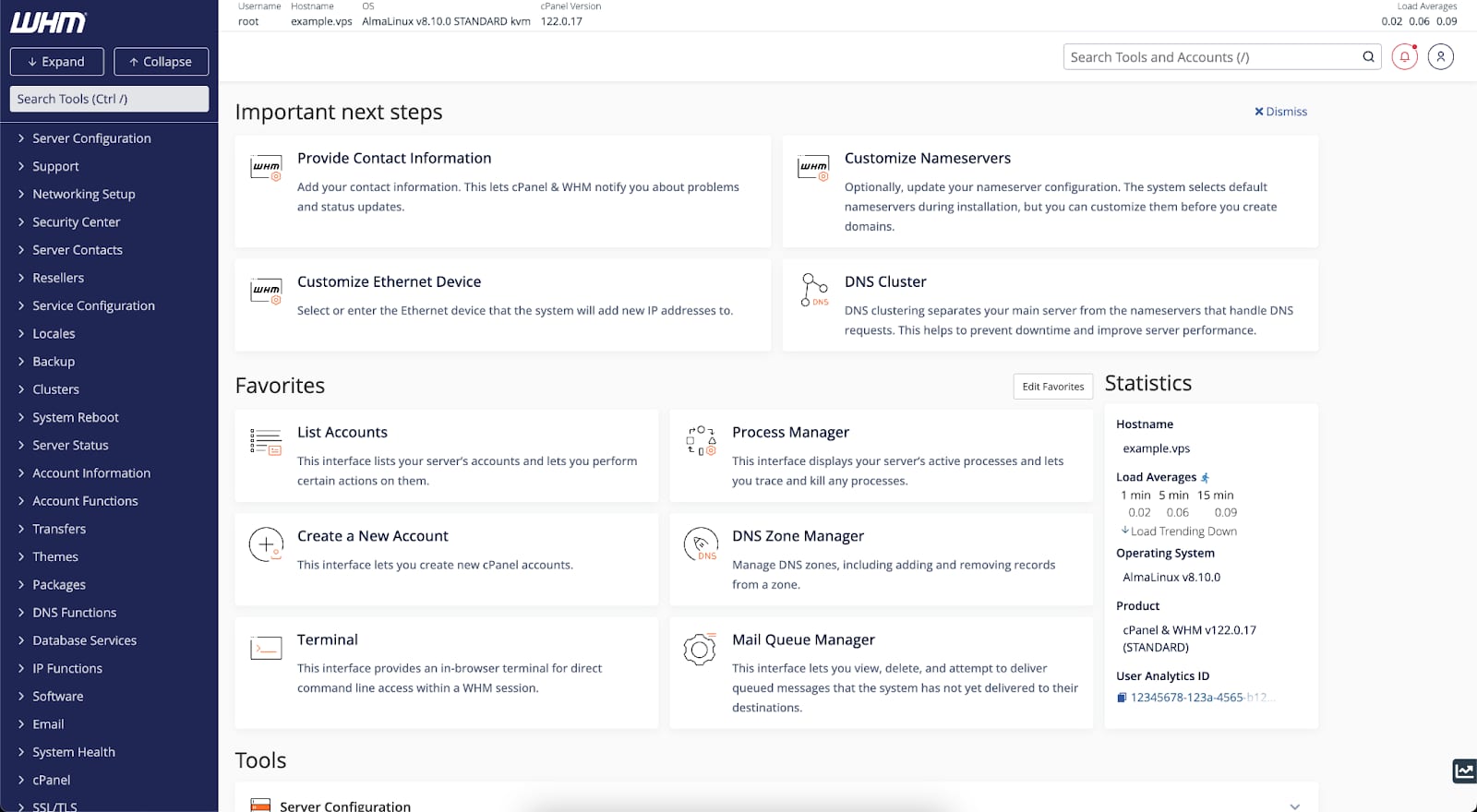
一旦你的 VPS 运行 cPanel/WHM,你将能够登录 WHM 或 cPanel。通过浏览器访问登录 URL 时,你需要接受 自签名 SSL 证书。
输入凭据登录:
- 用户名:root
- 密码:你的 root 密码
然后你将被重定向到 WHM 引导屏幕。如果此屏幕未出现,且你看到“Get Started with a Free cPanel Trial!(开始免费 cPanel 试用!)”,那是因为你的账户没有关联有效的 cPanel 许可证。
完成此步骤后,你将成功重定向到 WHM 主页,在那里你可以创建 cPanel 账户。
cPanel 详情
- 通过 HTTP 登录的 URL(不安全连接):http://your_vps_ip:2082
- 通过 HTTPS 登录的 URL(安全连接):https://your_vps_ip:2083
cPanel 用户名和密码需要在 WHM 面板上已创建——你可以在 官方文档 中找到详细指南。
来源:Hostinger 官方帮助文档