将域名从 Hostinger 指向 Elementor
在将域名指向 Elementor 之前,请确保你已从 我的 Elementor 仪表盘 连接该域名。
第 1 步 —— 从 Elementor 获取 A 和 CNAME 记录
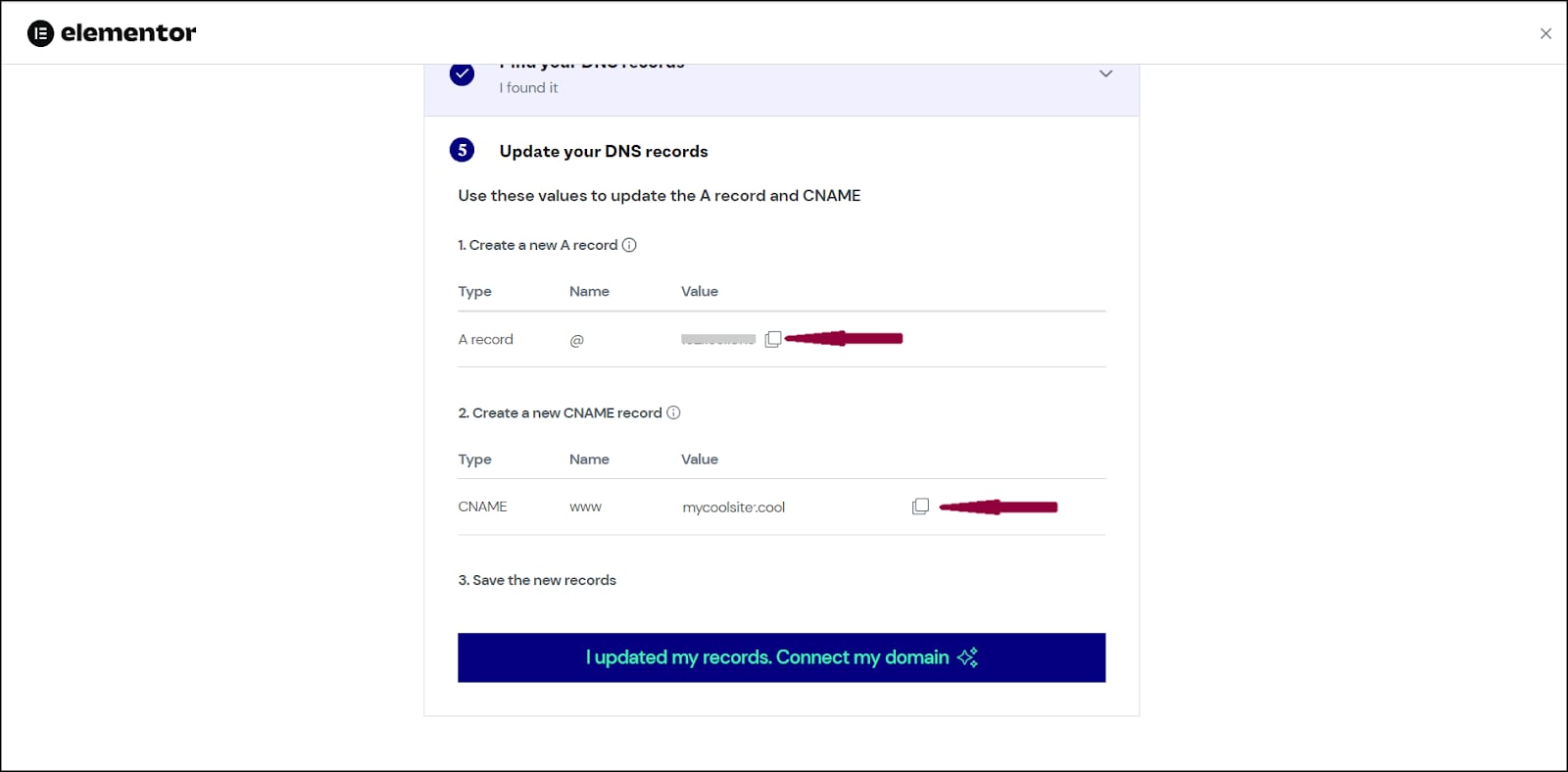
你可以在从 我的 Elementor 仪表盘 连接域名后,按照所有提示来找到它们。你可以点击 找到了,下一步是什么? 来获取 A 和 CNAME 记录。
第 2 步 —— 在 Hostinger 中添加 DNS 记录
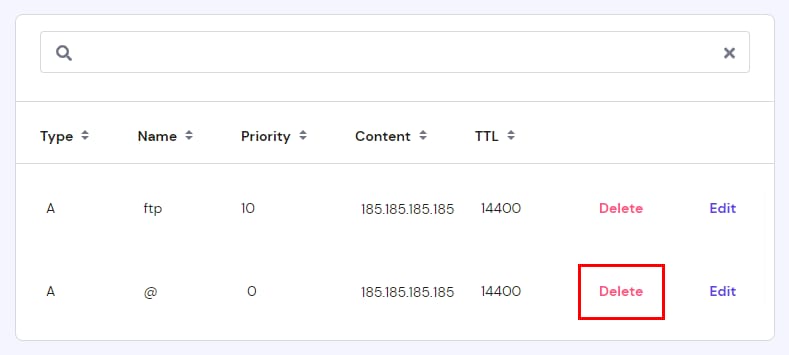
如果你的域名使用 Hostinger 的 nameserver,你可以打开一个新的浏览器标签页,访问你域名的 DNS 区域,以创建 A 记录 和 CNAME 记录。
- 如果你已启用 Hostinger CDN,请将其禁用。
- 移除根域名(@)的 AAAA 记录(如果有的话)。
- 移除 根域名(@)的现有 A 记录:
- 移除 www 的 CNAME 记录。
- 将以下记录添加到你域名的 DNS 区域:
A 记录
- DNS 记录类型:A
- 名称:@
- 内容:粘贴你在 Elementor 复制的值
- TTL:14400
CNAME 记录
- DNS 记录类型:CNAME
- 名称:www
- 内容:粘贴你在 Elementor 复制的值
- TTL:14400
完成这些更改后,DNS 传播 就会开始。此过程最多可能需要 24 小时。在此期间,你的网站可能暂时不可用,但一旦过程完成就会重新上线。
第 3 步 —— 将域名连接到 Elementor
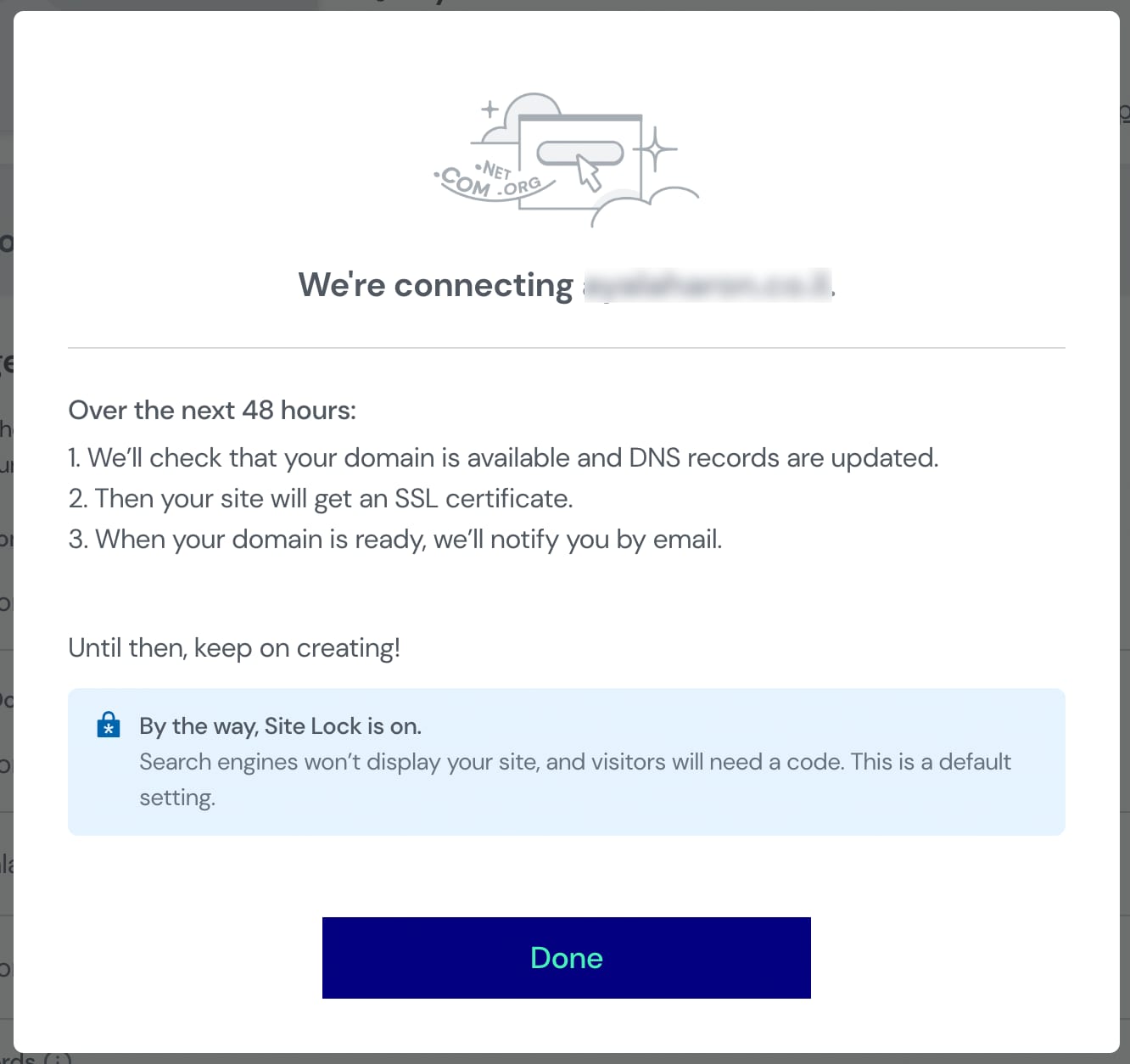
- 回到 Elementor 标签页,点击 我已更新记录。连接我的域名。
- 等待过程完成。在此过程中,Elementor 会:
- 将域名添加到你的站点
- 为域名颁发 SSL 证书
- 验证你的 DNS 记录
来源:Hostinger 官方帮助文档