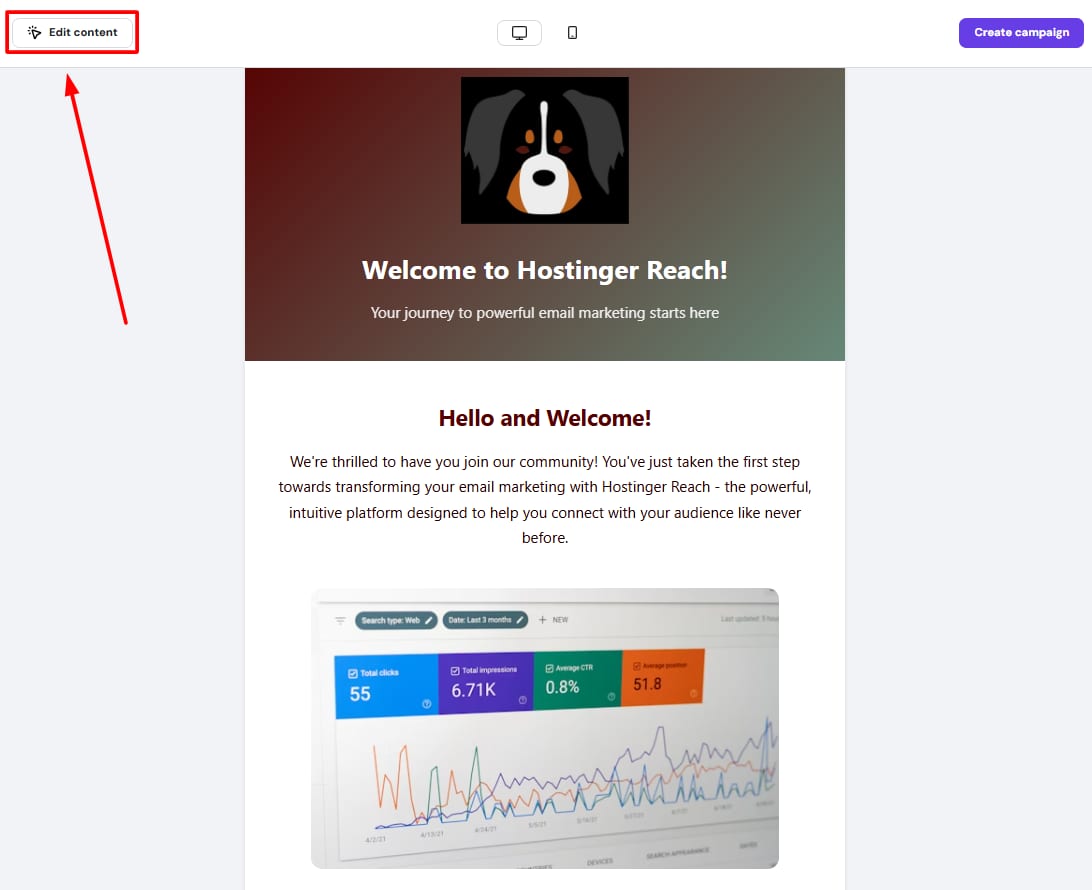
Hostinger Reach editor with Edit content button highlighted in the top left
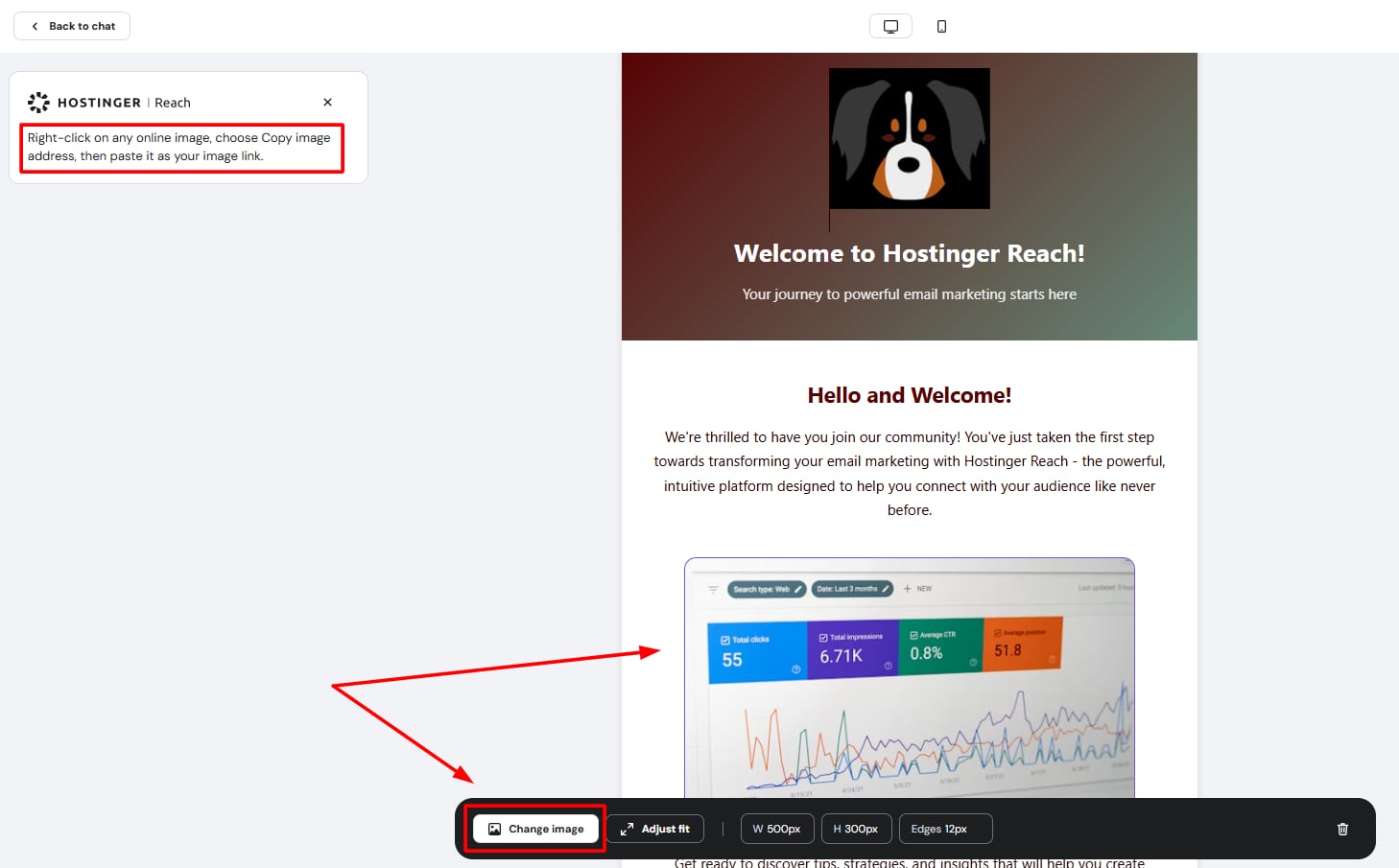
Hostinger Reach email editor with the Change image button highlighted at the bottom

上传图片的三种方式

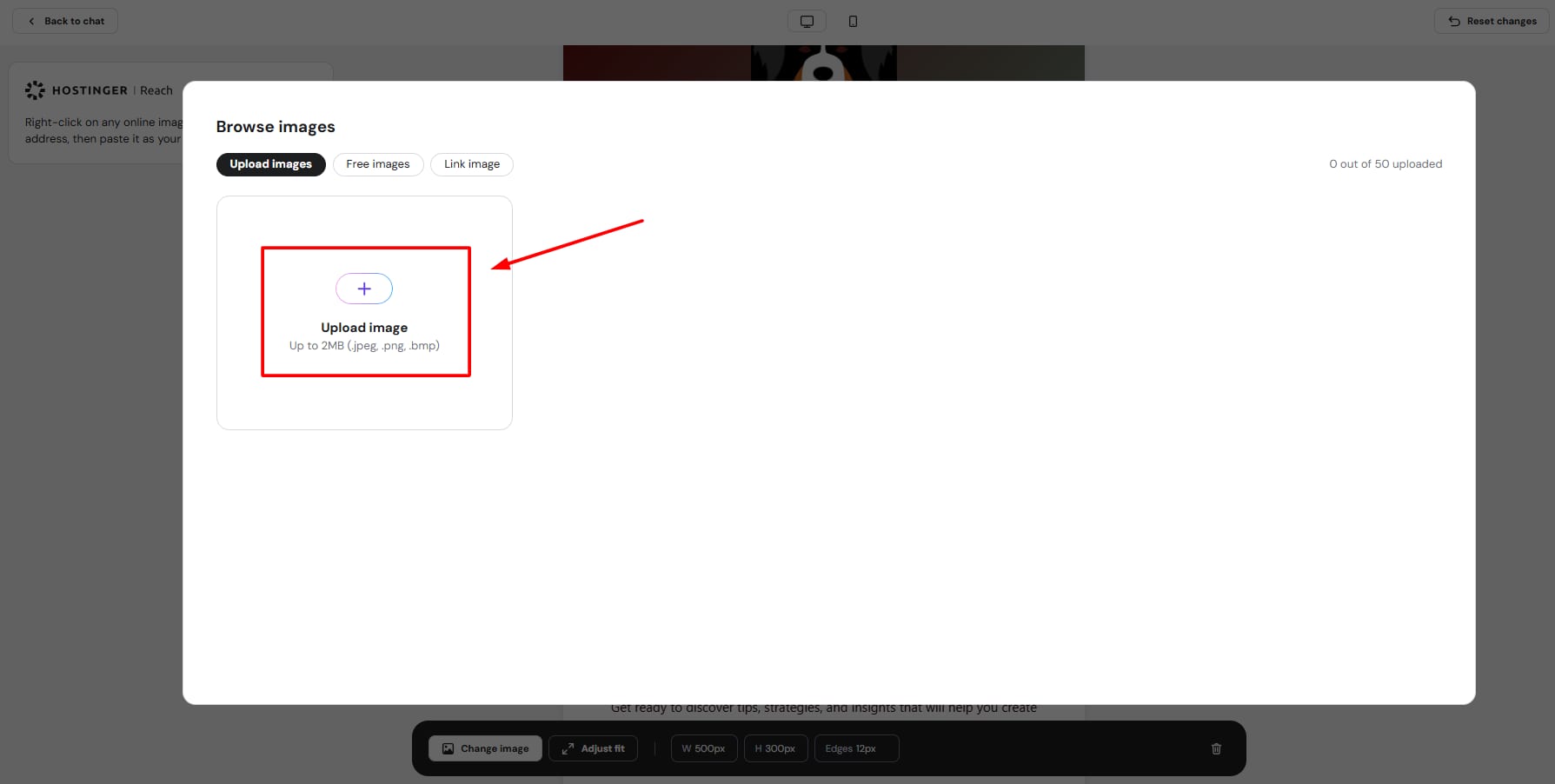
Hostinger Reach browse images modal with Upload image tile highlighted

在 Hostinger Reach 中,你可以编辑邮件营销活动模板中的内容,并从本地设备、Unsplash 上的在线免费图片,甚至使用直接图片 URL 链接来上传你想要的图片。

要上传图片,请访问你的 邮件营销活动模板,并在预览界面中点击 Edit Content(编辑内容)

之后,右键点击你想要编辑的特定图片,并点击 Change image(更换图片)

现在,你可以按照 Hostinger Reach 工具中上传图片的三种方式之一进行操作。

1. 从本地设备上传图片
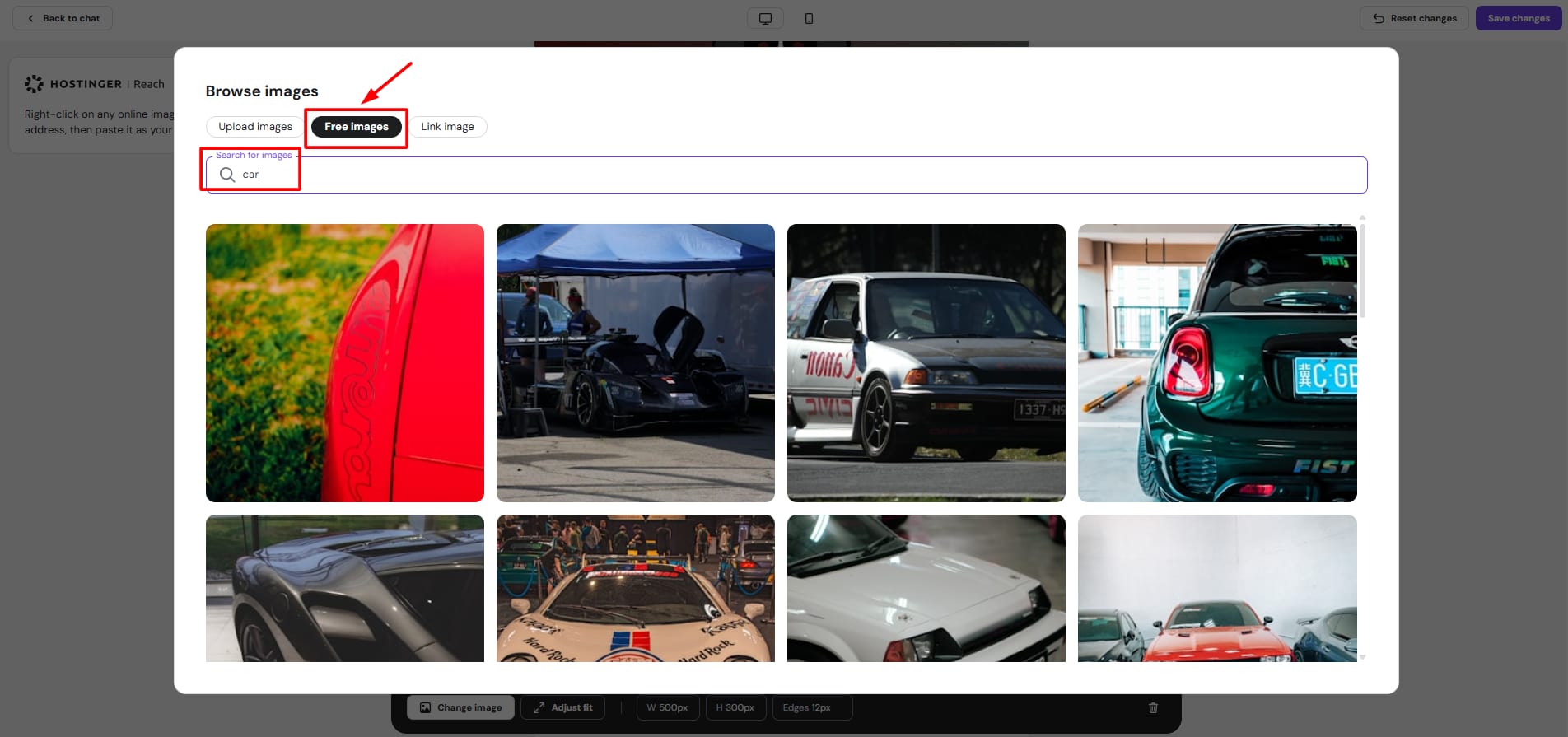
Hostinger Reach free images tab with car search field highlighted

在这种情况下,你只需点击「+」符号,如下图所示:

2. 从 Unsplash 上传免费图片
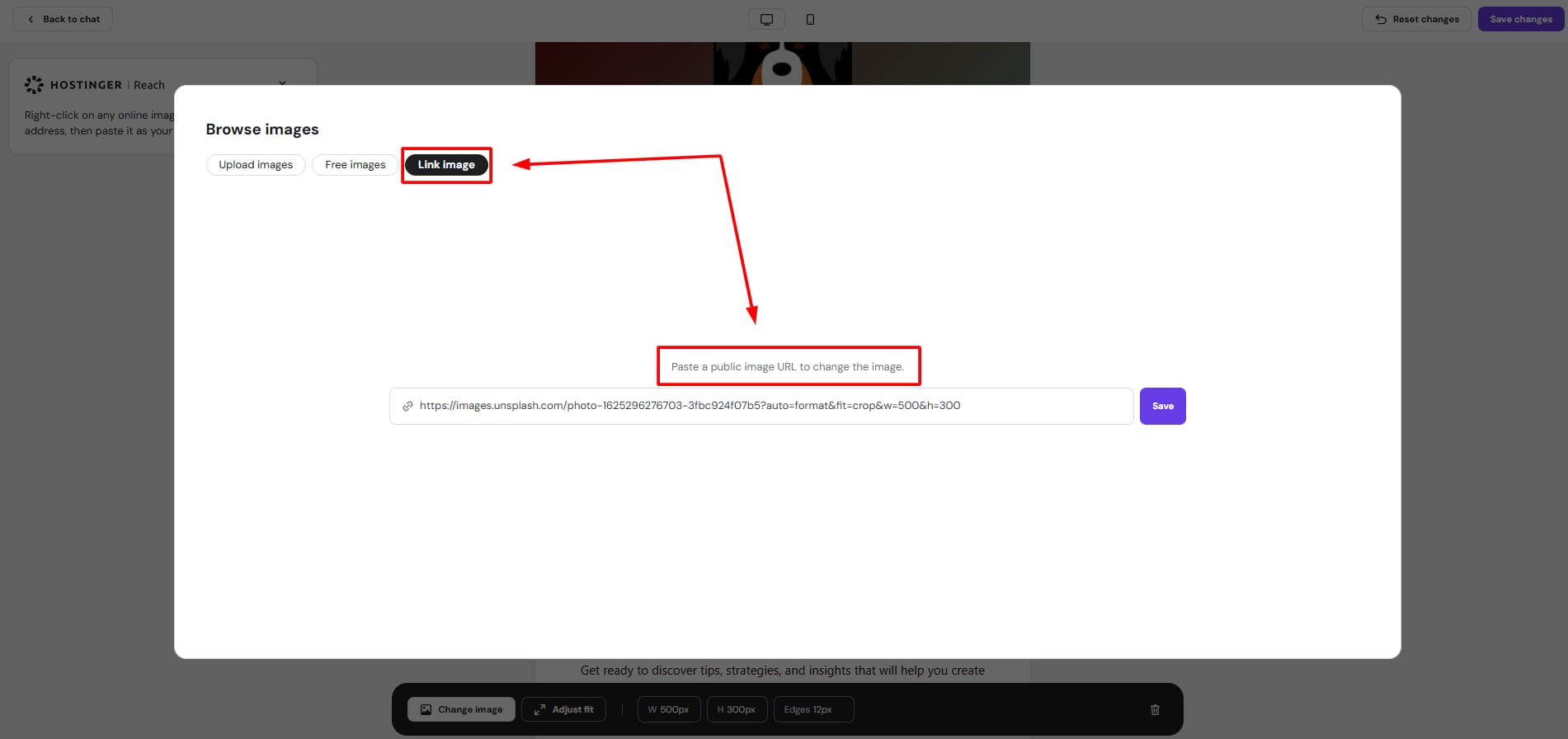
Hostinger Reach upload dialog with Link image tab and image URL field highlighted

要使用 Unsplash 上的专业免费图片,你需要搜索特定关键词并选择所需的图片结果,如下图所示:

3. 从网络上传直接图片 URL

要这样做,你需要通过左键点击从实时网页复制图片 URL,然后将复制的 URL 粘贴到下方字段中:

就是这样 🚀 如果你想了解更多关于编辑邮件模板内容的详细信息,可以在 此处 找到。

来源:Hostinger 官方帮助文档