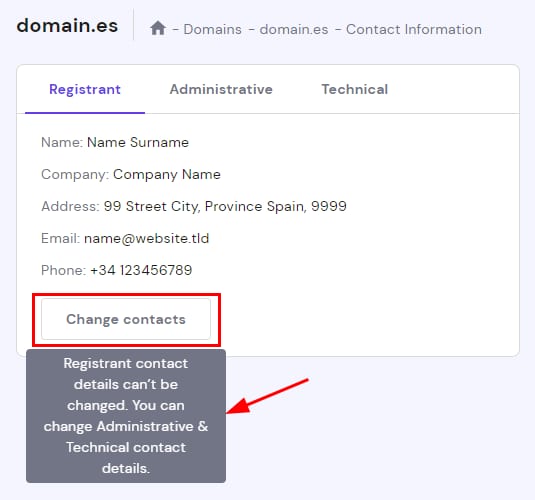
domain.es registrant tab with Change contacts button and note that registrant details can’t be changed
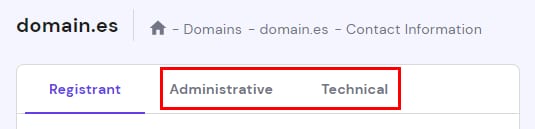
Domain contact tabs with Administrative and Technical highlighted

一般而言,如果你想更改域名联系信息,应进入 Domains(域名)Domain portfolio(域名组合),点击相关域名旁的 Manage(管理),然后打开 Domain ownership(域名所有权) 标签。

但是,如果你尝试更新 .es 域名的域名所有者(注册人)联系信息,你会注意到 hPanel 中的 Change contacts(更改联系人) 选项被禁用了:

这是因为所有 .es 域名的主管机构 ESNIC 要求任何对域名所有者联系信息的更改都必须在其平台上进行。不过,你仍然可以在面板中更改管理或技术联系信息:

要更改注册人联系信息,请按照以下步骤操作 👇

第 1 步 – 创建新的联系信息档案
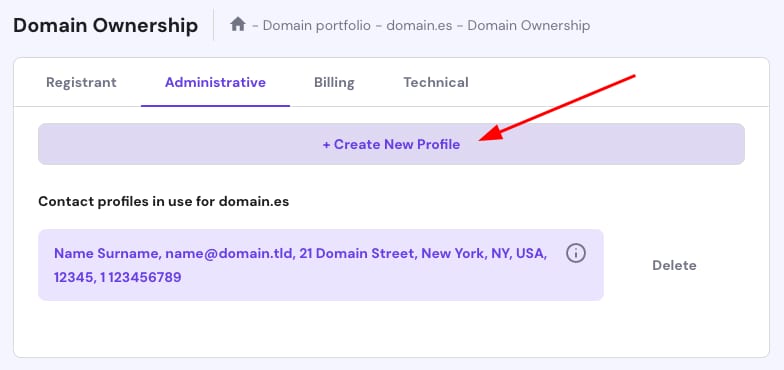
Domain Ownership page with Administrative tab and + Create New Profile button highlighted
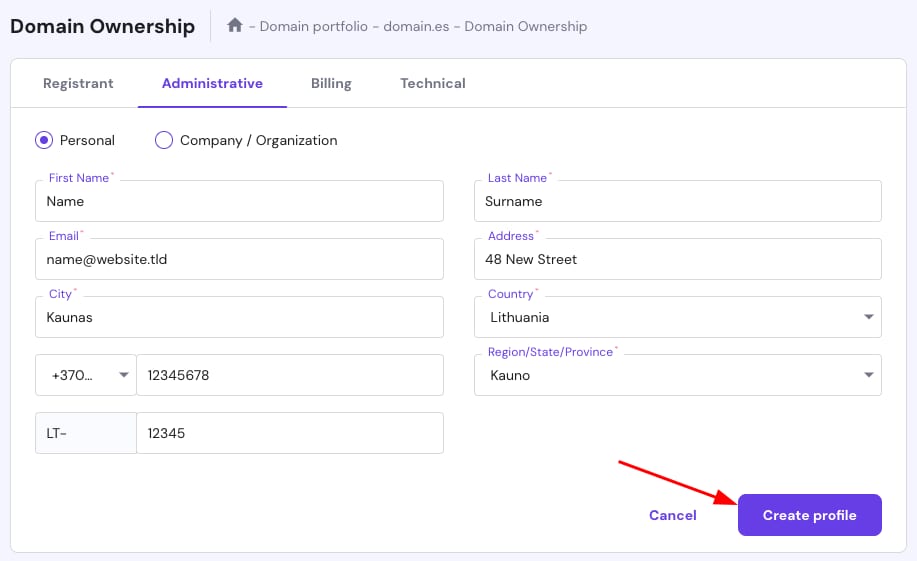
Domain Ownership form with Create profile button highlighted at bottom right

选择可更改的联系信息类型:

  • Administrative(管理) – 域名的主要管理者。
  • Technical(技术) – 网站管理员或 IT 部门。

注意:此步骤对于获取用于注册人变更所需的 ESNIC handle 非常重要。ESNIC handle 必须从 Hostinger 创建。请勿使用 Hostinger 之外生成的 ESNIC handle。

点击 Change contacts(更改联系人),选择 Create new profile(创建新档案),填写所有详情并点击 Create profile(创建档案)。更新联系信息后,请联系我们的客户成功团队,我们将协助你生成 ESNIC handle。生成 ESNIC handle 可能需要 24-48 小时

第 2 步 – 访问你的 nic.es 账户

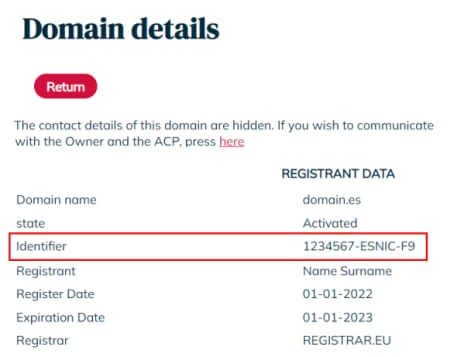
Domain details page with the identifier field highlighted for a .es domain

使用你的 NIC 标识符和密码登录 nic.es 账户。要查找你的 NIC 标识符,请在 dominios.es 上搜索你的域名。标识符显示在你的注册人数据下方:

如果你没有密码,请点击 Retrieve password(找回密码)

第 3 步 – 更改域名的联系信息

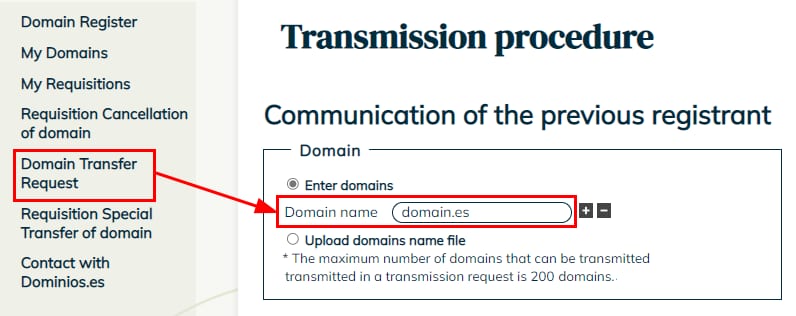
Domain transfer request menu and domain name field for domain.es highlighted
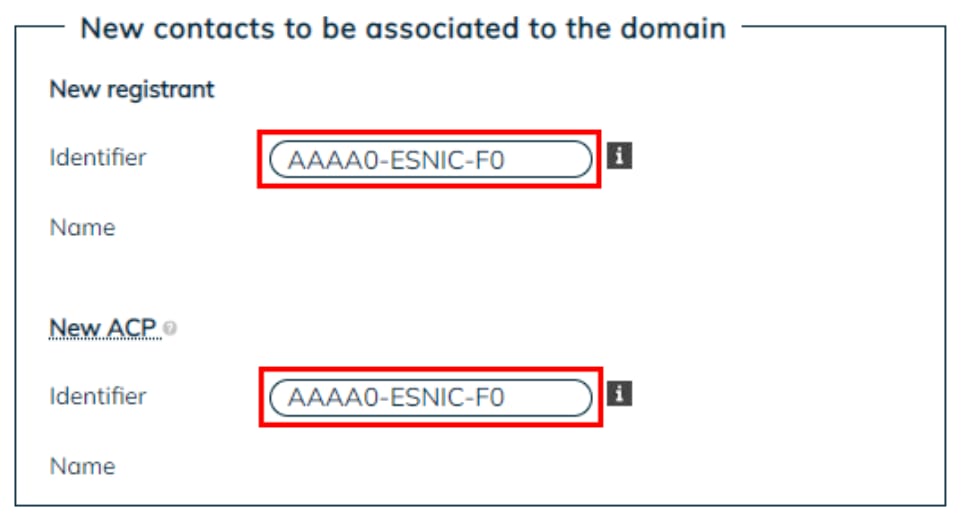
Domain contact details form with two highlighted identifier fields set to AAAA0-ESNIC-F0
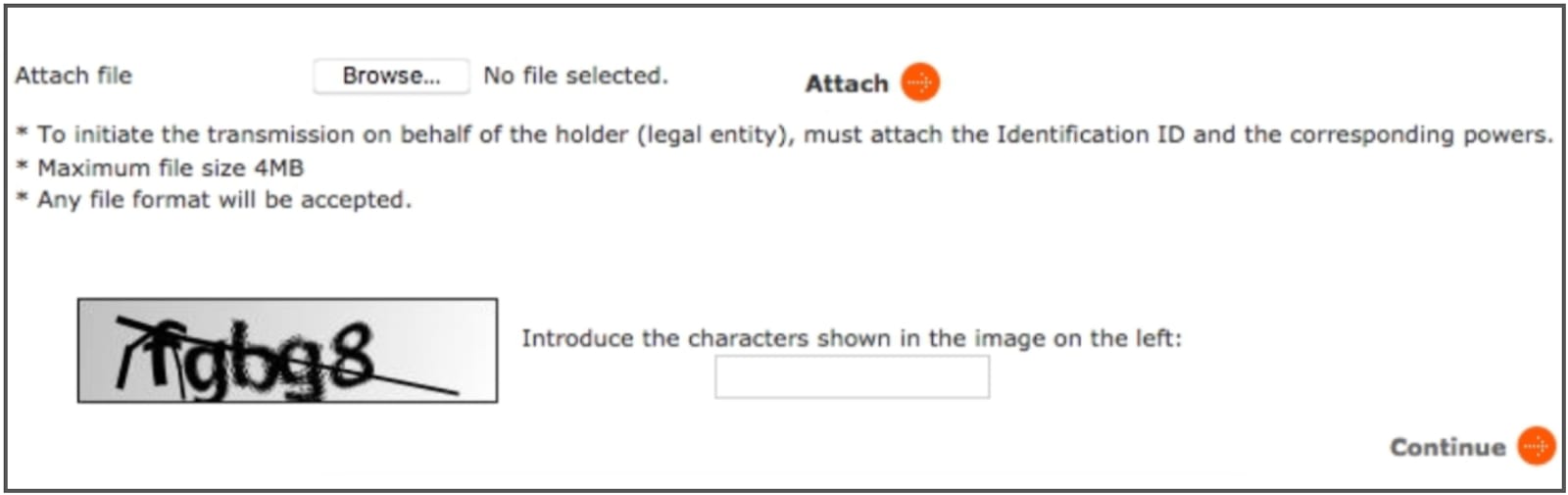
File upload form with CAPTCHA and Attach button highlighted, plus a Continue button

进入 Domain Transfer Request(域名转移请求) 部分,输入你的域名:

向下滚动,通过插入此前由 Hostinger 客服提供/生成的 NIC 标识符(ESNIC handle) 填写新的域名注册人详情(ACP);请勿使用在其他地方创建的 NIC 标识符。对于个人,两个标识符可以相同。ACP 联系人不得是公司:

接下来,使用电子 DNI/证书签名,或上传国民身份证或证明文件的复印件。完成后,点击 Continue(继续):

允许的最大文件大小为 4 MB。如果附件有问题,请尝试调整大小直到成功上传。

第 4 步 – 确认请求
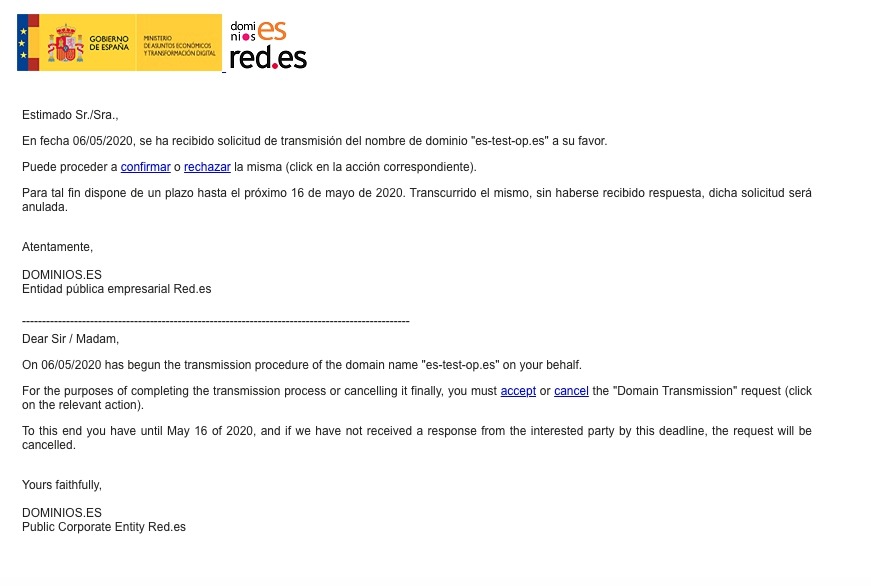
Domain transfer notice for .es domain, with accept and cancel links highlighted
Accredited Registrar option selected with REGISTRAR.EU dropdown
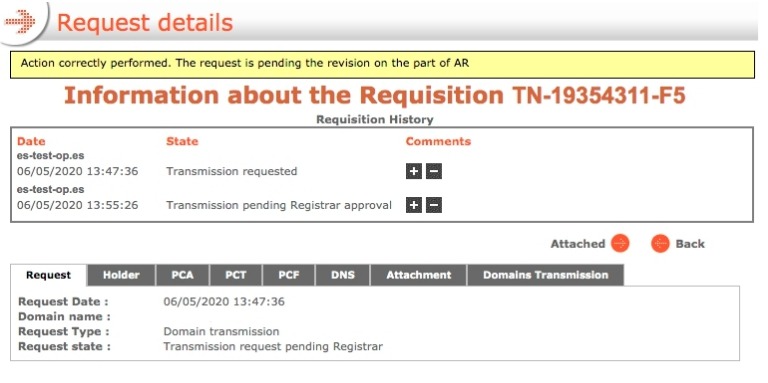
Request details page with highlighted notice that the request is pending registrar approval

如果当前域名所有者在 10 天内未验证请求,请求将自动取消 💡

系统会向新所有者和行政联系人发送邮件以确认请求。

请务必持续登录你的 nic.es 账户并执行以下操作:

  1. 接受传输流程 – 点击 Yes(是)
  2. 确认域名数据 – 你会看到更改注册商的选项。务必将认证注册商指定为 REGISTRAR.EU(我们在 nic.es 的服务商代码)。
  3. 签署传输协议 – 使用电子 DNI/证书或上传国民身份证或证明文件的复印件。

非常重要:你必须选择 Registrar.eu 作为认证注册商。否则,你的域名将从 Hostinger 直接转移到注册局管理 💡

收到操作成功且待审核的确认后。

第 5 步 – 请求档案同步
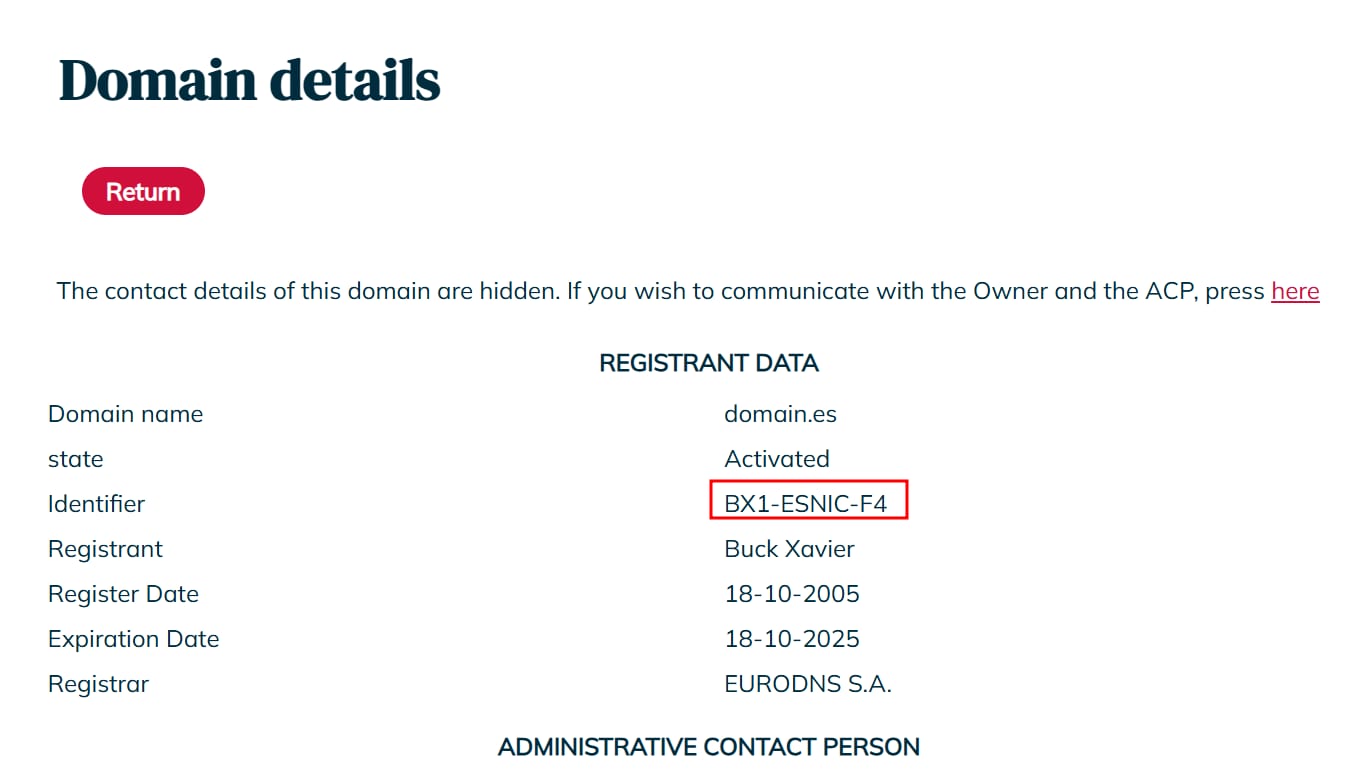
Domain details page with identifier BX1-ESNIC-F4 highlighted in registrant data

请立即通知我们,并附上 NIC.ES 上变更请求的证明材料截图,以便我们与 .es 域名注册商完成流程。

如果所有权变更在 10 天内未获批准,域名将自动转移到注册局。

最后,nic.es 会审核并验证请求。如果一切正确,将被接受。流程通常需要 5–7 天。

成功交易后,注册人信息将在 Dominio.es 更新,注册人数据标识符会反映新的 ESNIC handle:

如果你登录 Hostinger 账户后发现注册人详情尚未与管理联系详情匹配,请联系我们进一步核查。

来源:Hostinger 官方帮助文档