更改您个人资料的 VAT/GST 税码

购买时如何添加税码

如果您的公司注册在欧盟/北爱尔兰,并且拥有有效的 VAT 税码(用于欧盟和英国境内的跨境交易),或者注册在印度并拥有 GST 税码,您可以按照以下步骤,在首次购买我们的任何服务时,将其连同公司信息一起添加:

如果您拥有 印度尼西亚 NPWP 号码,请务必查看本指南:申请税务发票 💡

第 1 步 — 选择国家/地区
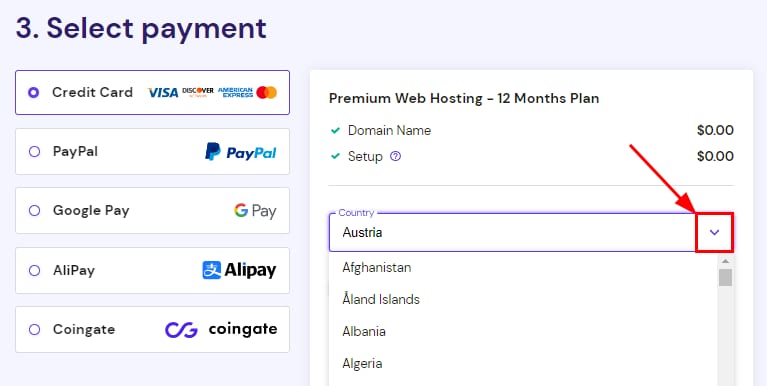
Hostinger checkout country dropdown for selecting tax code country

在您选择好购买周期并创建账户后,系统会要求您选择支付方式。在提交付款之前,从下拉列表中选择您的国家/地区:

第 2 步 — 添加公司信息
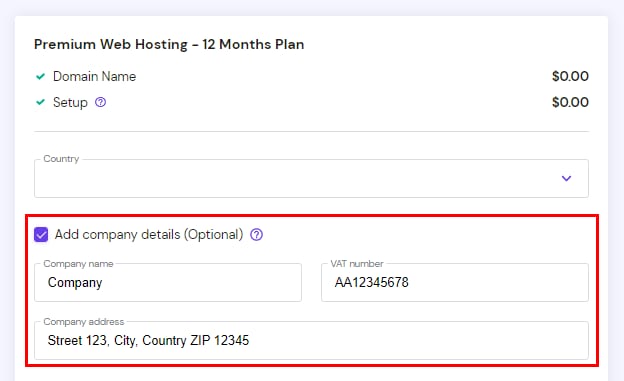
Premium Web Hosting company details optional form with company name, VAT number, and address fields highlighted

接下来,勾选 Add company details(添加公司信息) 旁边的复选框,并输入您的公司信息:

输入有效的 VAT 号码(用于欧盟和英国境内的跨境交易)后,VAT 将从您的发票中扣除,您可以继续进行付款 😊

注意事项

  • 您也可以输入一个未启用欧盟和英国境内跨境交易的 VAT 号码。在这种情况下,VAT 将不会被扣除

  • 由于税款会自动结转,已应用于发票的 VAT 无法退款。

  • 如果您的居住国家/地区是美国,您将被要求提供有效的地址

购买后如何添加税码

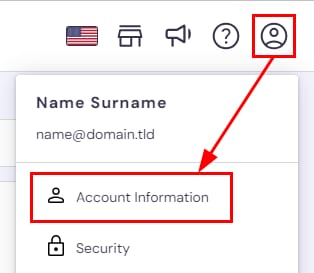
Hostinger account menu with Account Information highlighted
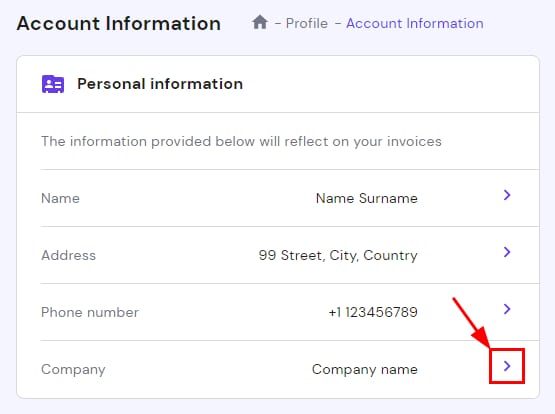
Account Information page with the Company row’s edit chevron highlighted in Personal information
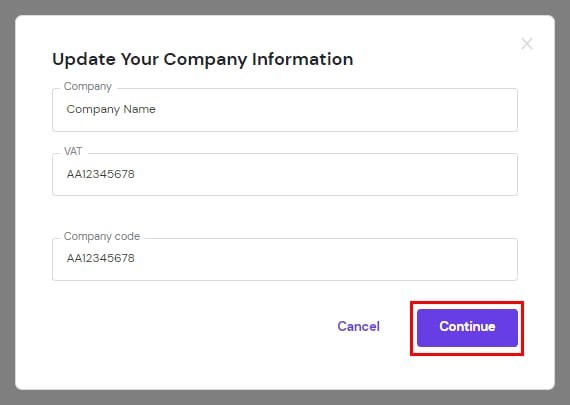
Company information popup with Continue button highlighted

如果您在购买过程中没有添加税务识别码,并希望它显示在您未来的发票上,或者您需要更新当前数据,可以点击个人资料图标,选择 Account Information(账户信息)

进入后,点击 Company(公司)

输入您的公司名称、VAT 或 GST 税码以及公司代码。如果您没有单独的公司代码,可以再次输入 VAT/GST 税码,或者留空。或者,您也可以使用 Company code(公司代码) 字段来输入其他附加信息。

一切就绪后,点击 Continue(继续) 以保存更改:

新信息将显示在您未来的发票上。已开具的发票将保持不变。

来源:Hostinger 官方帮助文档