使用 CMS 建站、上传网站文件或使用 Website Builder
有多种方式可以搭建网站,在 Hostinger,你有不同的选择。
使用内容管理系统(CMS)
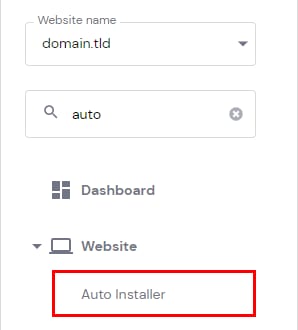
如果你想使用 CMS 创建网站,可以在 hPanel 的 Auto Installer(自动安装器) 中找到最流行的几款,例如 WordPress、Joomla 或 Drupal。
只需进入 Websites(网站) → Manage(管理),在左侧边栏搜索 Auto Installer(自动安装器) 并点击它开始流程:
选择你所需的应用,开始搭建网站。如果你使用 WordPress,请观看此视频了解如何轻松创建网站:
上传网站
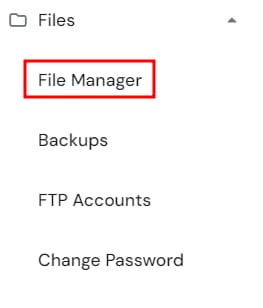
如果你已经搭建好网站,可以使用 File Manager(文件管理器) 上传网站文件。进入 Websites(网站) → Dashboard(控制面板),在左侧边栏点击 Files(文件) → File Manager(文件管理器)。
此功能支持最大 100GB 的文件。更大的文件可以通过 FTP 上传。
请注意,如果你的网站需要数据库,你需要使用 phpMyAdmin 导入数据库。
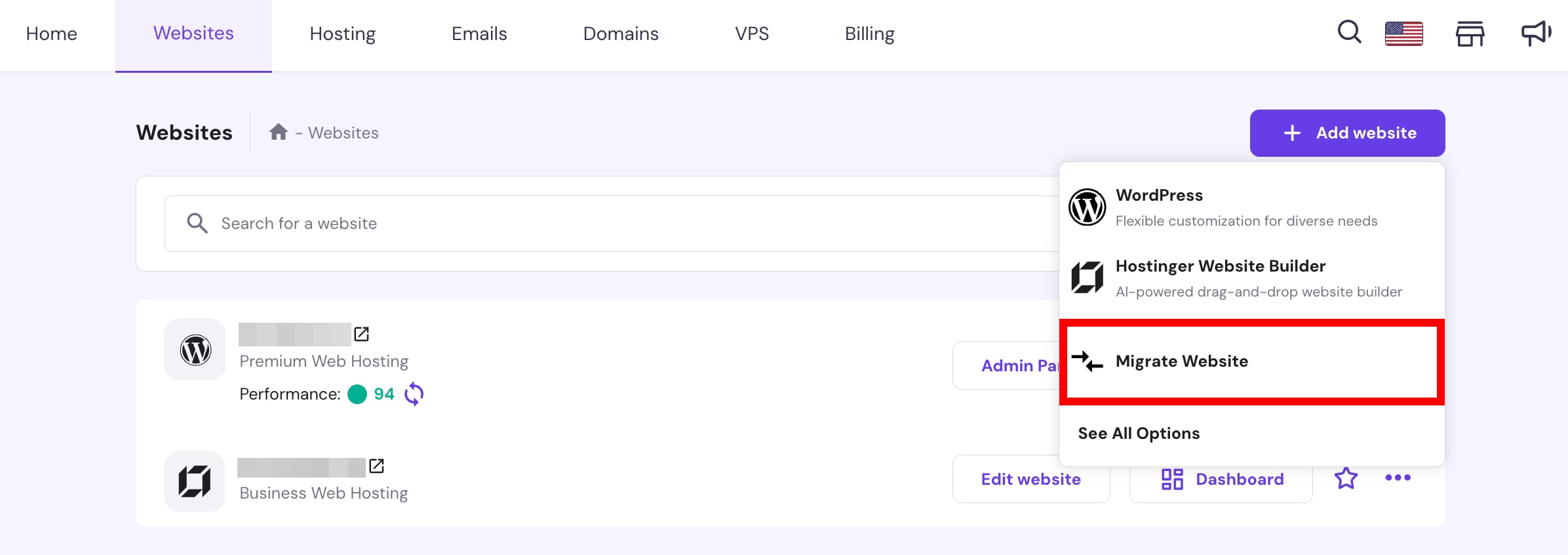
或者,你也可以创建迁移请求,由我们的团队为你迁移网站。要迁移网站,请进入 Websites(网站) 板块,点击 + Add website(添加网站) → Migrate website(迁移网站):
填写所有迁移详情,其余交给我们。
使用 Horizons 或 Hostinger Website Builder 创建网站
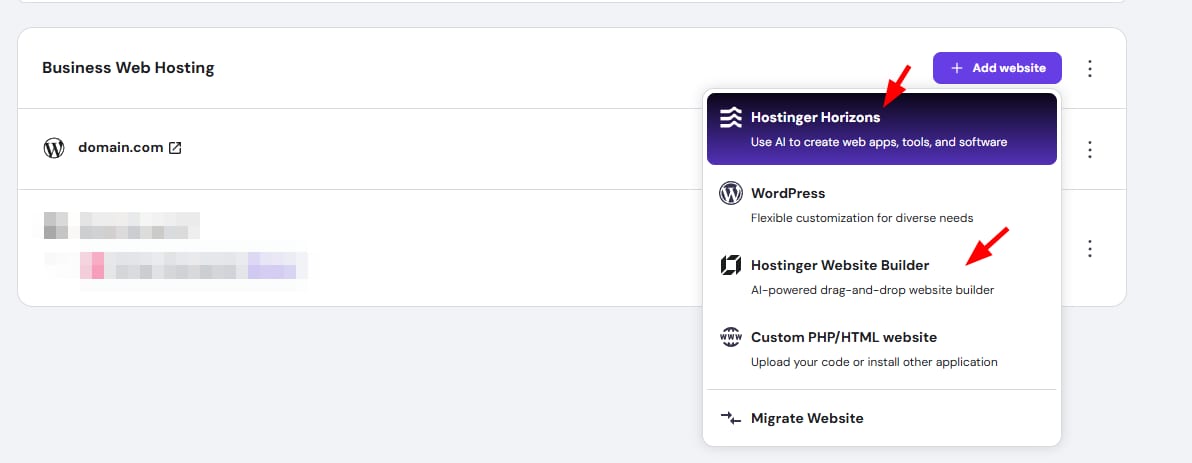
如果你想要一个不需要太多开发知识的方案,可以使用 Horizons 或我们的 Website Builder(网站构建器) —— 它会让建站变得轻而易举!😊
要开始,请进入 Websites(网站) 板块,点击 + Add website(添加网站) → Hostinger Horizons 或 Hostinger Website Builder。
如需更详尽的建站指南,请参阅这篇文章 —— 如何从零开始建站:初学者指南。
来源:Hostinger 官方帮助文档