若你从主机套餐中删除了网站并希望恢复,可参考以下步骤从最新备份恢复。

重要提示:恢复备份后,网站将回到备份创建时的状态——备份日期之后的任何更改都将被撤销。

流程取决于网站的创建方式:
- WordPress 网站:从步骤 1 开始,按 WordPress 恢复说明操作。
- 其他 CMS 平台:执行步骤 1 至 3,跳过步骤 1 中的 WordPress 恢复部分。
- 建站工具网站:请联系我们协助恢复。

步骤 1 — 将域名重新添加到套餐

  1. 进入 网站(Websites)页面。
  2. 选择 添加网站(Add website)→ 空网站(Empty website)。
  3. 输入被删网站的域名。

若网站曾绑定子域名,请先重新创建子域名。

WordPress 恢复

Hostinger Backups page with Restore and download tab and Restore website button highlighted
Hostinger full website restore page showing a highlighted “No backups found” notice
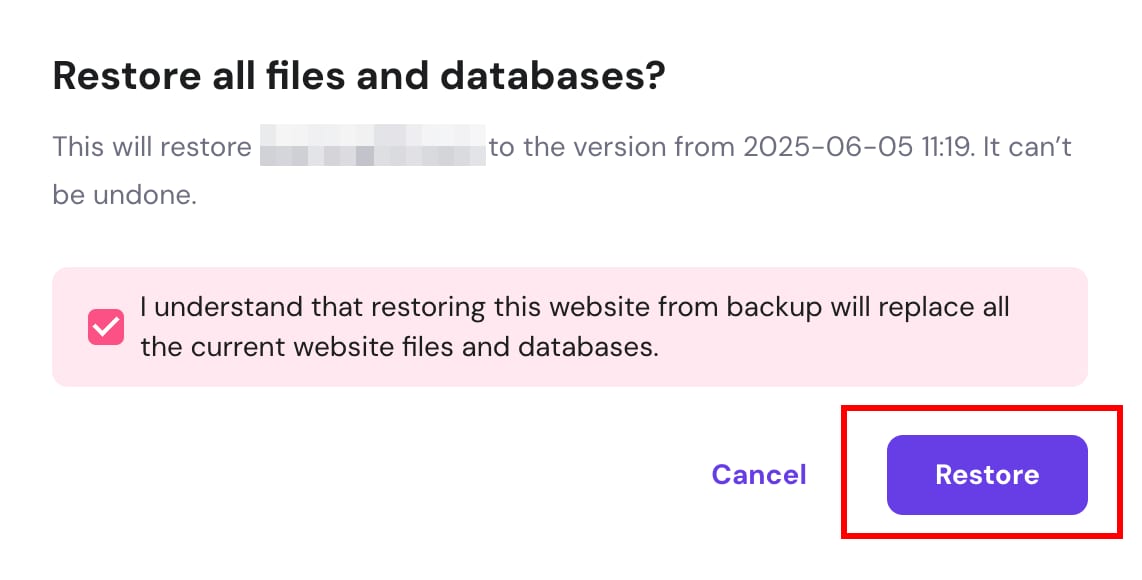
Hostinger confirmation dialog with Restore button highlighted for website backup recovery
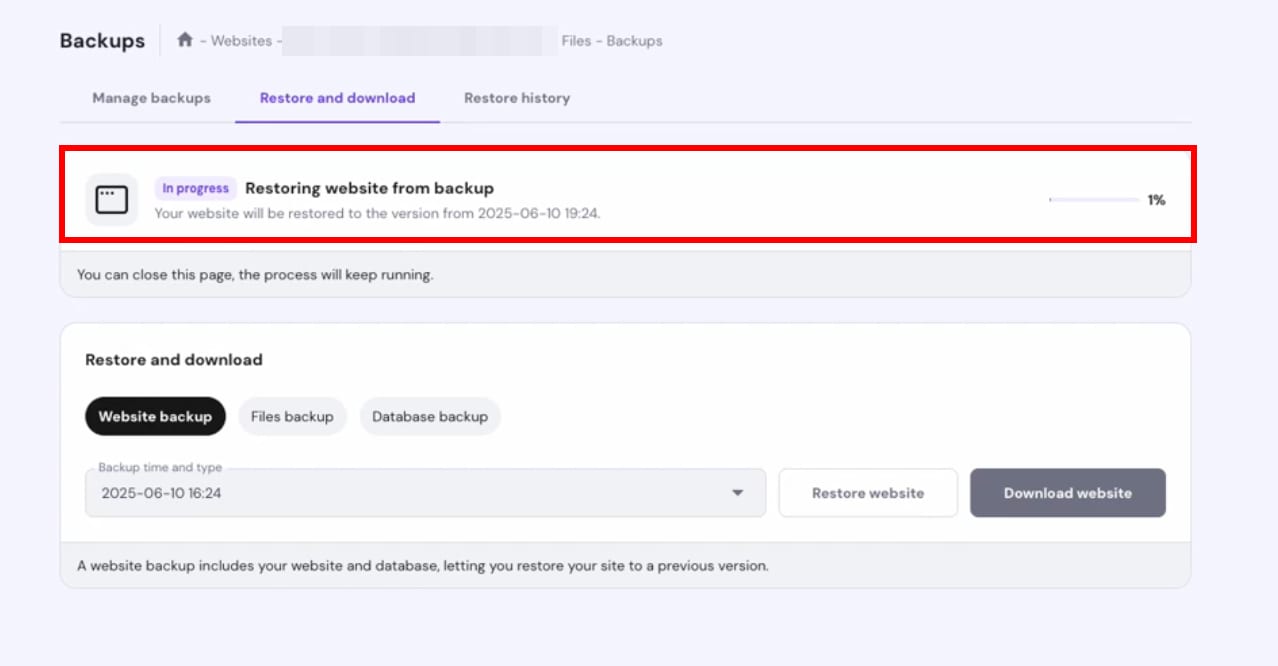
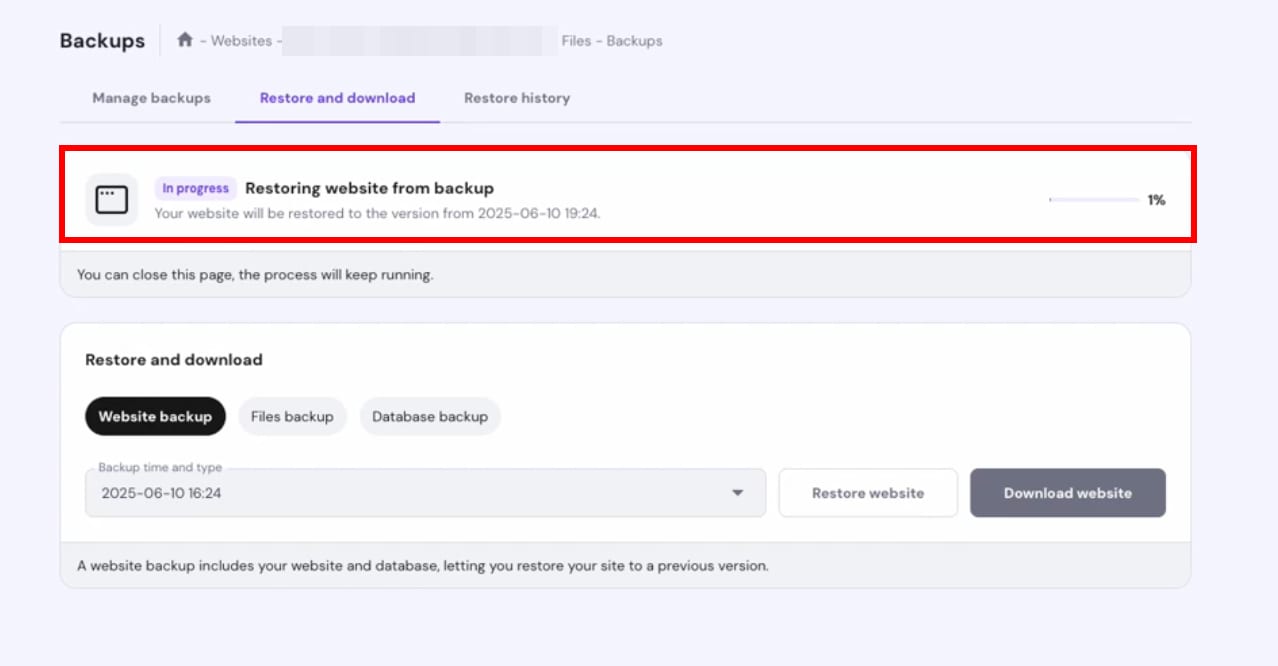
Hostinger backups page showing website restoration in progress at 1%
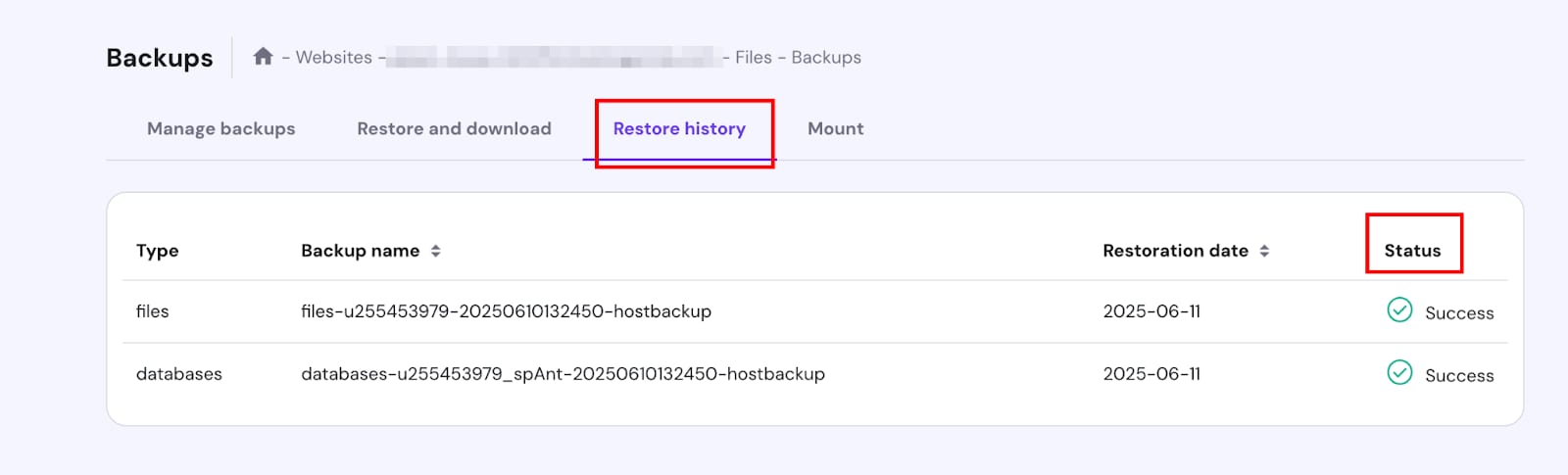
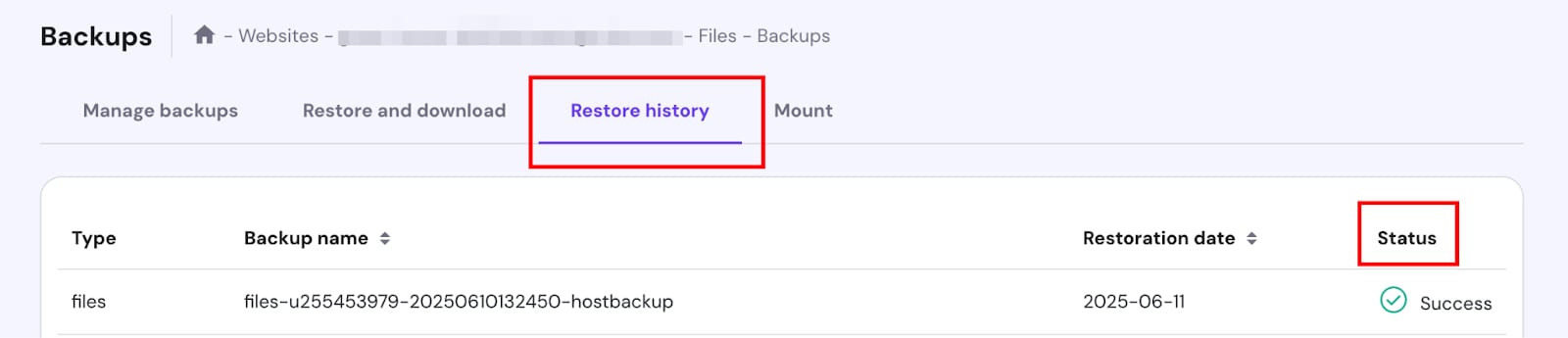
Hostinger backups page with the Restore history tab and Status column highlighted
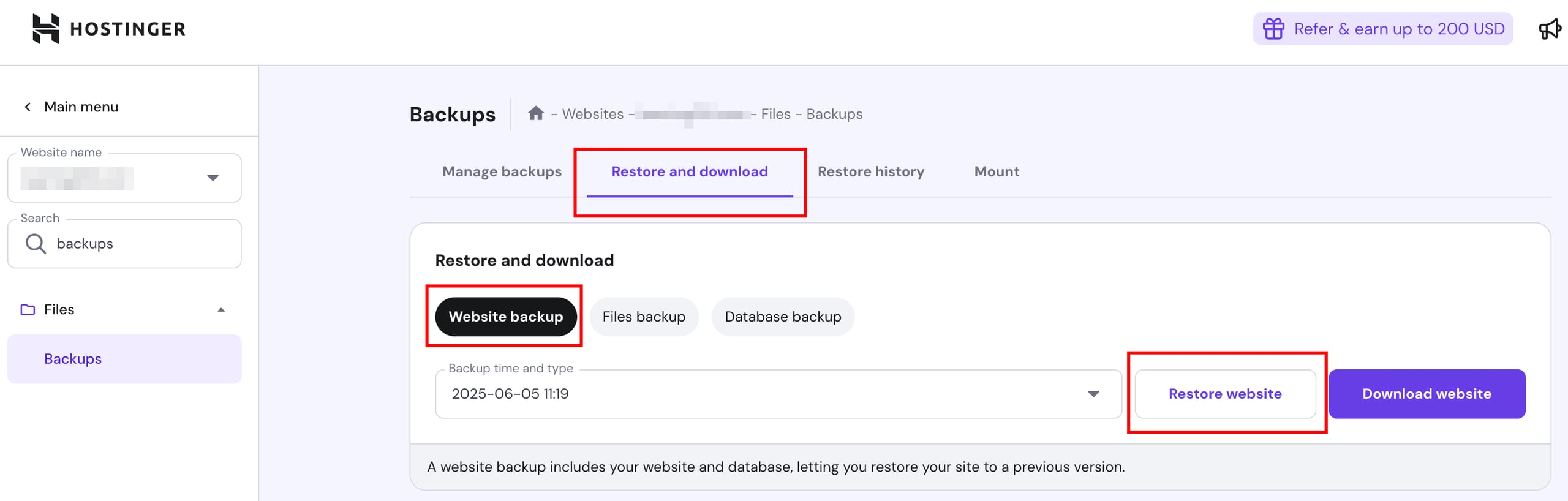
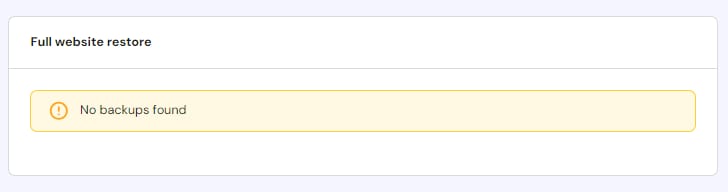
若是 WordPress 网站,在下拉列表中选择域名和偏好日期,点击“恢复网站(Restore website)”,确认后再次点击“恢复(Restore)”。通常恢复需 10–15 分钟,可在“恢复历史(Restore History)”标签查看进度。

步骤 2 — 从备份恢复文件

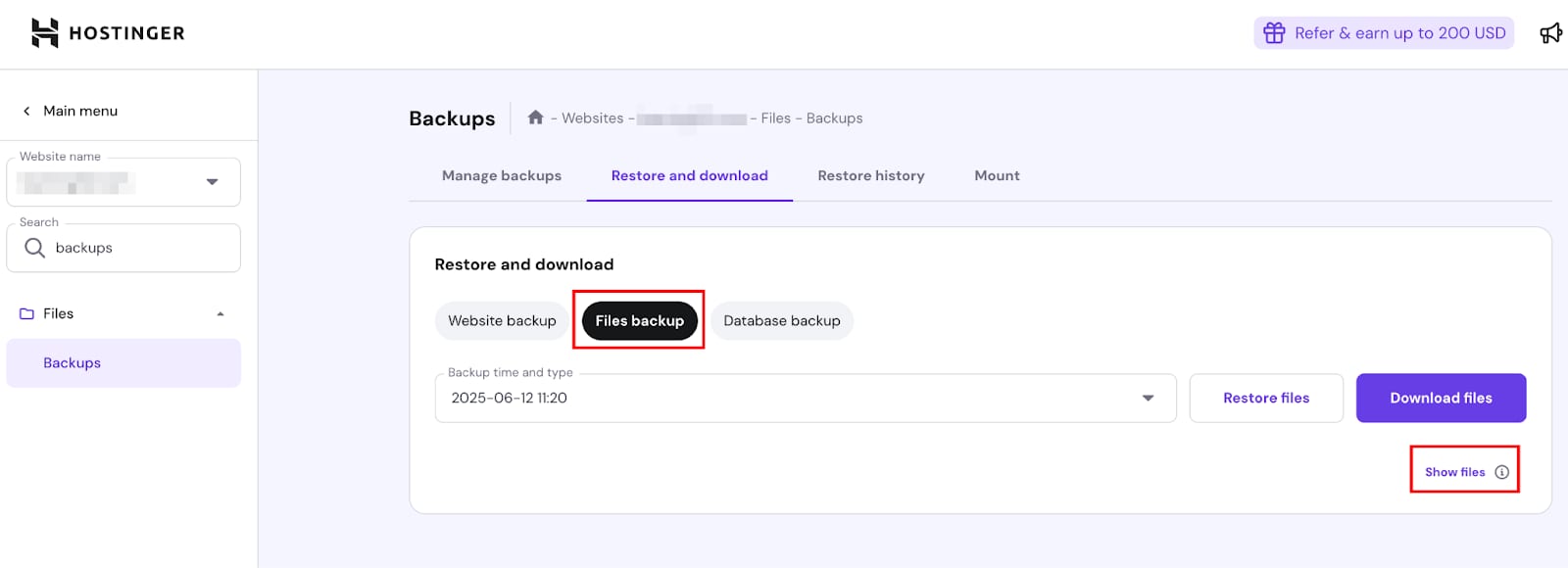
Hostinger Backups page with the Files backup tab and Show files link highlighted
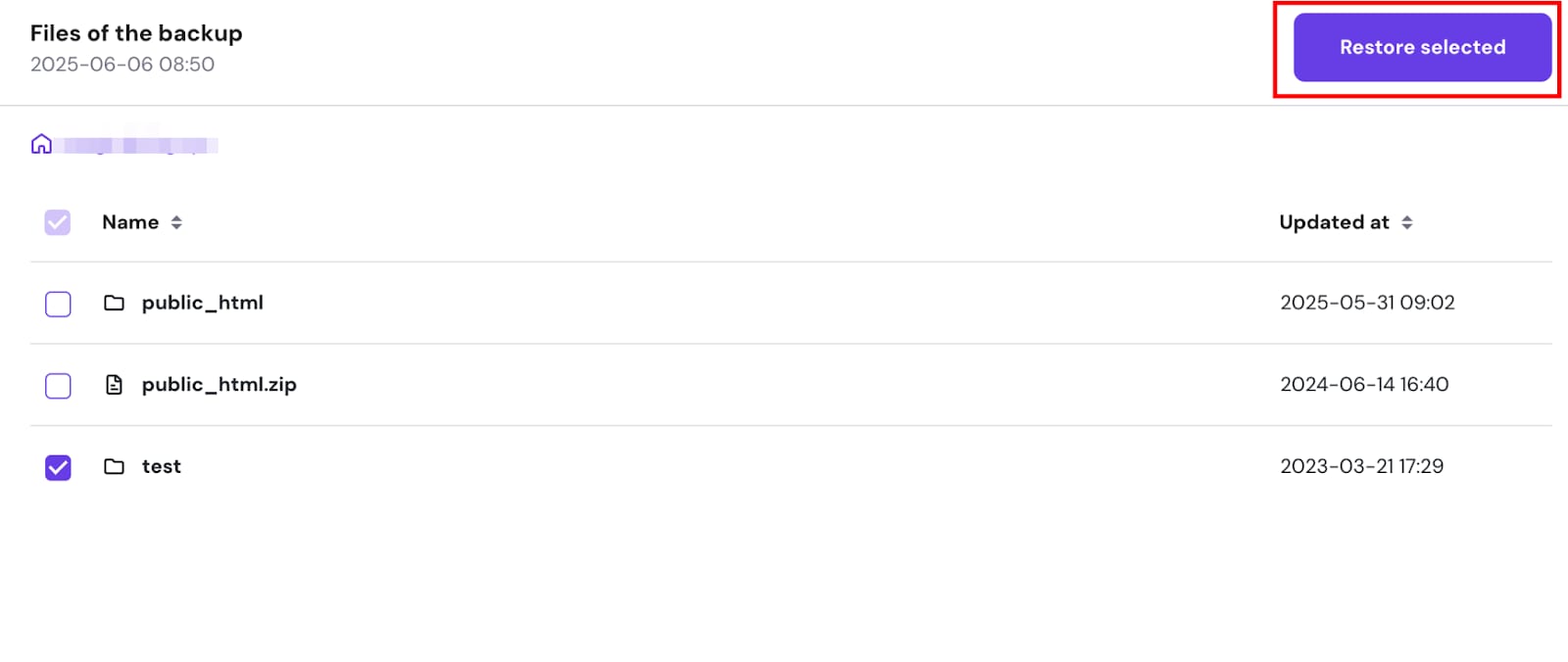
Backup files list with Restore selected button highlighted in Hostinger backup restore screen
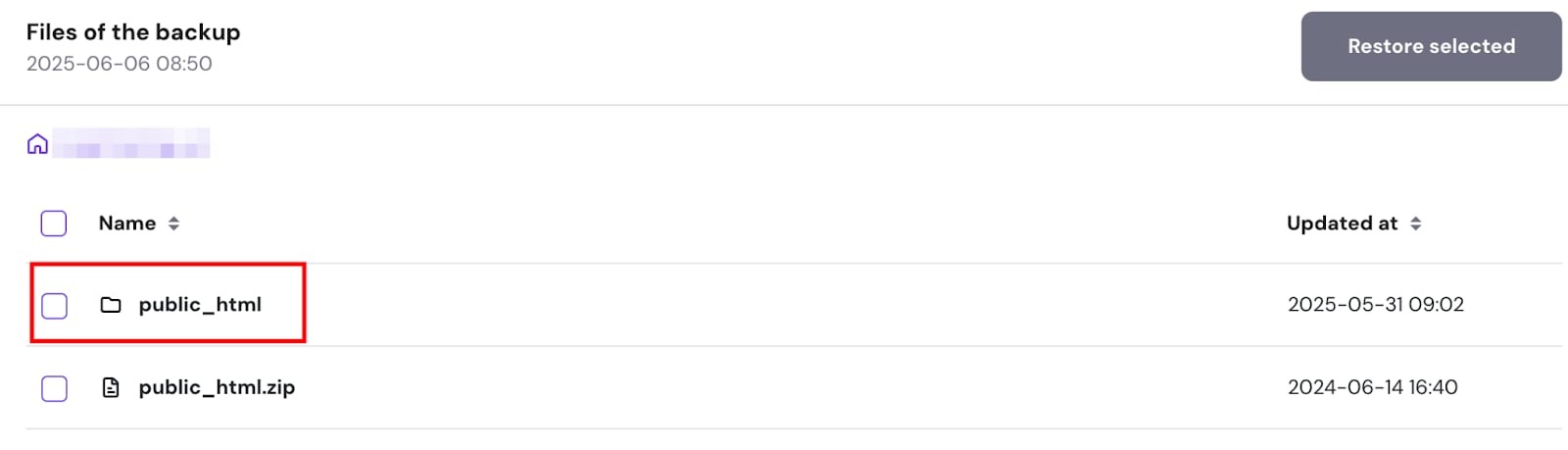
Hostinger backup files view with public_html folder highlighted for restore
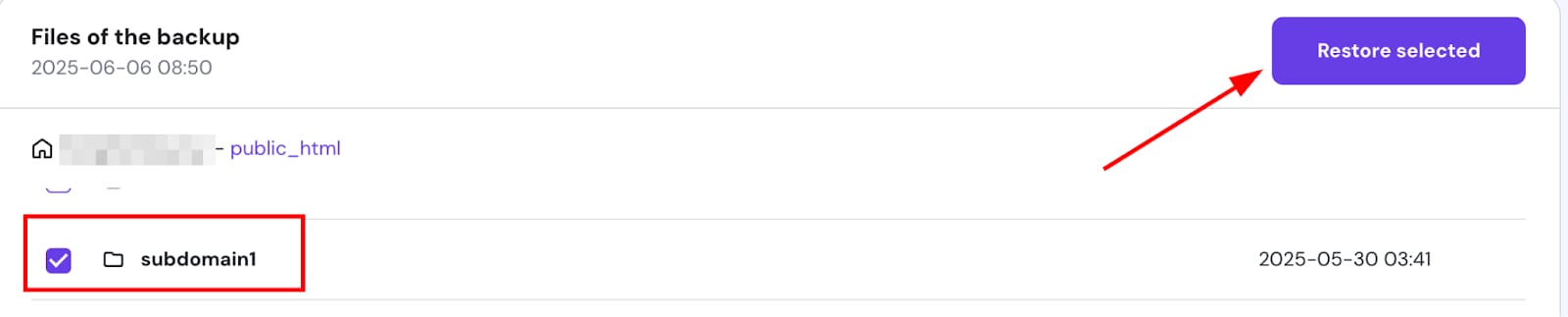
Hostinger backup files view with subdomain1 selected and Restore selected button visible
Hostinger backups page showing website restore in progress at 1%
Hostinger Backups page with the Restore history tab and Status column highlighted
点击“文件备份(Files backups)”,选择偏好日期,点击“显示文件(Show files)”。要仅恢复一个域名及其子域名,选中该网站文件夹并点击“恢复所选(Restore selected)”;要恢复特定目录,进入其 public_html 文件夹后选择目录并点击“恢复文件(Restore files)”。

步骤 3 — 从备份恢复数据库

需先创建新数据库,再恢复数据库备份。

重新创建数据库

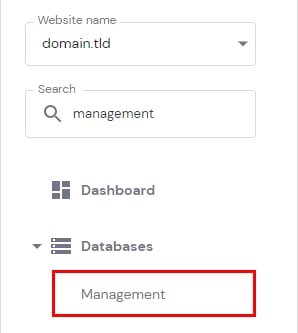
Hostinger hPanel sidebar with the Databases section expanded and Management highlighted

创建与原数据库同名、同用户名、同密码的空数据库(可在恢复网站根文件夹的配置文件中查找这些信息)。然后在 网站(Websites)→ 面板(Dashboard)侧边栏找到数据库 管理(Management),输入配置文件的数据库名称、用户名、密码并点击“创建(Create)”。

恢复数据库

Hostinger backup restore page with Database backup tab selected and Restore database button highlighted

进入 网站(Websites)→ 面板(Dashboard),侧边栏找到 备份(Backups),点击“恢复与下载(Restore and download)”→“数据库备份(Database backups)”,选择偏好日期并点击“恢复数据库(Restore Database)”。

步骤 4(可选)— 恢复邮件

若删除网站不到 14 天,可参考《如何恢复已删除的 Hostinger 邮件账户》恢复邮件。

来源:Hostinger 官方帮助文档