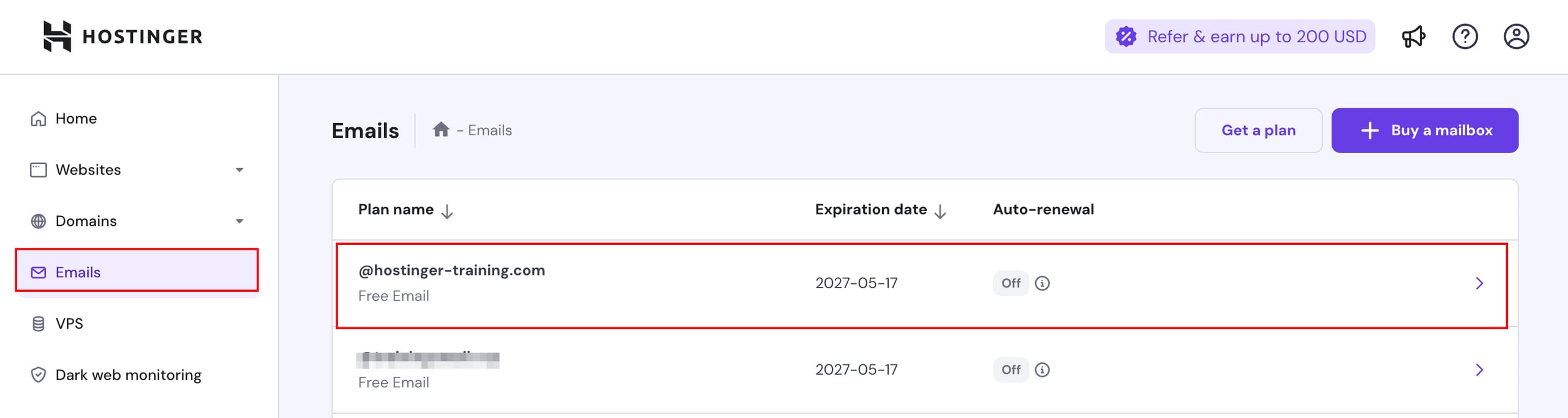
Hostinger Emails page with the Emails menu and @hostinger-training.com plan row highlighted
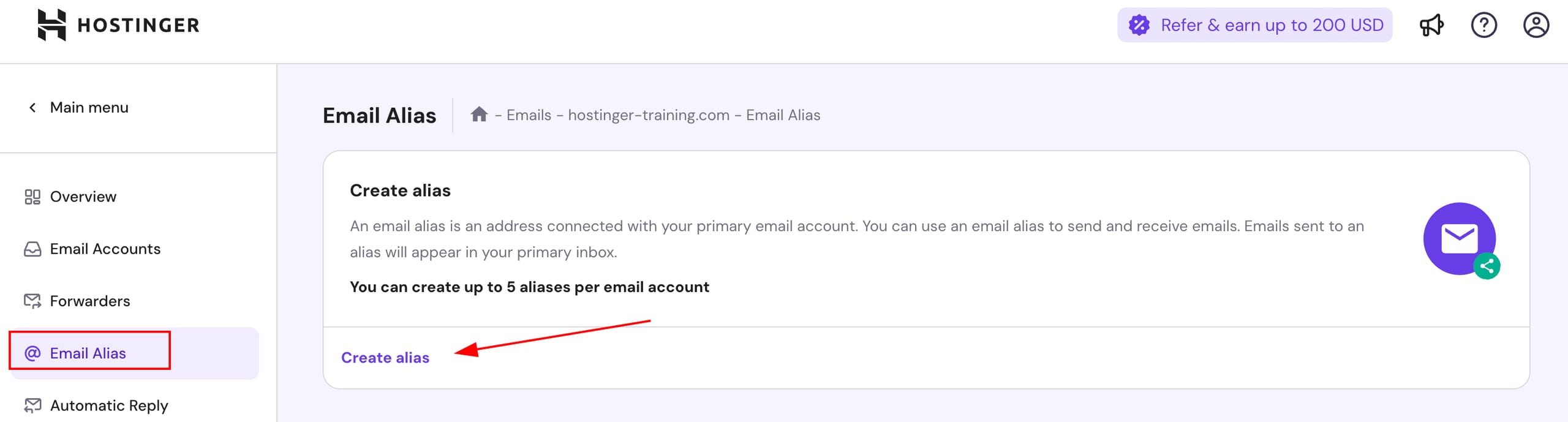
Hostinger Email Alias menu item and Create alias button highlighted on the email alias page
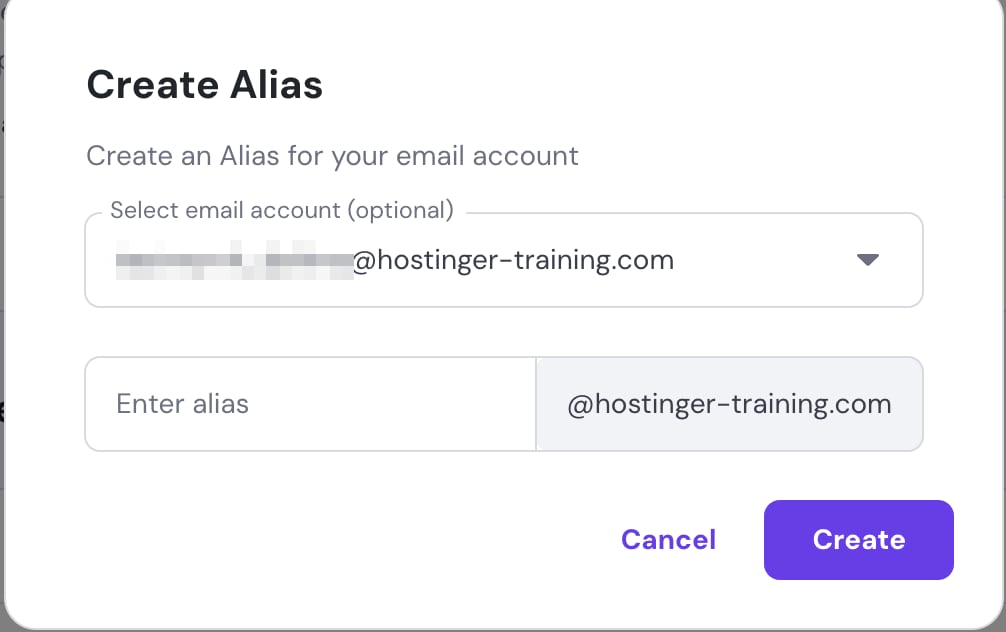
Hostinger Email create alias dialog with email account dropdown and alias input field
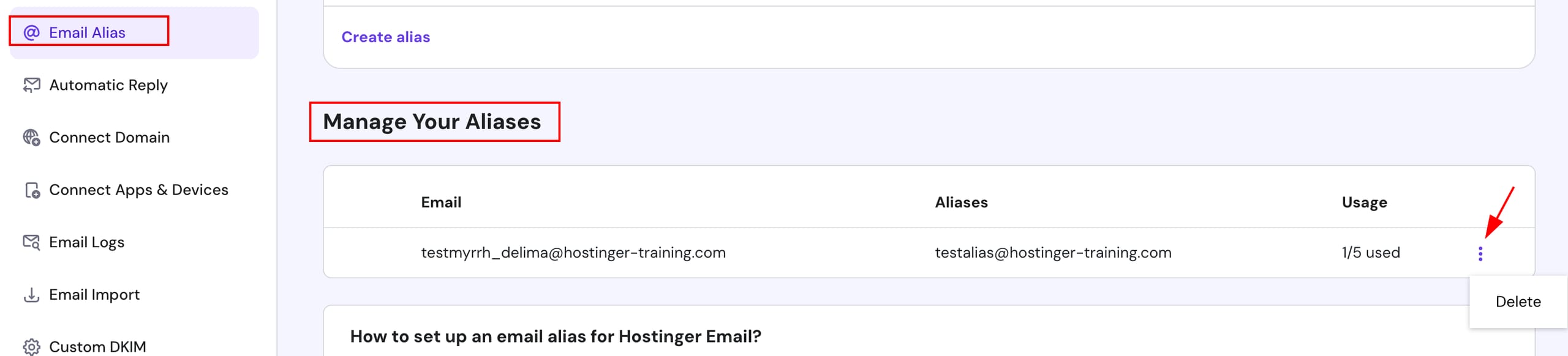
Hostinger Email Alias menu open with Delete option on a three-dot actions button
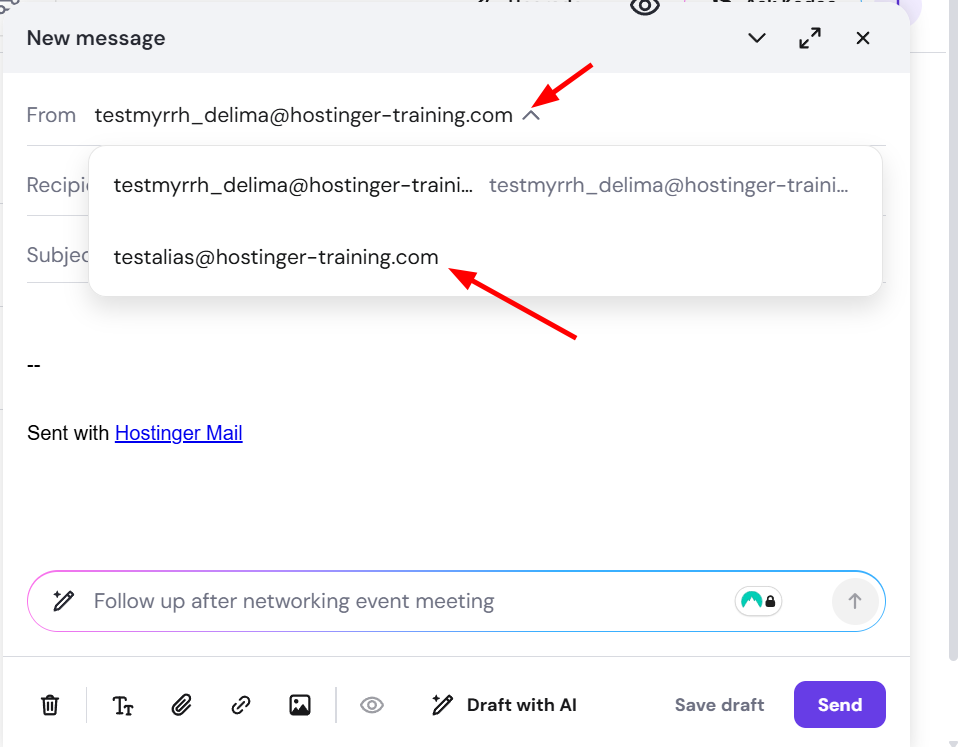
Hostinger Mail compose window with sender alias dropdown open and selected email address highlighted

邮件别名是你邮件账户的替代名称。如果你使用 Hostinger Email 并想创建别名,请按以下步骤操作 👇

进入 hPanel 的 Emails 区块,点击你要管理的套餐域名或子域名旁边的任意位置

进入后,点击相关邮件账户左侧菜单中的 Email Alias section(邮件别名区块),选择 Create Alias(创建别名)

选择别名要关联的邮件账户(可选),然后输入该邮件账户的别名名称,点击 Create(创建)

创建后,你可以在 Email Alias(邮件别名)区块查看和管理所有邮件别名:

要管理别名,你可以使用 Delete(删除) 按钮移除任何不需要的别名,并在你想使用其他别名名称时释放槽位。

要使用别名发送邮件,你需要选择 From(发件人)部分来更改发件邮件地址。

注意:如果你尚未看到别名,你需要退出并重新登录一次它才会生效。

就这样!从现在起,发送到别名的所有邮件都会被转发到主邮件地址。你也可以使用别名发送邮件。

来源:Hostinger 官方帮助文档