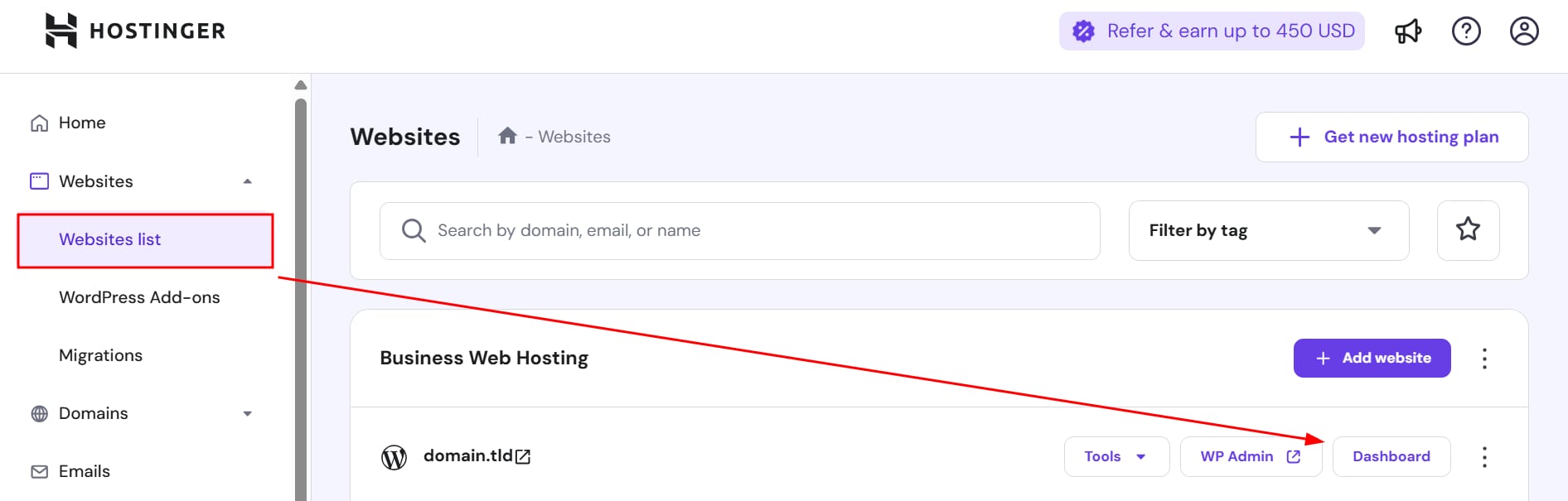
Hostinger Websites list highlighted in sidebar, pointing to website dashboard
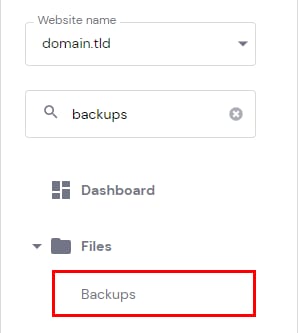
Hostinger hPanel sidebar with Backups highlighted under Files
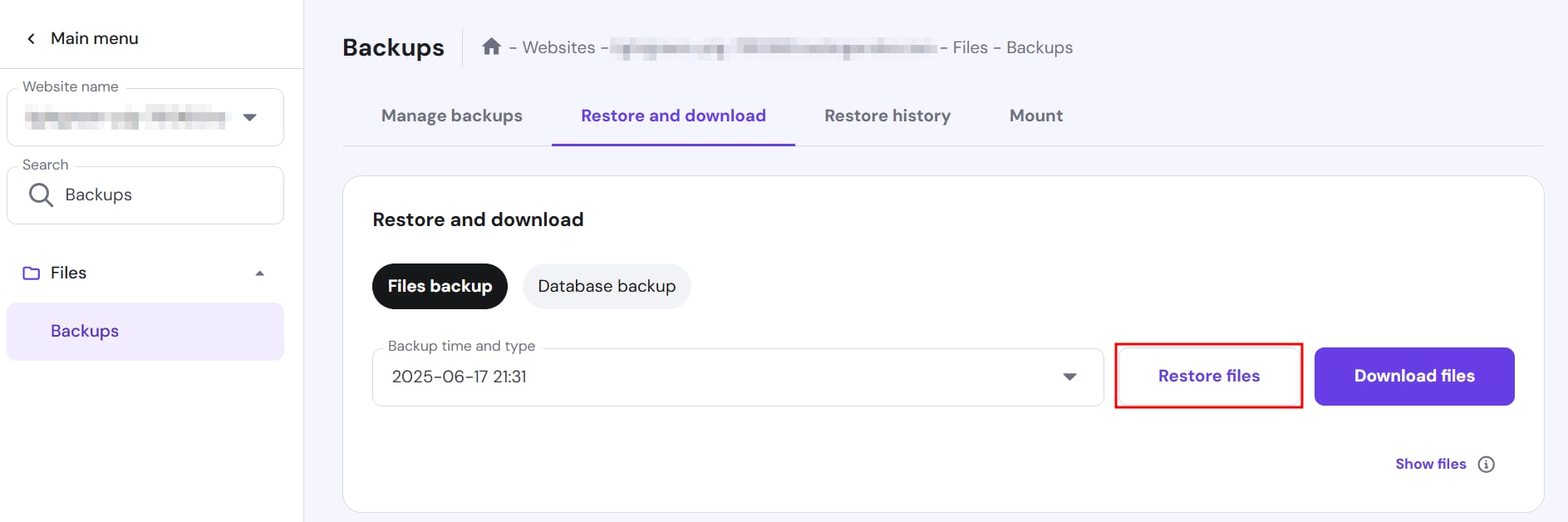
Hostinger backups page with Restore files button highlighted in Restore and download tab
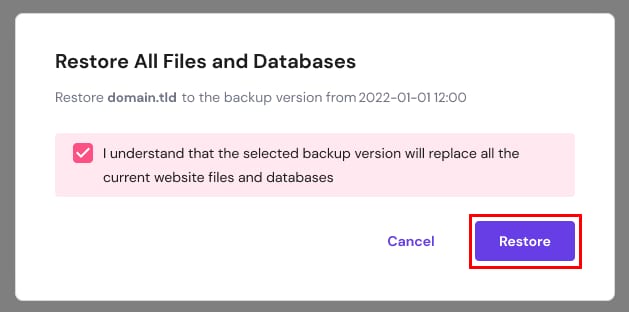
Hostinger backup restore dialog with the Restore button highlighted
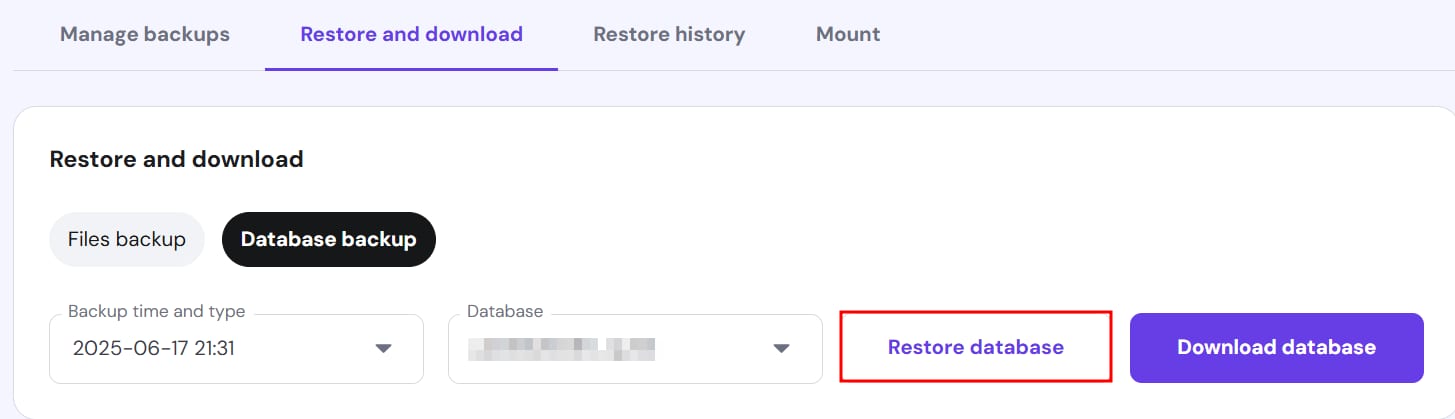
Hostinger backups page with the Restore database button highlighted

如果你是 WordPress 网站并希望回滚到之前的日期,可使用“恢复网站(Restore Website)”功能,它会将文件和数据库一并恢复到你选择的日期。

进入 网站(Websites)→ 网站列表 → 面板(Dashboard),侧边栏找到 备份(Backups)并点击。在“恢复与下载(Restore and Download)”标签下,于“文件备份(Files backup)”中选择偏好日期并点击“恢复文件(Restore Files)”。

弹出覆盖数据提示后,勾选确认并点击“恢复(Restore)”。

文件恢复完成后,在“数据库备份(Database backup)”下重复相同步骤,输入数据库名称(不确定可参考查找 WordPress 数据库指南)。

根据网站大小,几分钟后文件和数据库将恢复到所选日期。即使浏览器标签页最小化或关闭,恢复也会在后台继续,可在“恢复历史(Restore History)”标签查看进度。

注意:不同 CMS 会提示“未找到备份”;若 WordPress 在子域名上,“恢复”按钮可能显示“恢复网站即将推出”。这些情况可分别恢复文件和数据库,参考《从备份恢复特定网站或子域名》。

来源:Hostinger 官方帮助文档