你可以使用 hPanel 或 Webmail 重置 Hostinger Email 邮箱密码。

选项 1 – 通过 hPanel 重置
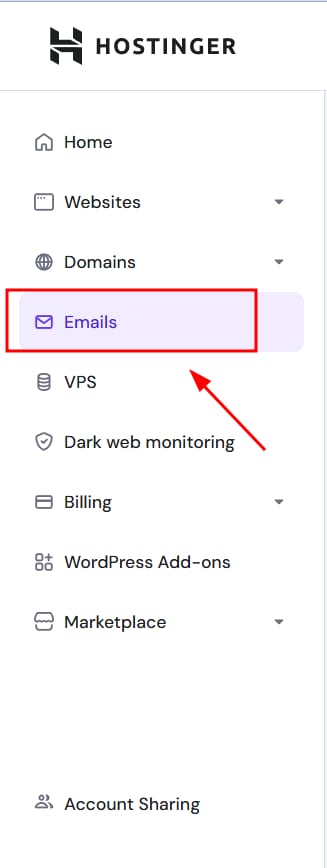
Hostinger menu with Emails item highlighted in the sidebar
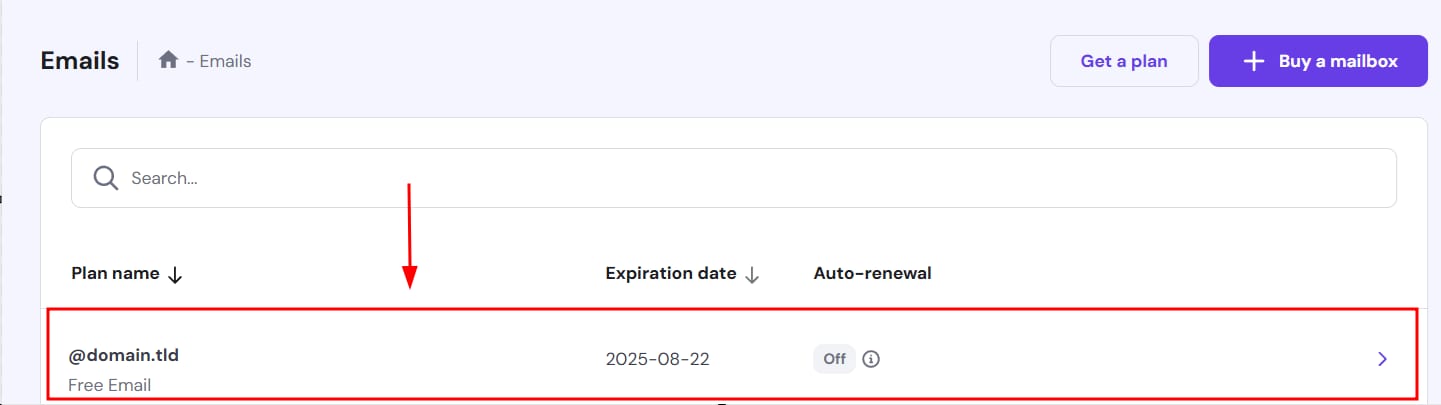
Hostinger Emails mailbox row for @domain.tld highlighted in the list
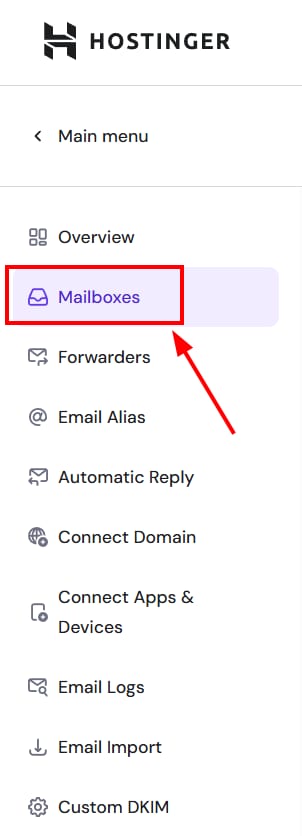
Hostinger email menu with Mailboxes highlighted
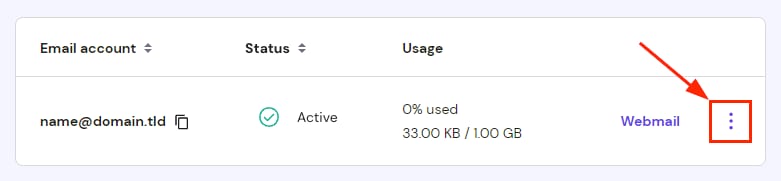
Hostinger email account row with the three-dot more options menu highlighted on the right
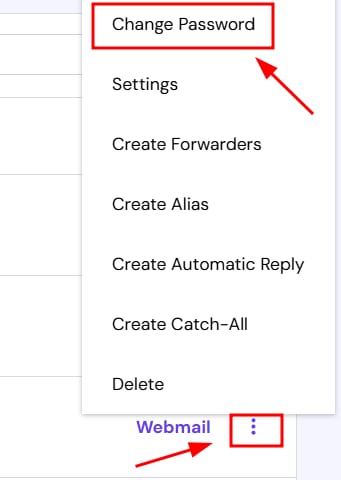
Webmail menu with Change Password option highlighted
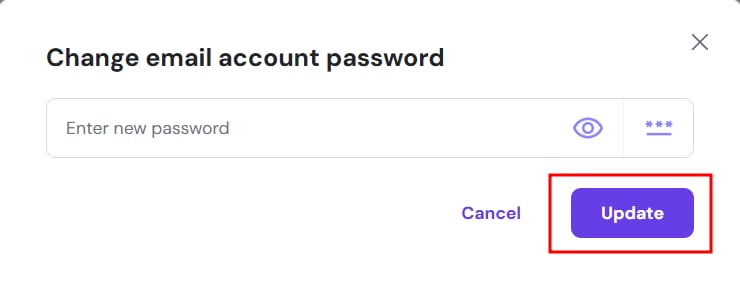
Hostinger email password change dialog with Update button highlighted

如果你不记得当前密码,这是最佳选项:

  1. 进入 hPanel 的 Emails 区块。
  2. 点击你要管理的域名旁边的任意位置
  3. 点击左侧边栏的 Mailboxes(邮箱)
  4. 找到相关邮箱并点击 Options(⋮)按钮:
  5. 选择 Change Password(修改密码)
  6. 手动输入新密码或使用密码生成器。如果自行设置密码,请确保它:
  7. 长度为 8–50 个字符。
  8. 至少包含一个数字、一个小写字母、一个大写字母和一个符号。
  9. 仅使用拉丁字母。
  10. 点击 Update(更新)——你的新密码现已设置。你可以用它登录 Webmail 或配置 邮件客户端

选项 2 – 通过 Webmail 重置

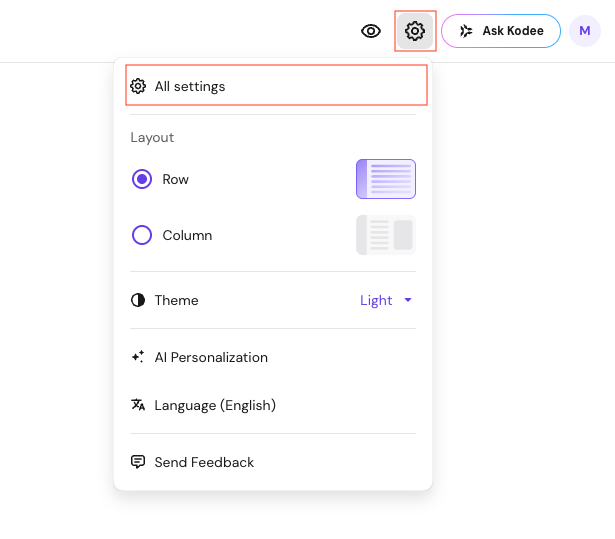
Settings menu open with Row layout selected and Light theme dropdown visible
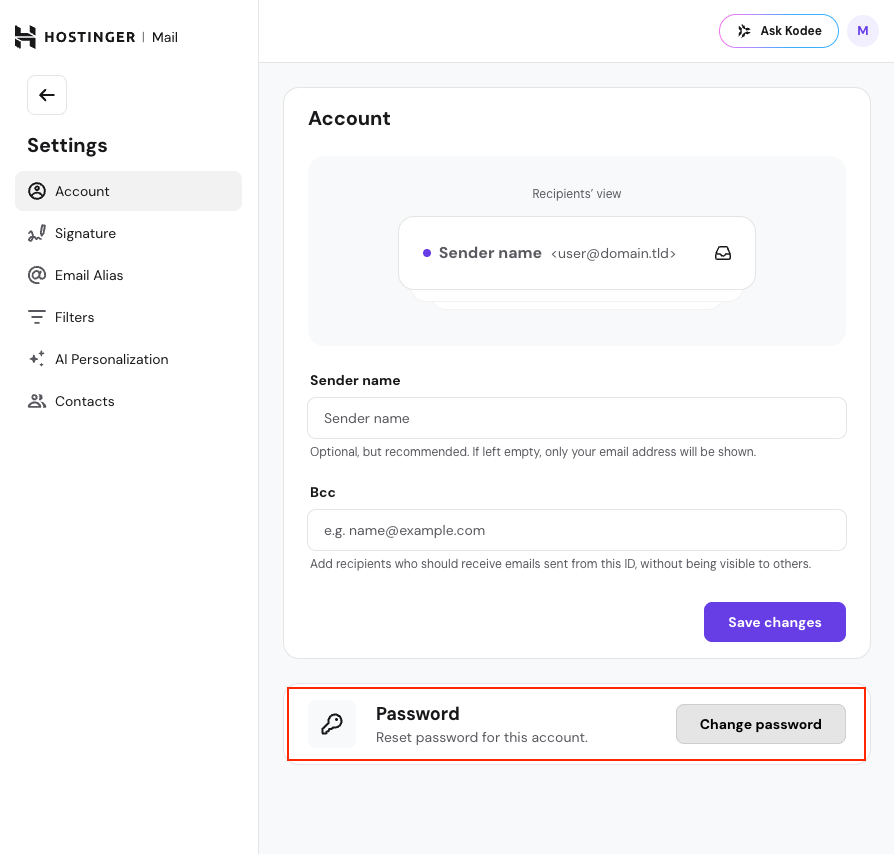
Hostinger Mail settings, account page with Password section and Change password button highlighted
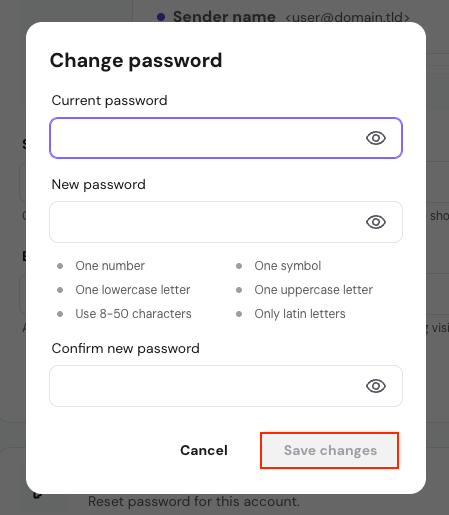
Change password modal with current password field focused and Save changes button disabled

如果你记得当前密码,可以在 Webmail 中修改:

  1. 登录 Hostinger Webmail
  2. 点击右上角设置图标下的 All Settings(所有设置)
  3. Account(账户) 设置页面点击 Change password(修改密码)
  4. 输入你的当前密码。
  5. 输入新密码并再次输入确认。
  6. 点击 Save changes(保存更改)——你的邮件密码现已更新。

出于安全考虑,请始终使用包含字母、数字和符号组合的强密码 🔒

重置密码后,如果你有邮件客户端,请记得在其中更新密码。

来源:Hostinger 官方帮助文档