通过 CHMOD 你可以为文件和文件夹指定查看、编辑和执行权限。这些权限可分别为所有者(你)、群组和其他人设置。你有两种方式:通过文件管理器或通过 FTP 客户端。
如何在文件管理器中设置权限
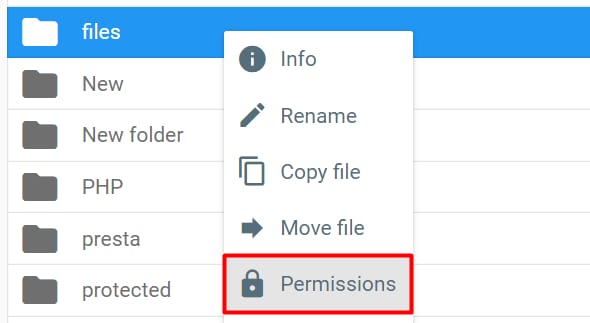
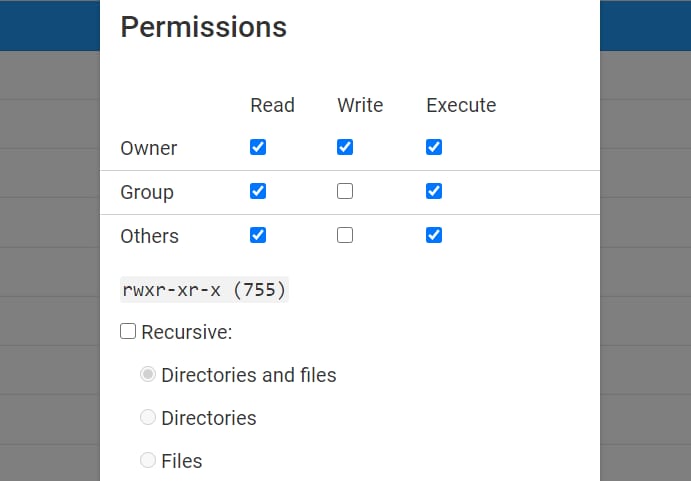
打开 网站(Websites)→ 面板(Dashboard),在侧边栏找到 文件管理器(File Manager)并点击。
右键点击要设置权限的文件或文件夹,选择“权限(Permissions)”。
你可以通过勾选框选择所需权限,并在下方查看其数字值。你也可以为文件夹内的内容设置相同的权限(即递归应用权限)。
如何通过 FTP 设置权限
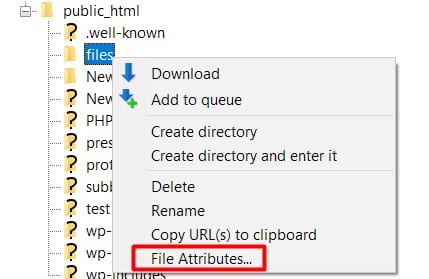
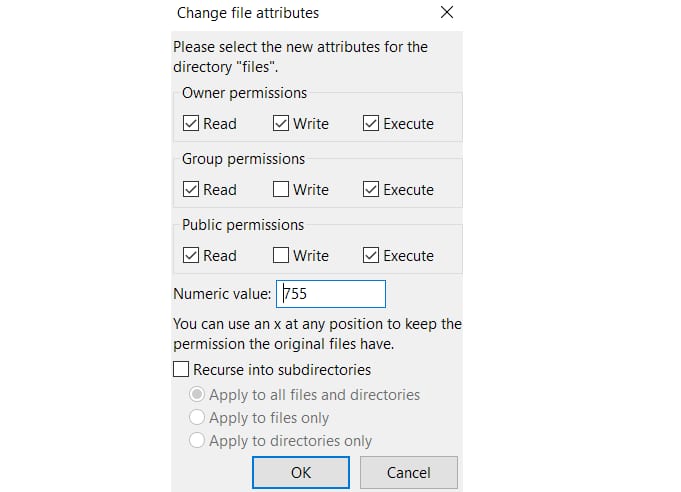
如果你已通过 FileZilla 等 FTP 客户端连接到网站文件,只需右键点击要设置权限的文件或文件夹,选择“文件属性(File Attributes)”(或“文件权限(File Permissions)”,名称因 FTP 客户端版本而异)。
在打开的窗口中,通过勾选框选择权限,或直接用数字设置。你也可以将其设为递归。
默认权限是什么?
默认权限如下:
| 权限类型 | 文件 | 文件夹 |
|---|---|---|
| 所有者 | 读、写 | 读、写、执行 |
| 群组 | 读 | 读、执行 |
| 其他人 | 读 | 读、执行 |
| 数字表示 | 644 | 755 |
注意:你可随时使用“修复文件所有者(Fix Files Ownership)”功能将所有文件和文件夹的权限重置为默认值。
来源:Hostinger 官方帮助文档