将 Hostinger 账户从社交登录切换为电子邮件和密码
Hostinger 提供了 social login(社交登录) 功能,可让您快速、安全地访问账户。虽然这是推荐的登录方式,但您也可以按照以下步骤切换为使用电子邮件和密码登录。
如果您不再能访问与 Hostinger 关联的 Facebook、Google 或 GitHub 账户,请联系我们的团队寻求帮助。
第 1 步 – 解除社交登录关联
-
使用您当前的社交登录方式登录 Hostinger 账户。
-
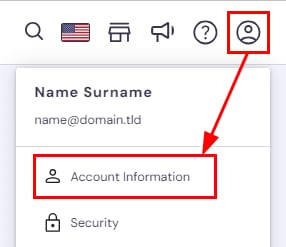
在 hPanel 主页,点击个人资料图标,选择 Account Information(账户信息)。
-
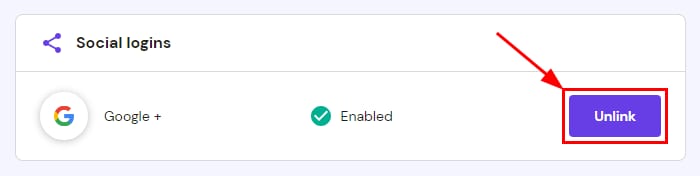
向下滚动到 Social logins(社交登录) 部分,点击已关联账户旁边的 Unlink(解除关联)。
-
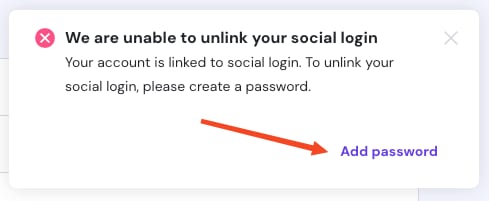
系统会弹出提示,要求您设置一个密码。点击 Add password(添加密码)。
-
输入一个强、唯一的密码,然后点击 Confirm(确认)。
为了提高安全性,在解除社交账户关联后,请启用 two-factor authentication(两步验证)(2FA)💡
第 2 步 – 确认更改
-
检查您的注册邮箱,查找包含设置新密码链接的确认邮件。邮件最多可能需要 15 分钟才能到达——别忘了检查您的垃圾邮件和回收站文件夹。
-
一旦确认,您就可以使用电子邮件和新密码登录 Hostinger 账户。
来源:Hostinger 官方帮助文档