Hostinger 为所有虚拟主机和云主机套餐提供自动每周备份;若套餐为 Business 及以上,还启用每日备份。使用 Hostinger 建站工具和 Hostinger Horizons 创建的网站不支持下载备份。

下载备份:进入 网站(Websites)→ 面板(Dashboard),在侧边栏找到 备份(Backups)并点击,即可看到下载文件或数据库的选项。

下载文件
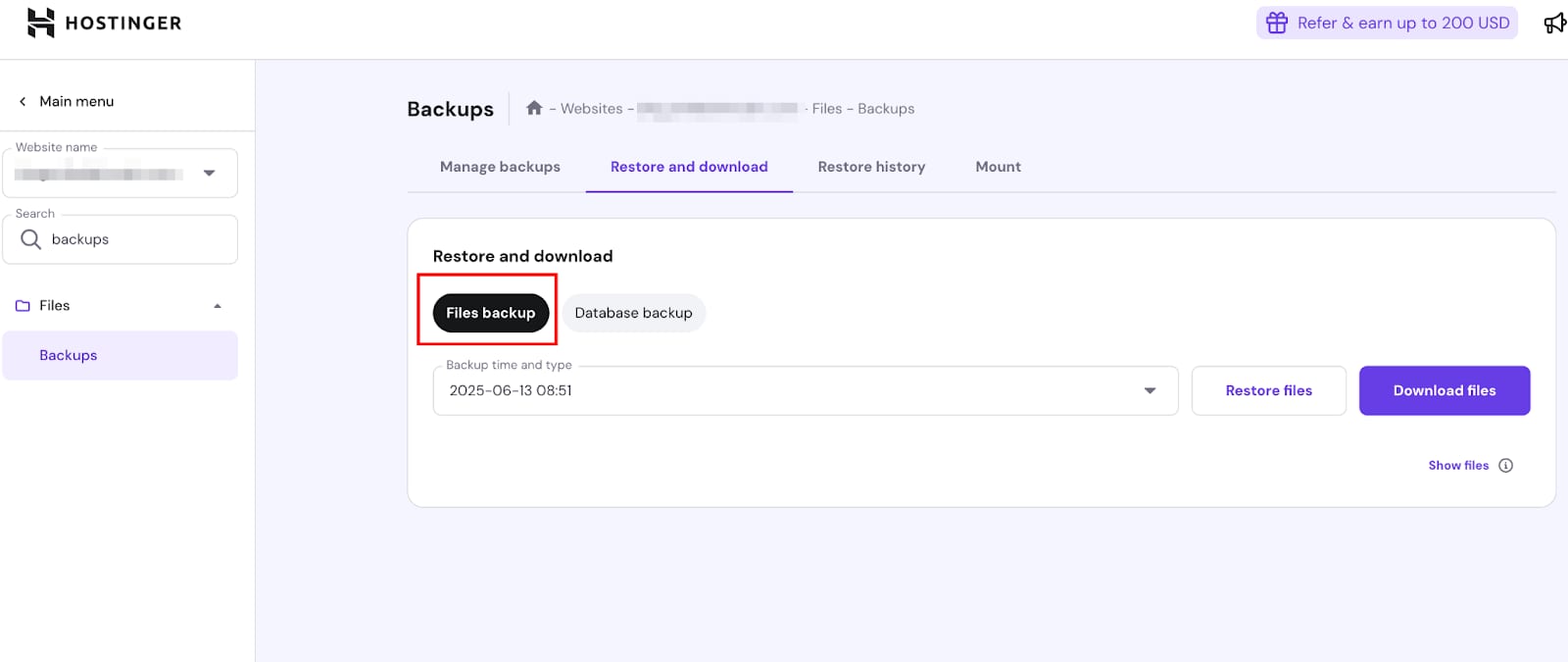
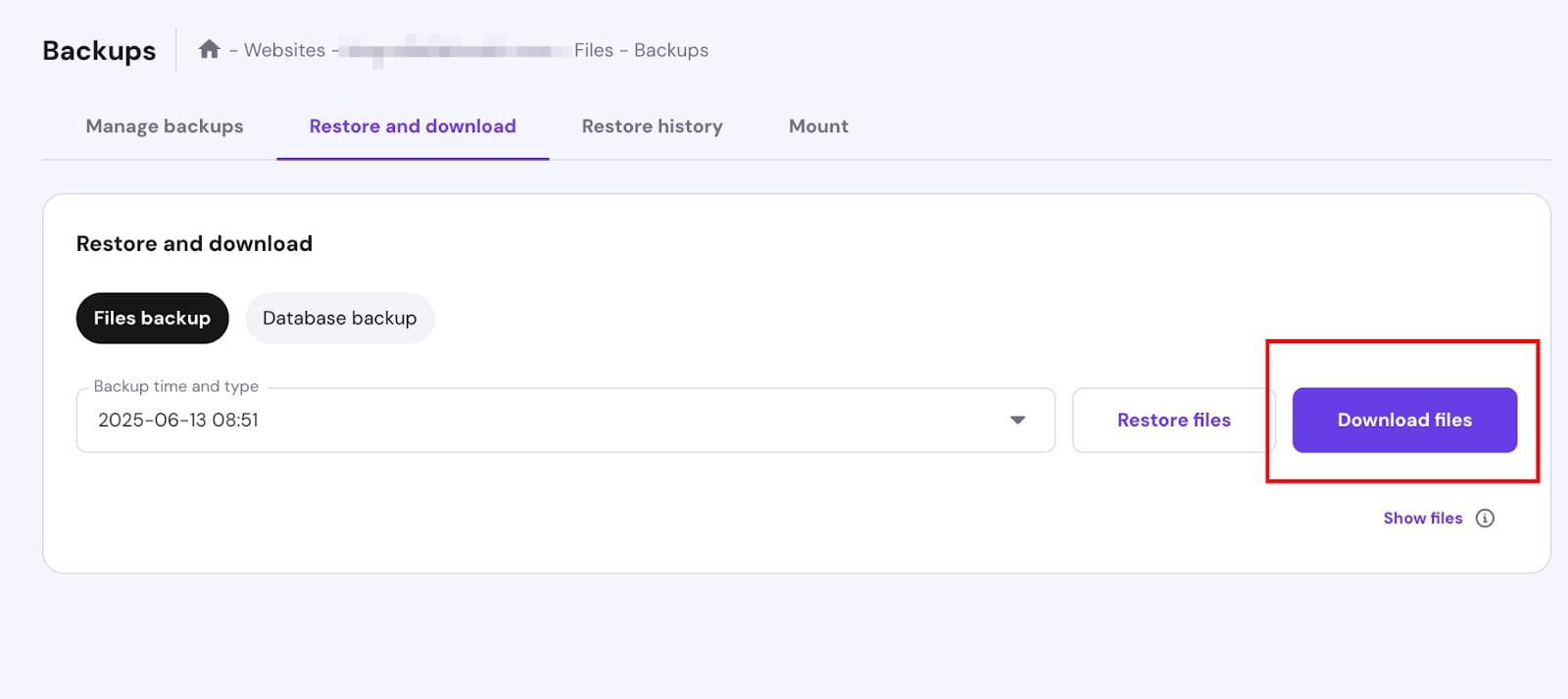
Hostinger backups page with Files backup tab highlighted in Restore and download section
Hostinger backups page with the Download files button highlighted
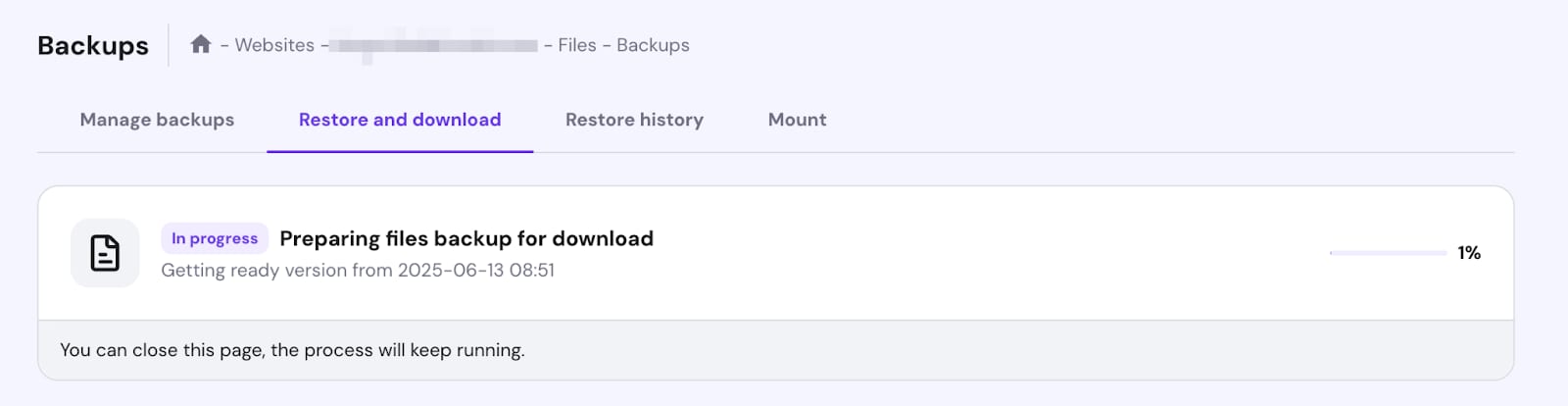
Hostinger backups page with Restore and download tab selected, preparing files backup for download at 1%
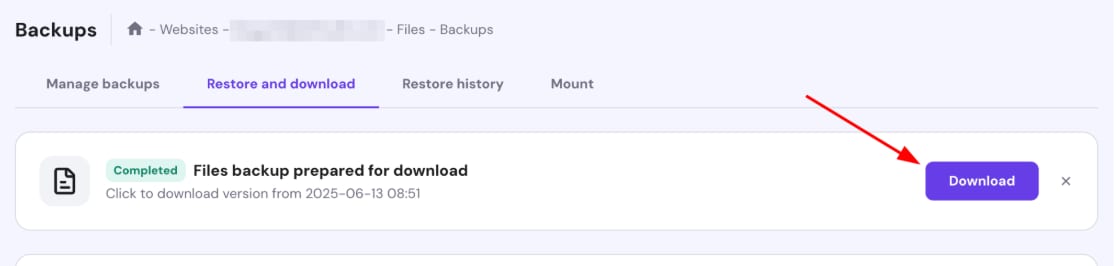
Hostinger backups page with the Download button highlighted in the restore and download tab

进入“恢复与下载(Restore and download)”,选择“文件备份(Files backups)”。下拉菜单将按日期列出所有可用备份,时间为你本地时区的备份创建时间。选择偏好日期并点击“下载文件(Download files)”。

点击后会提示备份准备已开始,耗时取决于备份大小,可在“恢复与下载”标签查看进度。准备就绪后点击“下载(Download)”。下载的压缩包为 .tar.gz 格式。

下载数据库
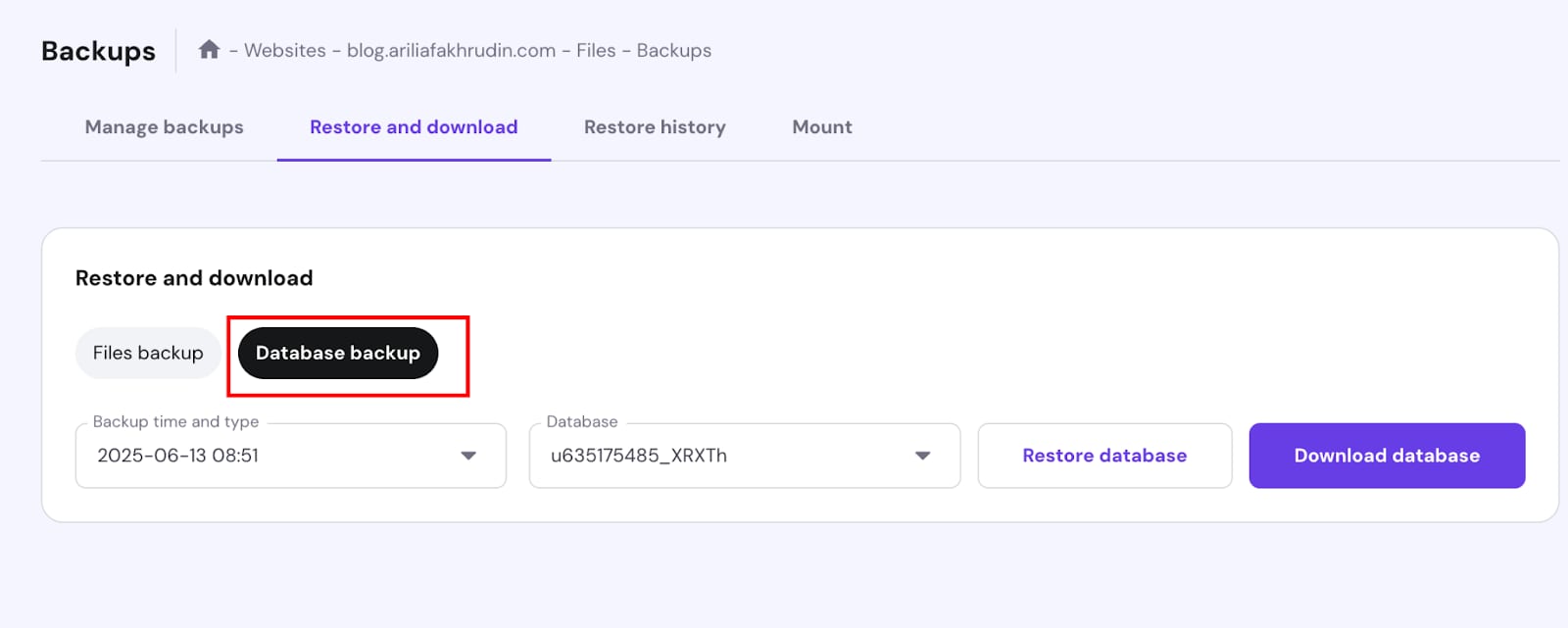
Hostinger backups page with Database backup tab selected in Restore and download section
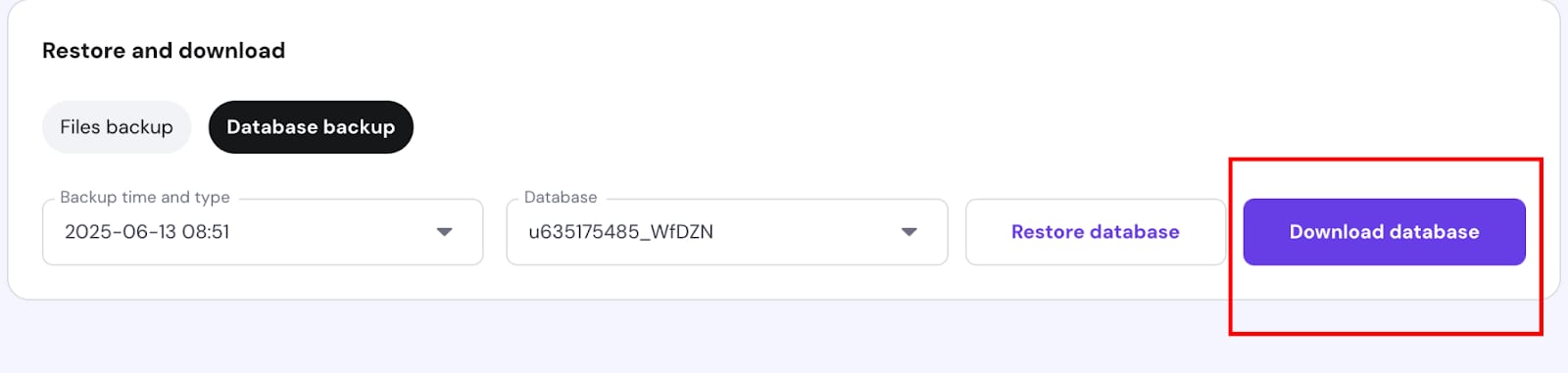
Hostinger database backup page with the Download database button highlighted
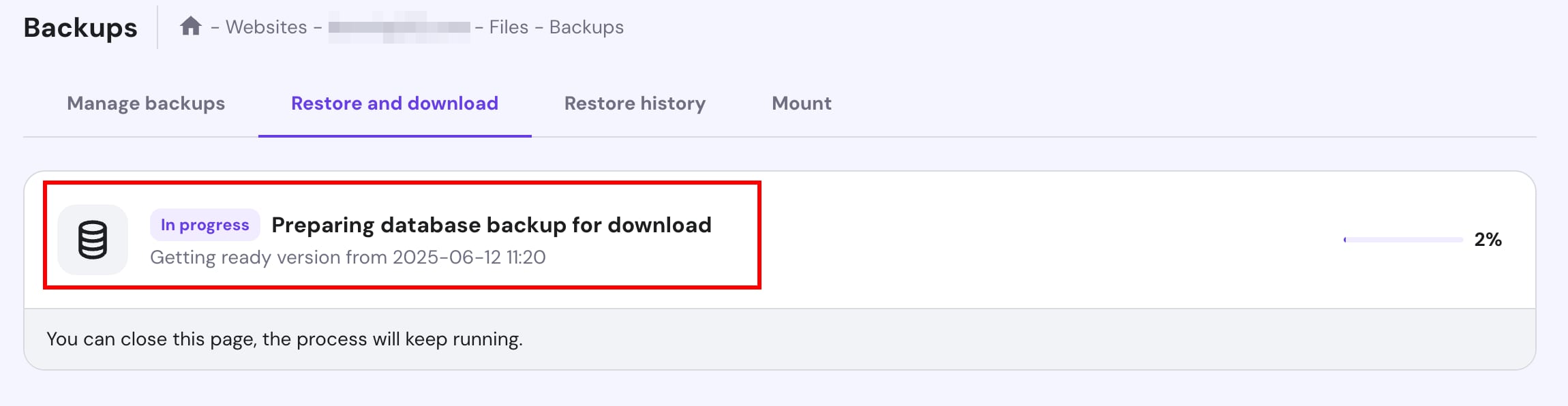
Hostinger backups: preparing database backup for download, in progress at 2%
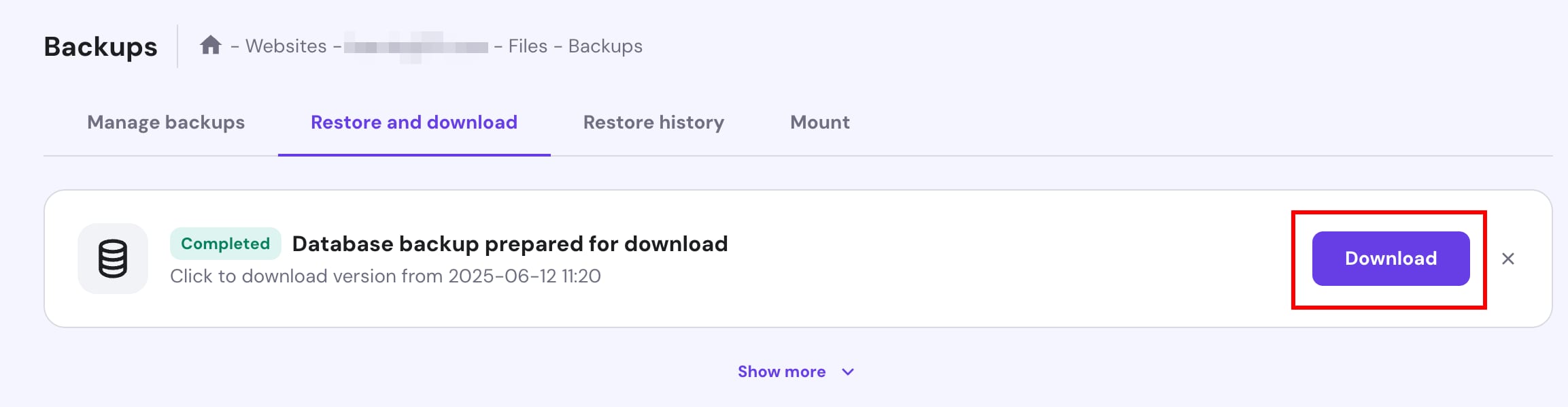
Hostinger Backups page with the Download button highlighted in the restore and download tab

选择“数据库备份(Database backups)”。下拉菜单列出所有已备份的数据库。若不确定哪个数据库对应哪网站,可查看网站的配置文件。选择日期和数据库后点击“下载数据库(Download database)”,准备就绪后点击“下载”。下载的数据库为压缩的 .sql.gz 格式。

下载特定文件

hPanel 的文件备份功能会自动下载主机套餐内的所有文件。若只需要特定文件(如某个网站的文件),可使用文件管理器或 FTP 下载。

若你的网站使用 WordPress,可为特定网站生成备份,备份链接会直接发送到你的邮箱,包含网站文件和数据库。

注意:若通过共享访问(Shared Access)管理此账户,备份下载链接会发送到账户所有者的注册邮箱,你不会直接收到,请联系账户所有者获取。

下载特定 WordPress 网站的备份
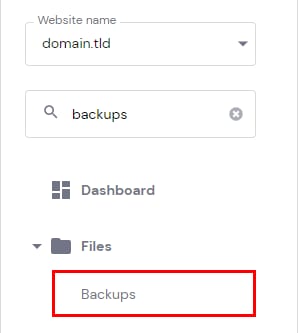
Hostinger hPanel sidebar with Backups highlighted under Files
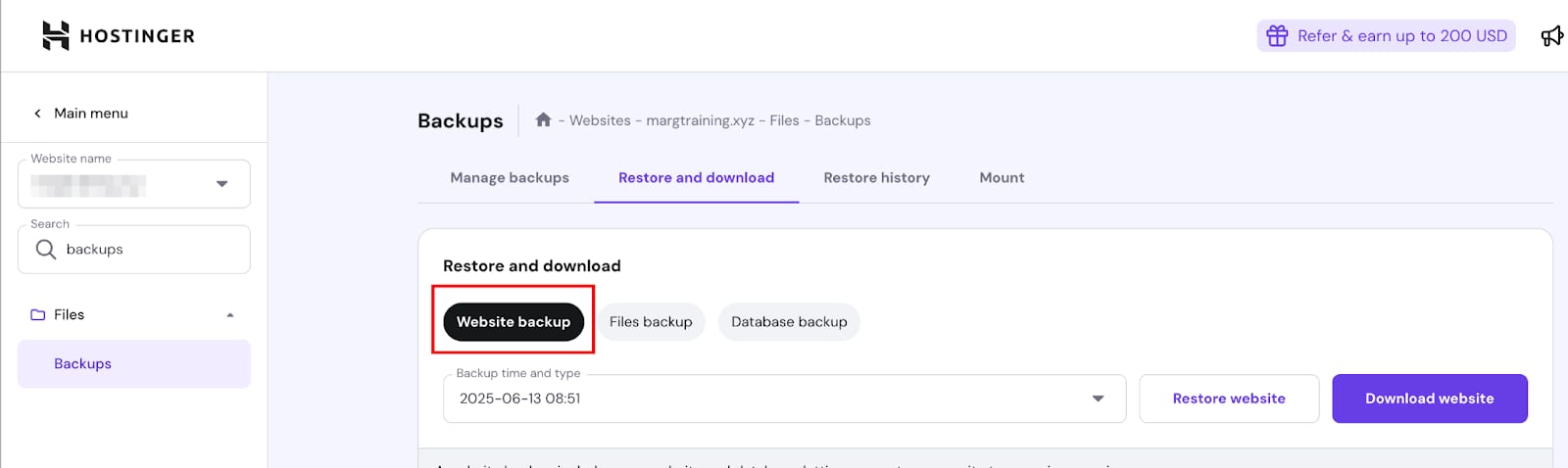
Hostinger backups page with Website backup tab highlighted under Restore and download
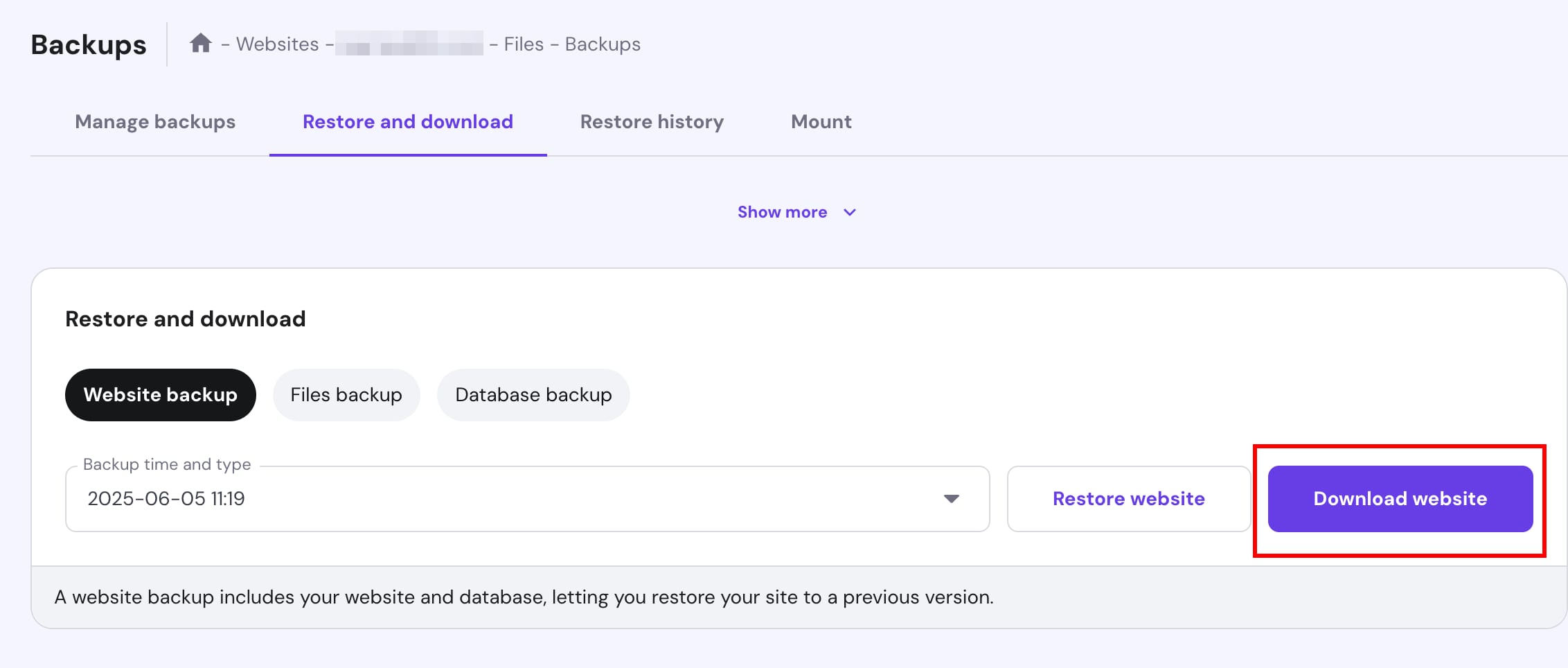
Hostinger website backup page with Download website button highlighted
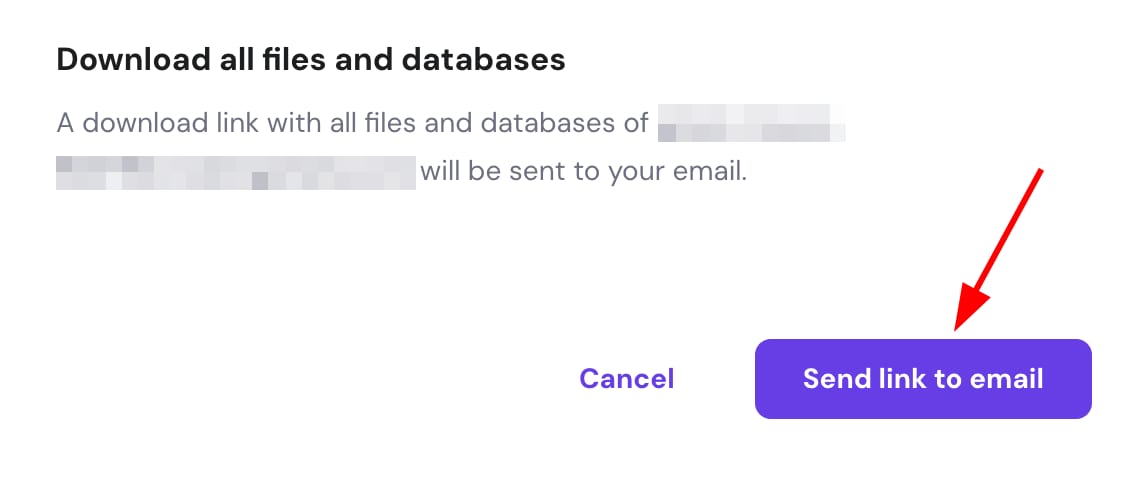
Hostinger backup dialog with Send link to email button highlighted

进入 网站(Websites)→ 面板(Dashboard),侧边栏找到 备份(Backups),选择“恢复与下载(Restore and download)”→“网站备份(Website backup)”。选择日期后点击“下载网站(Download website)”,然后点击“发送链接到邮箱(Send link to email)”,备份链接将发送到你的邮箱。

注意:
- 每周备份保存 6 周,每日备份保存 7 天,之后永久删除。
- 若所需日期或时间的备份未列出,说明该备份不存在。
- 自动备份的创建日期和时间固定,不可修改。
- 备份分开存储,不计入磁盘配额。
- 备份链接会发送到主机账户的注册邮箱,而非当前登录者的邮箱。

来源:Hostinger 官方帮助文档