phpMyAdmin 是管理数据库内容最流行的方式之一。要在 Web 或 Cloud 托管计划上访问它,你可以使用以下任一途径:

方式一——通过数据库管理页面
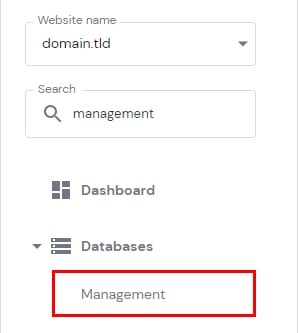
Hostinger hPanel sidebar with Databases section open and Management option highlighted
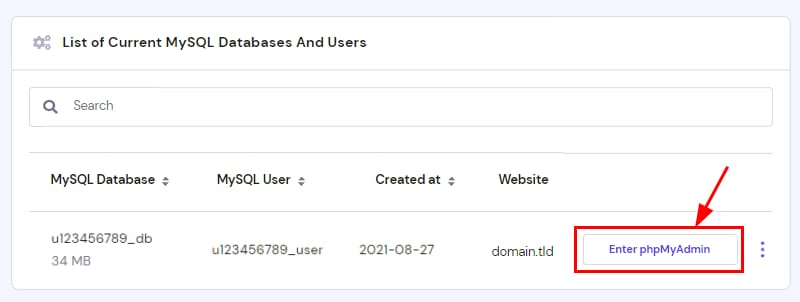
Hostinger MySQL database row with the Enter phpMyAdmin button highlighted

前往 Websites(网站)Dashboard(仪表盘),在侧边栏中找到 Databases Management(数据库管理) 并点击:

选择数据库,点击 phpMyAdmin

方式二——通过 phpMyAdmin 页面

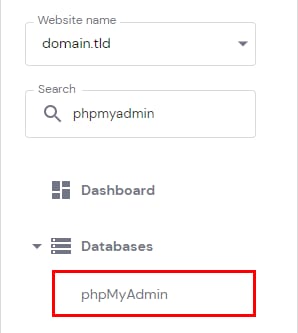
Hostinger control panel with the phpMyAdmin menu item highlighted under Databases
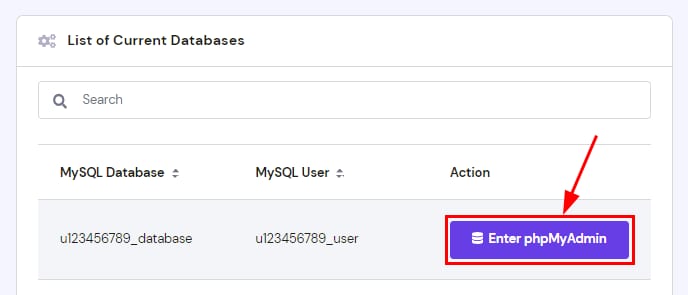
Hostinger database list with the Enter phpMyAdmin button highlighted

前往 Websites(网站)Dashboard(仪表盘),在侧边栏中找到 phpMyAdmin 并点击:

接下来,点击数据库旁的 Enter phpMyAdmin(进入 phpMyAdmin)

方式三——通过 WordPress 仪表盘

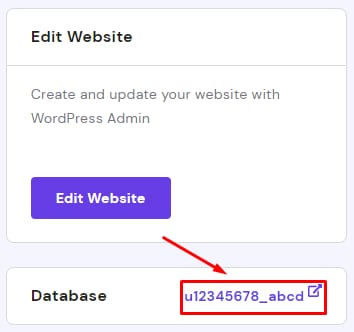
Hostinger hPanel database name link u12345678_abcd highlighted on the Database section

如果你正在使用 WordPress 仪表盘,可以点击 Edit website(编辑网站) 部分下方的数据库,快速跳转到 phpMyAdmin:

方式四——使用直链
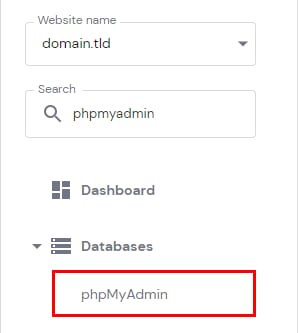
Hostinger hPanel Databases menu with phpMyAdmin highlighted
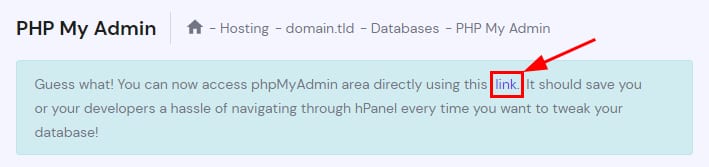
Hostinger phpMyAdmin page with the direct access link highlighted in the notice box
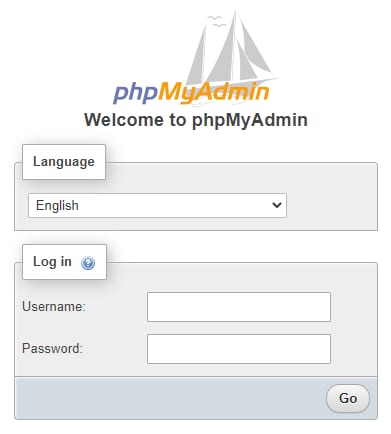
phpMyAdmin login screen with language and username/password fields

通过直链访问 phpMyAdmin,开发者或协作者无需登录你的 Hostinger 账户即可更便捷地访问数据库。

要获取 phpMyAdmin 的直链,请前往 Websites(网站)Manage(管理),在侧边栏中找到 phpMyAdmin 并点击:

接下来,点击顶部横幅中显示的链接。这就是你可以分享以直接访问的链接

它会在新标签页中打开 phpMyAdmin 登录页:

  • 从下拉列表中选择语言

  • 输入你的 数据库用户名密码

  • 点击 Go(前往)

你无需输入数据库名称,因为它已与你的数据库用户名关联。

就这么简单!现在你已经了解在 Hostinger 通过 phpMyAdmin 访问数据库的各种方式 😊

来源:Hostinger 官方帮助文档