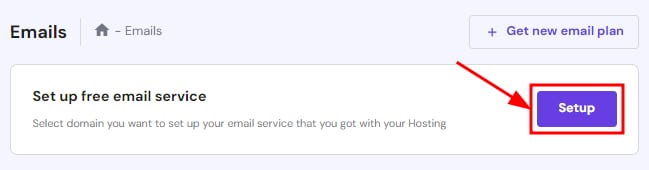
Titan Email setup button highlighted in the email service panel
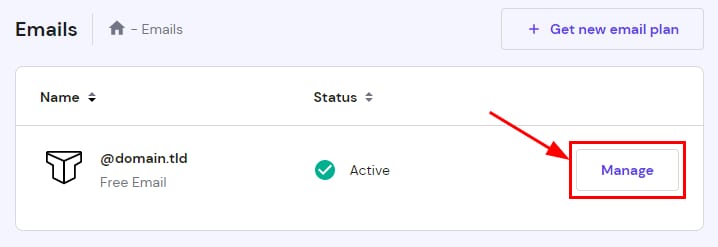
Titan Email accounts page showing the highlighted Manage button for a free email account

使用 Titan 邮件创建邮件账户并管理已创建的账户。

你可以从 hPanel 的 邮件(Emails) 部分轻松创建和管理 Titan 邮件账户:

  • 如果你是第一次为托管方案附带的 Titan 免费邮件中的某个域名或子域名创建邮件账户,请点击 设置免费邮件服务(Set up free email service) 旁边的 设置(Setup)
  • 对于已经拥有邮件账户的域名或子域名,请打开并点击 域名或子域名 旁边的 管理(Manage)

创建邮件账户

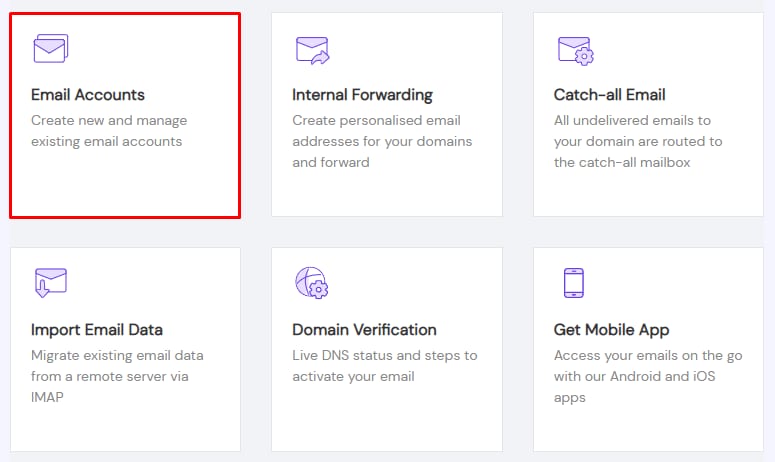
Titan Email Email Accounts tile highlighted for creating and managing email accounts
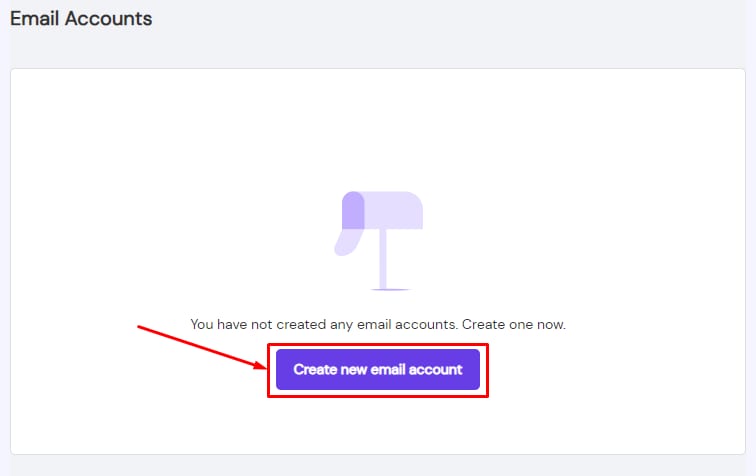
Titan Email email accounts page with Create new email account button highlighted
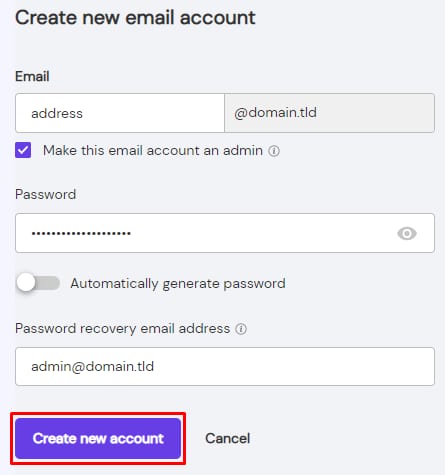
Titan Email create new email account form with the Create new account button highlighted

点击 邮件账户(Email Accounts)

在那里,你可以通过点击 创建新邮件账户(Create new email account) 来创建一个邮件账户:

输入邮件地址,并选择是否要将该账户设为管理员。创建一个密码,添加密码找回邮箱地址,然后点击 创建新账户(Create new account)

管理邮件账户

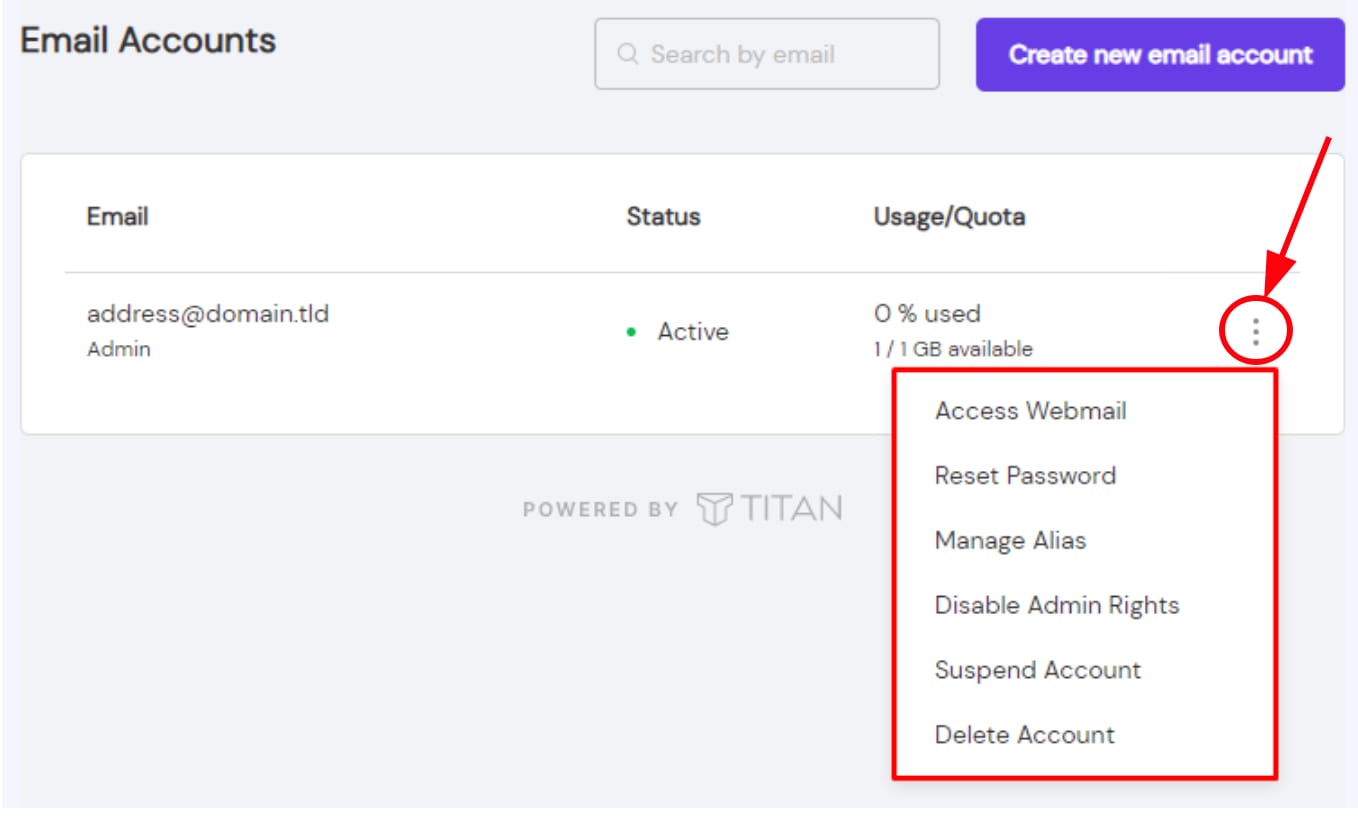
Titan Email account menu with three-dot options for an email account opened

要查找邮件账户管理选项,请点击 邮件账户 部分中的省略号按钮

在那里,你会找到以下选项:

  1. 访问 Webmail
  2. 重置密码
  3. 管理别名
  4. 禁用管理员权限(Disable Admin Rights)——当邮件账户被设为管理员时此选项可用
  5. 暂停账户(Suspend Account)——在保留现有邮件的同时,阻止该账户收发邮件
  6. 删除账户(Delete Account)

注意

  • 删除邮件账户 不可恢复;一旦你删除邮件账户,存储在该账户中的所有邮件也会永久删除

来源:Hostinger 官方帮助文档